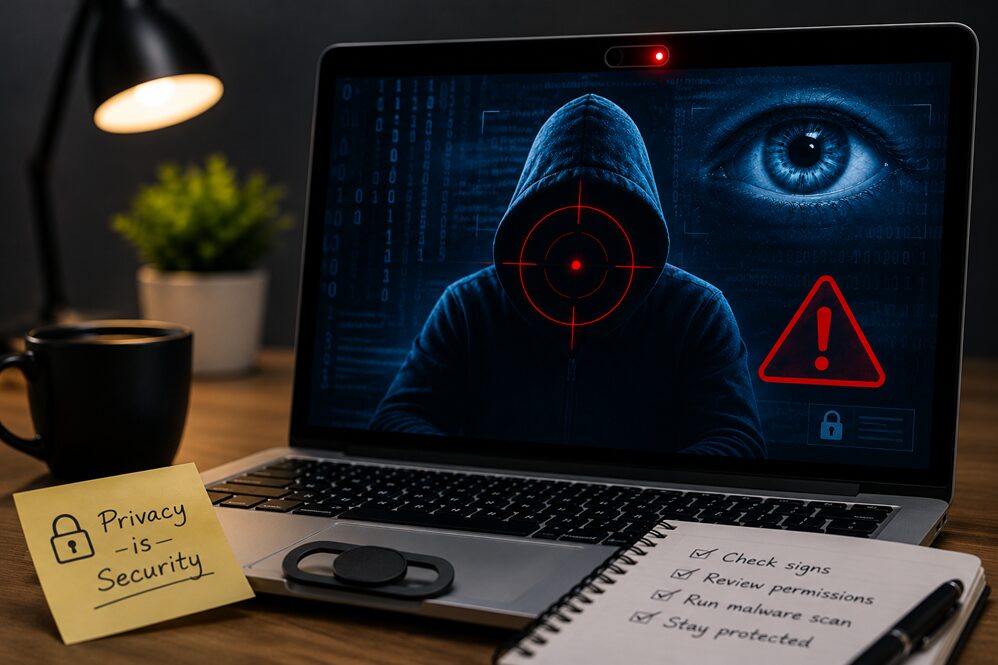
Picture this: Your laptop is sitting on your desk, and you’re going about your day. That little camera lens on top of your monitor-the one you barely think about-could be transmitting your every move to someone else. Unsettling thought, right?
The truth is, webcam security or webcam hacking is real, though it’s less common than fear-mongering headlines suggest. But just because something is rare doesn’t mean it can’t happen to you. Over the past decade, cybersecurity researchers have documented countless cases where attackers gained unauthorized access to webcams, capturing footage of unsuspecting users. Some were celebrities. Most weren’t. They were ordinary people who thought their webcams were safe.
The good news? You have more control than you might think. In this guide, I’ll walk you through exactly how to check if someone’s watching you through your webcam, what warning signs to look for, and most importantly, how to lock down your camera so you can feel confident and secure again.
Can Someone Really Spy on You Through Your Webcam?
The short answer: Yes, but it’s not as easy as movies make it seem.
Your webcam can absolutely be compromised. However, someone can’t just flip a switch and start watching you from across the world—it requires deliberate action on your part (or at least, your device) to happen.
How Hackers Actually Gain Access
Forget the Hollywood scenario where a mysterious hacker breaks through your firewall in five seconds. The reality is usually much more mundane—and that actually makes it more dangerous because it’s preventable.
Remote Access Trojans (RATs)
A RAT is a type of malware that gives someone remote control of your computer, including your webcam. It’s often hidden inside what looks like legitimate software. You download something (a game, a toolbar, a photo editor), install it, and suddenly someone has a backdoor to your system. They can access your camera, your files, your passwords—everything.
Malware and Spyware
This category is broad. Basically, it’s any malicious software designed to spy on you. Some malware specifically targets webcams because video footage is incredibly valuable to cybercriminals. It’s worth money to identity thieves, blackmailers, and corporate spies.
Phishing Emails and Social Engineering
You get an email claiming to be from Apple, Microsoft, your bank—someone official. The message sounds urgent. It asks you to click a link to verify your account or confirm suspicious activity. You click, enter your credentials, and now they have access to your accounts. Once they’re in, they can install malware.
Vulnerable Software and Unpatched Systems
If your operating system or applications have known security vulnerabilities and you haven’t updated them, you’re basically leaving a door unlocked. Hackers scan for these weak spots and exploit them systematically.
Malicious Browser Extensions
You install a “free” tool from the Chrome Web Store or Firefox Add-ons site. It promises to boost your productivity, enhance your shopping, or improve your video calls. Instead, it’s stealing data and potentially accessing your camera.
Compromised Wi-Fi Networks
Public Wi-Fi is convenient, but it’s also an attack vector. If you’re on an unsecured network, someone with basic technical skills can intercept your traffic. If you’re not careful, they might be able to push malware onto your device.
Warning Signs Someone May Be Watching You
Don’t panic at the first sign of something unusual—but don’t ignore it either. These warning signs don’t necessarily mean your webcam is compromised, but they deserve your attention.
The Webcam Light Is Acting Strange
Your webcam has an indicator light for a reason. On most laptops, this light turns on whenever the camera is active. Some devices even light up automatically when something accesses the camera.
If you see your light coming on when you haven’t opened any camera app, that’s worth investigating. The same goes if the light flickers randomly throughout the day.
Important caveat: Some older devices have indicator lights that are controlled by software rather than hardware, which means malware could theoretically disable the light while still accessing the camera. This is rare, but it’s why the light shouldn’t be your only line of defense.
Your Camera Activates Unexpectedly
You’re working in a document, checking email, scrolling through social media. Suddenly, your camera app opens on its own. Or you get a notification that an application is requesting camera access without you doing anything.
This shouldn’t happen. Your webcam doesn’t randomly decide to start recording. Something is causing that to happen, and it’s worth finding out what.
Unknown Apps Have Camera Permissions
Launch your camera settings (more on this later) and check which apps are allowed to use your camera. Do you recognize all of them?
If there’s an app you don’t remember installing or don’t use, it has no business having camera access. Same goes for system apps that seem suspicious.
Your Battery Drains Unusually Fast
A hacked webcam streaming video continuously will consume a surprising amount of power. If your laptop’s battery is draining much faster than it used to, and you’re not doing anything processor-intensive, it’s a red flag.
Keep in mind that battery degradation happens over time with normal use. But a sudden, noticeable drop in battery life is worth investigating.
Your Computer Is Running Slowly
Malware running in the background consumes system resources. If your usually snappy laptop has become sluggish, it could be a sign of an infection. Again, there are many benign reasons for slowdowns (too many browser tabs, a resource-heavy application, disk space running low), but it’s worth ruling out malware.
You Notice Unusual Network Activity
This one requires a bit of technical knowledge to spot. If you’re monitoring your network activity and you see large amounts of data being sent from your computer to unknown IP addresses, that’s concerning. Your webcam shouldn’t be uploading video to the internet without your knowledge.
Strange Files or Folders Appear
You notice new files or folders on your computer that you don’t remember creating. They might have random names, or names that look like system files but are slightly off. Malware sometimes creates these as part of its infection.
Your Antivirus Software Is Going Haywire
Frequent or unusual antivirus alerts, especially ones related to network activity or suspicious files, deserve investigation. Your antivirus software isn’t perfect, but it’s usually trying to tell you something important.
Browser Permissions Keep Changing
You visit a website and suddenly get a permission request from your browser asking if the site can use your camera. You deny it. The next day, the same site is asking again. Or worse, you discover that a site has camera permission when you never granted it.
This is often a sign of a malicious website or browser extension interfering with your settings.
How to Check If Your Webcam Has Been Hacked
Let’s get practical. Here’s how to investigate on both Windows and Mac.
On Windows
Step 1: Check Privacy Settings
- Press the Windows key and type “camera privacy settings”
- Click on “Camera privacy settings” (should appear in the search results)
- Look for the section that says “Allow apps to access your camera”
- Review the list of apps that have permission
- Toggle off any apps that shouldn’t have camera access
- Scroll down to see which specific apps have accessed your camera
Step 2: Review Startup Programs
Malware often automatically starts when you boot your computer. Here’s how to check:
- Press Ctrl + Shift + Esc to open Task Manager
- Click the “Startup” tab at the top
- Review the list of programs that start automatically
- If you see anything unfamiliar, right-click it and select “Disable”
- Do an internet search if you’re unsure about a program—many startup programs are legitimate, but some are suspicious
Step 3: Check Installed Applications
- Right-click the Start Menu and select “Apps and Features” (or Settings > Apps > Apps & features)
- Scroll through the list of installed programs
- Look for anything suspicious or unrecognized
- Pay special attention to programs with generic names, programs you don’t remember installing, or software from unfamiliar publishers
- Uninstall anything suspicious by clicking it and selecting “Uninstall”
Step 4: Inspect Device Manager
- Right-click the Start Menu and select “Device Manager”
- Expand the “Imaging devices” category
- You should see your webcam listed (usually something like “Integrated Camera” or your camera’s model number)
- Right-click on it and select “Properties”
- Check if everything looks normal (usually it should say it’s working properly)
Step 5: Run Windows Security Scan
- Type “Windows Security” in the search bar and open it
- Click “Virus & threat protection” on the left side
- Click “Scan options”
- Select “Full scan” (this takes longer but checks more thoroughly)
- Click “Scan now” and let it run completely
On macOS
Step 1: Check Privacy & Security
- Click the Apple menu > System Settings (or System Preferences on older Macs)
- Click “Privacy & Security” in the sidebar
- Click “Camera”
- Review the list of apps that can access your camera
- Uncheck any apps you don’t recognize or that shouldn’t have access
Step 2: Review Login Items
- Go to System Settings > General > Login Items
- Look under “Allow in the Login Window” and “Open at Login”
- Remove anything suspicious that you don’t recognize
- Be careful here—removing the wrong thing could affect your system, so research anything you’re unsure about
Step 3: Monitor Running Processes
- Open Activity Monitor (find it in Applications > Utilities or search for it with Spotlight)
- Click the “CPU” or “Memory” tab to see what’s using your system resources
- Look for suspicious processes using unusual amounts of CPU or memory
- If something looks fishy, do an internet search to identify it
Step 4: Scan for Malware
macOS has built-in XProtect malware scanning, but for a more thorough check, consider running a dedicated malware scanner like Malwarebytes.
Check Browser Camera Permissions
Modern browsers put you in control of camera access. Websites shouldn’t be able to use your camera without your explicit permission. But sometimes permissions get granted without your knowledge, or malicious sites try to trick you.
Google Chrome
- Click the three-dot menu in the top right
- Select “Settings”
- Click “Privacy and security” on the left
- Click “Site settings”
- Click “Camera”
- Review the list of sites with camera access
- Click the X next to any site you don’t recognize or don’t trust
Mozilla Firefox
- Click the three-line menu in the top right
- Select “Settings”
- Click “Privacy & Security” in the left sidebar
- Scroll down to “Permissions” section
- Click “Settings” next to “Camera”
- Review the list of sites with permission
- Select any site you want to revoke access from and click “Remove”
Microsoft Edge
- Click the three-dot menu in the top right
- Select “Settings”
- Click “Privacy, search, and services”
- Scroll down and click “Site permissions”
- Click “Camera”
- Review the list and remove any suspicious sites
Safari (Mac)
- Click Safari in the menu bar
- Select “Settings” (or “Preferences” on older versions)
- Click the “Privacy” tab
- You’ll see a section about camera access—Safari shows notifications when sites request camera access, but you can review your choices here
Scan Your Computer for Malware
Even if you think your system is clean, running a comprehensive malware scan is a good practice. Think of it like a medical checkup—sometimes things are hiding that you can’t see.
Microsoft Defender (Built into Windows)
Windows Defender comes pre-installed and is quite capable. For a deep scan:
- Open Windows Security (search for it in the Start menu)
- Click “Virus & threat protection”
- Under “Current threats,” click “Scan options”
- Select “Full scan” (this checks more thoroughly than a quick scan)
- Click “Scan now”
A full scan takes time—often an hour or more on older computers with lots of files—but it’s worth it for a thorough check.
Malwarebytes
This is a reputable third-party option that’s particularly good at catching things Windows Defender might miss. You can use the free version for a one-time scan or subscribe for real-time protection.
- Download it from malwarebytes.com (official site only)
- Install and open the application
- Click “Scan”
- Let it complete and review any threats it finds
- Follow the prompts to remove detected malware
Bitdefender or Norton
These are commercial antivirus solutions with strong reputations. They offer free trials if you want to test them out. Both are effective at malware detection and removal.
The key with any malware scan: download and install from official sources only. If you search for “free antivirus,” you might accidentally download fake antivirus software that’s actually malware itself.
Signs Your Webcam Is Being Accessed Right Now
These are the most immediate warning signs that something is actively happening.
Your Indicator Light Is On
If that little light next to your camera is glowing and you haven’t opened any video application, something is accessing your camera right now. Close any open applications and see if the light turns off.
You Get “Camera Already in Use” Errors
You try to open a video call app or camera application, and you get an error message saying the camera is already in use by another application. But you haven’t opened anything else.
This usually means something else has your camera locked. It could be a legitimate app running in the background (check your taskbar), or it could be malware.
Unknown Processes Are Running
Open Task Manager (Windows) or Activity Monitor (Mac) and look for unfamiliar processes using your CPU. If you see something consuming resources that you can’t identify, search for it online. Many legitimate system processes have confusing names, but some could be malware.
You Receive Security Alerts
Antivirus software, firewalls, or system notifications alert you to suspicious activity. Take these seriously. These tools are designed to warn you when something unusual happens.
How to Protect Your Webcam
Prevention is infinitely better than dealing with a compromised system. These strategies will significantly reduce your risk.
Keep Everything Updated
This is the single most important thing you can do. Hackers exploit known vulnerabilities in operating systems and software. Updates patch these holes.
Set your computer to install updates automatically. Yes, they occasionally inconvenience you by restarting when you’re not expecting it, but that’s a reasonable trade-off for security.
Use Reputable Antivirus Software
Windows Defender is decent and free. If you want additional protection, Malwarebytes is affordable and effective. You don’t need a dozen security tools—that actually slows your computer down. But having one solid solution is wise.
Be Skeptical of Emails
This is where most people get infected. That email from “Amazon” asking you to verify your account? Probably phishing. That job offer too good to be true? It is. Those messages usually:
- Create a sense of urgency (“Act now!”)
- Ask you to click a link and enter information
- Come from addresses that look slightly off
- Contain spelling or grammar errors
- Use generic greetings instead of your real name
When in doubt, don’t click. Instead, go directly to the website by typing the URL yourself or calling the company.
Download Software Only From Official Sources
Want to install a program? Get it from the official website or major app stores (Microsoft Store for Windows, App Store for Mac). Not from third-party sites that promise “free downloads” or “cracked” versions.
Enable Your Firewall
Both Windows and Mac come with built-in firewalls. Make sure yours is turned on. The firewall acts as a gatekeeper, monitoring what tries to connect to your computer.
Use Strong, Unique Passwords
A weak password like “password123” or “qwerty” is basically an open invitation. Use passwords that are at least 12 characters long and include a mix of letters, numbers, and symbols. Better yet, use a password manager like Bitwarden, 1Password, or LastPass to generate and store unique passwords for each service.
Enable Multi-Factor Authentication (MFA)
When a service offers two-factor or multi-factor authentication, use it. This means that even if someone has your password, they can’t access your account without a second form of verification (like a code from your phone). This is particularly important for email accounts, since your email is a master key to resetting passwords for everything else.
Cover Your Webcam
This is the most visible security measure and honestly, it’s psychological comfort as much as practical security. A small piece of tape, a sliding cover, or a dedicated webcam cover blocks the lens. If someone did somehow access your camera, they’d just get video of tape or plastic.
Some people think covering your camera looks paranoid. Mark Zuckerberg does it. The FBI recommends it. You’re in good company.
Review Camera Permissions Regularly
Don’t set your privacy settings and forget about them. Every few months, go back and check which apps have camera access. Uninstall applications you no longer use, which automatically removes their permissions.
What to Do If You Think You’ve Been Hacked
If you’ve followed along with this guide and believe your webcam has actually been compromised, stay calm. Here’s what to do.
Step 1: Disconnect From the Internet
If your computer is currently connected and streaming video somewhere, you want to stop that. Unplug your Ethernet cable or turn off Wi-Fi immediately. Yes, disconnect first—we’ll fix it afterward.
Step 2: Run a Comprehensive Malware Scan
Use the procedures outlined above to run a full antivirus scan. Use Windows Defender plus Malwarebytes for the most thorough check. This takes time, but it’s necessary.
Step 3: Remove Suspicious Software
Using the methods described earlier, uninstall anything you don’t recognize or remember installing. Be selective, though. Your system needs some of those applications to run properly. When in doubt, do an internet search for the program’s name before uninstalling.
Step 4: Change Your Passwords
Now that your computer should be clean, change the passwords for your most important accounts. Start with email, banking, and social media. Use strong, unique passwords, and enable MFA wherever possible.
Do this from a different device if possible. If all your passwords were compromised, a hacker might be able to watch your new passwords as you type them.
Step 5: Update Your Operating System
Ensure your Windows or macOS is completely up to date. Install any pending updates, then restart if necessary.
Step 6: Consider a Fresh Start
If you’re highly concerned or the scan finds serious infections, you might consider a clean installation of your operating system. This is the nuclear option—it erases everything and reinstalls Windows or macOS fresh. It’s time-consuming and you’ll need to reinstall your applications, but it guarantees a clean system.
Step 7: Contact Support If Needed
If you’re uncertain or believe you’ve been seriously compromised, don’t hesitate to reach out. Contact Microsoft Support (for Windows), Apple Support (for Mac), or a local cybersecurity professional. It might cost money, but it’s worthwhile if it prevents identity theft or ongoing surveillance.
Myth vs Reality: Webcam Security
Let’s separate fact from fiction.
| Myth | Reality |
|---|---|
| “If my antivirus hasn’t alerted me, I’m safe” | Antivirus is helpful but not foolproof. Some malware is designed to hide from security software. |
| “I’ll definitely know if my camera is being used” | Maybe, but not always. Some malware can disable indicator lights or operate without obvious signs. |
| “Covering my webcam ruins my device’s appearance” | Modern webcam covers are small and removable. Webcam access is more important than aesthetics. |
| “Webcam hacking is extremely common” | It’s real, but statistically uncommon. You’re more likely to be harmed by poor passwords or phishing. |
| “If I use a strong password, I’m completely safe” | Strong passwords help, but they’re just one layer of security. You need multiple safeguards. |
| “Only famous people get hacked” | Webcam hackers often target everyday people because they’re easier targets and less likely to have security in place. |
| “Free antivirus is useless” | Windows Defender is free and respectable. It’s not as powerful as paid options, but it’s solid for basic protection. |
| “I don’t need to update my software if it’s working fine” | Updates patch security vulnerabilities. Delaying updates leaves you exposed. |
Expert Tips for Webcam Security
Here are some professional-level best practices that go beyond the basics:
Use a VPN for Public Wi-Fi
If you’re regularly working on public networks, consider a reputable VPN service. This encrypts your traffic and makes it much harder for someone on the same network to intercept your data or push malware to your device.
Disable Your Camera in BIOS (Advanced)
Some computers let you disable the webcam at the BIOS level. This is the most hardcore approach—if your camera is disabled in BIOS, it literally can’t be accessed by any software. However, this requires technical knowledge and you’ll need to re-enable it if you actually want to use your camera.
Segment Your Network
If you’re setting up a home network, use separate passwords for guest and primary networks. This prevents someone who’s hacked your guest Wi-Fi from easily accessing your computers.
Monitor Network Traffic
Advanced users can monitor which applications are accessing the internet using tools like GlassWire (Windows) or Little Snitch (Mac). If you see an application making unexpected connections, it’s a red flag.
Keep Your BIOS Updated
Just as your operating system needs updates, your computer’s BIOS occasionally receives updates from manufacturers. Check your computer manufacturer’s website for BIOS updates periodically.
Frequently Asked Questions
Q: Can someone hack my webcam if my computer is turned off?
A: No. If your computer is completely powered off, your webcam can’t be accessed. When you shut down, you cut the power to the camera hardware itself.
Q: Is it safe to use my webcam on public Wi-Fi?
A: The safety of your webcam depends on your computer’s security, not your Wi-Fi. If your computer is clean and updated, your webcam is relatively safe. However, public Wi-Fi itself is risky for other reasons (data interception), so use a VPN if you’re doing sensitive work.
Q: If I put tape over my webcam, will it affect my video quality when I remove it?
A: No. The tape blocks light from entering the lens, but it won’t damage anything. Once you remove it, your camera will work perfectly.
Q: Can a website hack my webcam without me clicking anything?
A: Modern browsers are designed to prevent this. A website can’t access your camera without your explicit permission. If a site requests permission, you’ll see a notification asking you to allow or deny it.
Q: What should I do if I find malware on my computer?
A: Use antivirus software to remove it (following the steps outlined above), then change your passwords and monitor your accounts for suspicious activity. If you believe your financial information was compromised, contact your bank.
Q: Is macOS safer from webcam hacking than Windows?
A: Both operating systems can be targeted. macOS is targeted less often simply because there are fewer Mac users, not because the system is inherently more secure. Good security practices matter regardless of your operating system.
Q: Can my router be hacked and my camera accessed through it?
A: Theoretically yes, but it’s complicated. Your router would need to have a serious vulnerability and be targeted specifically. Keep your router updated and use a strong Wi-Fi password to minimize this risk.
Q: What’s the difference between a full scan and a quick scan?
A: A quick scan checks common areas where malware typically hides and usually takes 10-30 minutes. A full scan checks your entire hard drive and can take an hour or more. For a thorough check of potential webcam hacking, use a full scan.
Q: If I see my webcam light on, does that definitely mean I’m being hacked?
A: Not necessarily. The light might be on because you left a camera application open, or because an update is running. Check which applications are open and access your camera permissions. But yes, investigate it.
Q: Can factory resetting my computer remove webcam malware?
A: A factory reset erases your hard drive and reinstalls the operating system fresh. Yes, it will definitely remove malware. However, it’s time-consuming since you’ll need to reinstall all your programs and restore your files from backup.
Conclusion
The possibility of someone watching you through your webcam is unsettling, but understanding the actual risks and taking practical steps to protect yourself removes most of the anxiety. Webcam hacking happens, but it’s preventable.
Start with the fundamentals: keep your software updated, use strong passwords, be skeptical of unexpected emails, and download software only from reputable sources. These practices will protect your webcam and your entire digital life.
Check your camera permissions today. Review which applications have access and remove the ones you don’t need. Put some tape or a cover over your webcam if it makes you feel better—honestly, it’s practical and symbolic. Monitor your antivirus for alerts.
Most importantly, don’t let fear paralyze you. Billions of people use webcams safely every day. With reasonable precautions and awareness, you’ll be among them. Your privacy matters, and these steps ensure you’re in control.
Take 15 minutes this week to go through the checklist in this article. Your future self—the one having a video call with confidence instead of paranoia—will thank you.