You probably think your password is secure. You’ve got numbers, capital letters, maybe even a special character or two. You’re not clicking on obviously suspicious links, and you didn’t download anything weird yesterday. So your accounts should be fine, right?
Not necessarily.
Password theft doesn’t always look like what you’d expect. There’s no notification that pops up saying “Hey, a hacker just got your credentials.” There’s no alarm. You won’t see it coming because the best theft happens invisibly, in the background, while you’re going about your day.
The concerning reality is that millions of passwords get stolen every single year—and most people have no idea until something goes wrong. Some victims discover the breach when they try to log in and can’t. Others only notice months later when they spot charges they don’t recognize. A few lucky ones find out through breach notification emails, which have become increasingly common as companies fight over whether transparency is actually their responsibility.
Here’s what you need to know: cybercriminals have gotten incredibly creative about extracting passwords. They’re not all sitting in a dark basement typing random commands. They’re using psychology, technology, and patience to trick you into handing over access to your most sensitive accounts. And the methods range from surprisingly simple to alarmingly sophisticated.
In this guide, we’ll walk through exactly how modern password theft works. You’ll learn the ten most common techniques hackers use right now, how to spot if you’ve been compromised, and the concrete steps that actually make a difference in protecting yourself.
Why Your Password Is More Valuable Than You Think
Before we dive into how hackers steal passwords, it’s worth understanding why they even bother. A password isn’t just a random credential—it’s a key to your entire digital life.
Once someone has your password, they don’t just get access to one account. They get your email, which is the master key to everything else. From there, they can reset passwords on your bank account, social media profiles, shopping sites, and cryptocurrency wallets. They can apply for credit cards in your name, steal your photos, impersonate you to your contacts, or just cause chaos.
The financial impact can be devastating. Identity theft victims lose billions annually. But it goes beyond money. A compromised email account can destroy your reputation, expose your private messages, compromise your professional relationships, or leave you vulnerable to blackmail.
Hackers know this. They also know that a single stolen password often works across multiple services because so many people reuse the same password everywhere. So when they steal your credentials from one place, they immediately try those same details on Gmail, Facebook, Amazon, and their bank. This is why password theft is the foundation of so many other cybercrimes—it’s the entry point that unlocks everything.
Corporate data also matters tremendously. A single employee’s password is sometimes all a hacker needs to break into an entire company network, which can lead to ransomware attacks, data theft, or disruption of critical services.
Understanding the value of what they’re stealing helps explain why cybercriminals invest so much effort and creativity into taking your passwords. They’re not playing for small stakes.
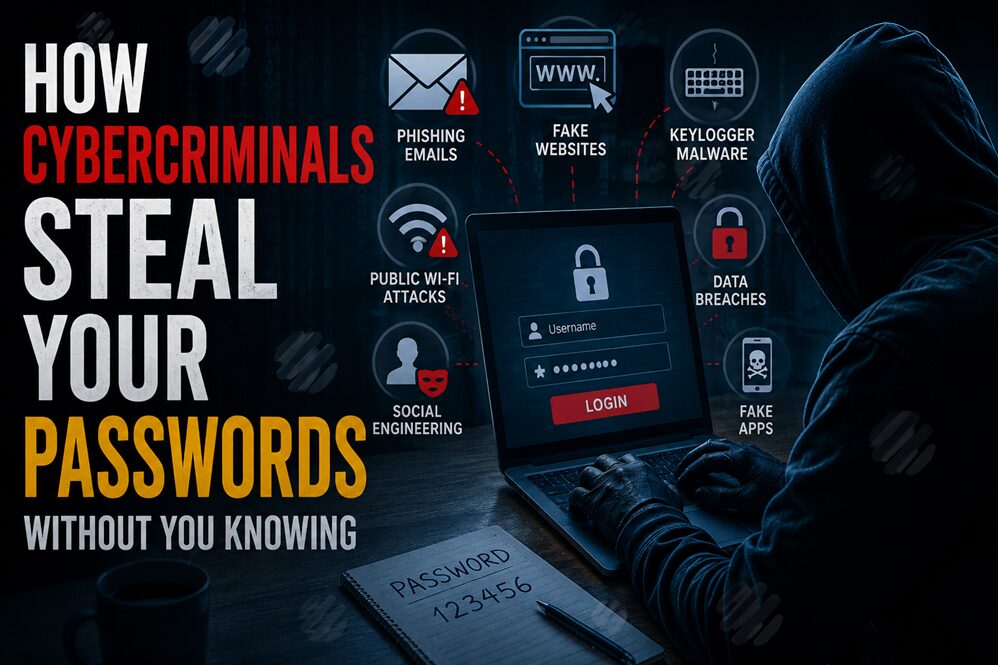
10 Common Ways Cybercriminals Steal Passwords
1. Phishing Emails
Phishing is still the most effective password theft technique, and it’s not because hackers are brilliant tech geniuses. It’s because they understand human psychology better than most of us understand ourselves.
Here’s how it works: A hacker sends you an email that looks like it came from your bank, PayPal, Microsoft, or Netflix. The email creates a sense of urgency—”Verify your account now or it will be closed,” “Suspicious activity detected,” “Update your payment method immediately.” Your heart rate spikes. You click the link.
What you don’t realize is that the link takes you to a fake login page that looks almost identical to the real one. You’re nervous about losing access to your account, so you don’t look closely. You type your username and password. The page seems to load slowly or shows an error message. You might try entering your credentials again, and this time it works.
But here’s what actually happened: the hackers captured everything. They have your credentials, and now they own your account.
What makes phishing so effective is that it combines technical skill with social engineering. The hacker might have researched your company to make the email more believable. They might have studied your organization’s communication style and replicated it perfectly. They understand that fear and urgency override our normal skepticism.
Real example: A phishing campaign in 2023 targeted users of a major cloud storage provider. The fake login pages were so convincing that thousands of users fell for it. The attackers harvested credentials for weeks before anyone realized what was happening. By then, they’d already exfiltrated sensitive files from hundreds of accounts.
Warning signs of phishing:
- Urgent language (“Act now,” “Verify immediately”)
- Generic greetings (“Dear customer” instead of your name)
- Suspicious sender addresses (slight misspellings like “paypa1.com”)
- Requests for passwords or personal information (legitimate companies never do this)
- Links that don’t match the stated destination
- Grammatical errors or awkward phrasing
- Mismatched logos or branding
2. Fake Websites
Criminals exploit our expectations of how website URLs should look. Ever notice how many domains are just one typo away from legitimate sites?
This technique is called typosquatting. A hacker might register gogle.com or facbook.com, then set up a page that’s pixel-perfect identical to the real thing. When you mistype a domain or click a link from an email you thought was legitimate, you land on their fake site. You log in with your credentials, and once again, the attackers have won.
More sophisticated versions go beyond typos. Some attackers buy legitimate-looking domains that incorporate the company name in a way that doesn’t seem suspicious: “secure-verify-paypal.com” or “microsoft-account-update.com.” They’ll even use HTTPS encryption, so you see that little green lock icon that makes websites look secure.
Fake banking pages are particularly common. An attacker might create a convincing replica of your bank’s login portal, then trick you into visiting it through a phishing email. Since you’re already expecting to see a login form when your bank supposedly needs you to “verify your account,” you don’t question it. You enter your credentials, and within minutes, the attacker is transferring money out of your account.
The same happens with social media platforms. Fake Facebook and Gmail login pages are among the most prevalent on the internet because billions of people use these services, making them high-value targets for attackers.
3. Keylogger Malware
Keyloggers are a different breed of threat entirely. Instead of tricking you into entering your password on a fake page, malware records every single keystroke you type on your device.
Here’s the scenario: You download what looks like a legitimate application—maybe a game, a browser extension, a PDF reader, or productivity software. The file was disguised to look harmless, or you found it on a site that looked trustworthy. You install it without thinking twice.
What you don’t know is that the software contains a keylogger. From that moment on, every password you type, every message you send, every search you perform, and every number you enter gets recorded. The attacker has a complete log of your digital activity, including your banking credentials, social media passwords, work emails, and anything else you type.
The scary part is that you won’t notice it happening. Your computer doesn’t slow down noticeably. There’s no indication that something’s recording you. Meanwhile, the attacker might have access to your passwords for weeks or months before you realize anything’s wrong.
This was the technique used in some notable incidents where employees’ credentials were stolen, leading to corporate data breaches. The malware was disguised as innocuous software, and by the time the compromise was discovered, the damage was extensive.
Signs your device might be infected:
- Unusual slowdowns or freezing
- Browser settings changing without your action
- Unexpected pop-ups or ads
- Strange processes running (check your task manager)
- Battery draining faster than normal
- Unexpected network activity
4. Public Wi-Fi Attacks
That free coffee shop Wi-Fi is incredibly convenient, but it’s also an open invitation for hackers to intercept your data.
When you connect to an unsecured public network, everything you transmit can potentially be captured by someone else on that same network. This includes passwords if you log into your email, banking app, or social media while connected.
There are two main attack methods used on public Wi-Fi:
Fake hotspots: A hacker sets up a fraudulent Wi-Fi network with a legitimate-sounding name like “Airport-WiFi” or “Hotel-Guest-Network.” You connect, thinking you’re using the official network, but you’re actually connecting directly to the attacker’s device. They can now see all your unencrypted traffic, including your passwords.
Man-in-the-middle attacks: The attacker positions themselves between you and the real Wi-Fi router, intercepting all data passing through. Without encryption, they see everything—including your login credentials if you’re using an unencrypted connection.
The problem is made worse by HTTPS adoption gaps. Older websites and some legacy applications still use unencrypted HTTP connections. If you log into one of these services over public Wi-Fi, an attacker can capture your credentials.
A common scenario: You’re at the airport and check your work email quickly over the airport Wi-Fi. You didn’t realize the connection wasn’t fully encrypted. An attacker sitting a few seats away captured your email credentials. Now they have access to sensitive company information, can impersonate you in corporate communications, or might use your email to launch attacks on other employees.
5. Data Breaches
This is the one you have the least control over, which is part of what makes it so frustrating.
When a company’s database gets hacked, millions of user credentials can be exposed at once. But you didn’t do anything wrong. You used a secure password. You didn’t fall for phishing. But the service you trusted had a security vulnerability that attackers exploited, and now your credentials are compromised.
The 2023 MOVEit Transfer vulnerability is a perfect example. A software flaw allowed attackers to break into the databases of hundreds of organizations, exposing millions of records containing usernames, passwords, and sensitive personal information.
What happens next is equally concerning. Attackers don’t just have one database of passwords anymore—they have massive collections from dozens of breaches combined. They look for common usernames and passwords across multiple databases, then they sell these credentials on dark web marketplaces.
This leads to credential stuffing attacks. An attacker buys a list of credentials from a breach and writes a bot that automatically tries those same username-password combinations on other popular websites. They’ll test your credentials from the compromised company against Amazon, LinkedIn, PayPal, Twitter, Gmail, and dozens of other services. If you reused your password, they’ll gain access. If you didn’t, at least they move on to the next set.
The really insidious part is that you might have no idea your credentials were even in a breach. Many companies sit on security incidents for months before disclosing them—or never properly notify affected users at all.
6. Password Reuse
Password reuse is how one breach becomes ten breaches.
We get it. Remembering dozens of complex, unique passwords is hard. So many people use the same password (or variations of it) across multiple websites. It’s convenient. It feels manageable. It’s also a disaster waiting to happen.
Here’s the domino effect: A hacker breaches a smaller, less-secure website. They get your username and password. Now they try those credentials on bigger targets: your email, your bank, your social media, your workplace system. And because you reused that password (or something similar), they often succeed.
One breach suddenly becomes a full account takeover situation. The attacker logs into your email, which becomes the master key to everything else. They reset passwords on your bank account, your social media, your streaming services, everything.
The problem is compounded by how we create variations on passwords. If your password is “BlueJay$2022,” you might think using “BlueJay$2023” on another site is safe because you “changed” the password. But hackers expect these variations. They’ll automatically try common modifications like changing the year, swapping numbers and symbols, or adding numbers at the end.
7. Social Engineering
Sometimes the most effective attack doesn’t involve technology at all. It’s just someone with good manipulation skills.
Social engineering is the art of psychologically manipulating someone into divulging confidential information or granting access to secure systems.
Pretexting: A hacker calls your workplace pretending to be from IT support. They sound professional and know just enough about your company to seem legitimate. They’ve got a convincing story: “We’re updating our security systems and need you to verify your password for authentication purposes.” You’re stressed, busy, and the request seems routine, so you give them your credentials. They’ve now got access to your corporate network.
Baiting: An attacker leaves a USB drive in your office parking lot labeled “2024 Salary Information.” Curious, you plug it into your computer. It contains malware that harvests your passwords or credentials.
Quid pro quo attacks: A hacker contacts you with an enticing offer: “I can help fix your computer issue, but I’ll need remote access to your system.” Once they’re in, they install credential-stealing malware.
The key to social engineering is understanding human nature. We want to be helpful. Trust in authority figures. We get curious. We’re in a hurry. Attackers exploit all of these tendencies.
Notable example: In a 2023 incident, attackers called employees of a major tech company pretending to be from the security team, claiming they needed password verification for a “security update.” Multiple employees fell for it because the callers had done their research and knew internal details about the company.
8. Malicious Browser Extensions
Browser extensions are incredibly convenient. They save passwords, block ads, translate languages, and improve productivity. They’re also a perfect vehicle for password theft.
You download what looks like a legitimate extension from your browser’s app store. Maybe it’s a “password manager,” a productivity tool, or a video downloader. The description seems helpful, the reviews look positive, and it has thousands of users. You install it.
What you don’t realize is that the extension has hidden code that captures every keystroke in your browser or specifically monitors password fields. It can intercept the autofill data from your real password manager. Some malicious extensions even override legitimate ones, so when you think you’re using a trusted password manager, you’re actually using the attacker’s version.
The extension might also steal cookies, giving the attacker session information that lets them log into your accounts without needing your password.
The challenge is that detecting malicious extensions isn’t straightforward. The extension might work perfectly fine as advertised while simultaneously stealing data in the background. You won’t notice any degradation in performance or functionality because the theft is so minor in comparison to the extension’s legitimate operations.
9. Fake Mobile Apps
Mobile apps are even more susceptible to this attack than browser extensions because most people don’t scrutinize apps the same way they do desktop software.
An attacker creates a fake version of a popular app—maybe a banking app, a cryptocurrency wallet, or a productivity tool—and uploads it to an app store. They might slightly misspell the name so it looks similar to the real thing: “Instgram” instead of “Instagram,” “Faecbook” instead of “Facebook.”
Someone looking for the app quickly, not paying close attention to the exact spelling, installs the fake version instead of the legitimate one. The app looks exactly like the real thing, but any credentials you enter get sent directly to the attacker.
More sophisticated attacks use legitimate-sounding apps that seem useful but actually permissions abuse. They ask for access to your contacts, camera, microphone, and storage. While you’re thinking they need these for the app’s functionality, the attacker is monitoring your activity, capturing screenshots of your screen when you’re logging into accounts, or accessing saved passwords on your phone.
Credential harvesting apps are surprisingly common. They might present themselves as a game or a utility but are actually designed solely to collect login information.
10. Shoulder Surfing & Physical Theft
Not all password theft is high-tech. Sometimes it’s as simple as someone watching you type.
Shoulder surfing happens in public spaces: coffee shops, libraries, airports, even on public transportation. You’re typing your password while someone stands nearby, easily seeing what you type. Maybe they’re a random criminal, or maybe they’re targeting someone specific. Either way, they’ve got your password.
ATM PIN theft often happens through shoulder surfing. You’re trying to discreetly cover the keypad while entering your PIN, but an attacker watching from nearby captures the numbers. Then they steal your card (or already have a cloned copy), and they’ve got everything they need.
Workplace password theft happens through similar methods. An employee walks past your desk while you’re typing your password, or they glance at a sticky note you’ve got under your monitor. It’s careless, but it happens constantly in corporate environments.
More aggressive attacks involve actual theft. Your laptop is stolen from your home or office, and the attacker now has direct access to your device. If they log in before you’ve set a strong BIOS password or encrypted the drive, they can extract saved credentials, browser cookies, and cached login information.
The same applies to phones. A stolen phone gives attackers access to your saved passwords, two-factor authentication texts, and notification emails from sensitive accounts.
Warning Signs Your Password Has Been Stolen
The challenge with password theft is that it often goes undetected for weeks or months. But there are signs you can watch for that suggest your credentials have been compromised.
Unknown login alerts: If you receive an email notification that someone logged into your account from an unfamiliar location or device, this is a major red flag. Most services offer this feature, and it’s worth enabling.
Password reset emails: You receive a notification that someone requested a password reset for an account you didn’t try to reset. This suggests someone else has access and is trying to take it over.
Locked accounts: You suddenly can’t log into an account, and you haven’t changed the password. This often means an attacker locked you out after gaining access.
Strange purchases: You spot charges on your credit card or bank account that you didn’t authorize. This is a sign of financial fraud, which often begins with password theft.
Friends receiving spam: People in your contacts tell you they’ve received spam messages from your email or social media account. This indicates your account is being used to distribute malware or phishing messages.
Suspicious activity: Your email shows sent messages you didn’t write, your social media shows posts you didn’t make, or your cloud storage shows files you didn’t upload. Your account is being actively exploited.
Password reset failures: You try to reset a password, but the reset email never arrives, or it says you’re not recognized as the account owner. An attacker might have changed the recovery email address.
If you notice any of these signs, it’s time to take action.
What To Do Immediately If You Think Your Password Was Stolen
Discovering that your password’s been compromised is stressful, but swift action can minimize the damage. Here’s your action plan:
1. Change your password immediately
Go to the affected account and change your password right now. Make it completely new and completely different from your previous one. Do this from a secure device that you’re confident hasn’t been compromised. If you’re not sure about your device, use a different one.
2. Change your email password next
Your email is the master key to everything. If your email password is compromised, prioritize changing it. Attackers can use your email to reset passwords on all your other accounts.
3. Enable multi-factor authentication
If the account offers two-factor authentication or multi-factor authentication, enable it immediately. This adds a second layer of protection even if your password is compromised again.
4. Check for account recovery changes
Go into the account settings and verify your recovery email and phone number haven’t been changed. An attacker might have modified these to lock you out.
5. Review login activity
Many services show a log of recent login locations and devices. Review this list and log out of any unfamiliar sessions. Make a note of when suspicious logins occurred.
6. Run a malware scan
Use a reputable antivirus tool to scan your device for malware. If a keylogger or credential stealer is active on your machine, changing your password won’t matter much—the attacker will just capture the new one.
7. Check Have I Been Pwned
Visit haveibeenpwned.com and search for your email address to see if it appears in known data breaches. This gives you context about where your credentials might have come from.
8. Contact your bank if financial accounts are affected
If your bank credentials were compromised, call them directly (use the number on your card, not from an email). They can monitor your account for fraud and protect it proactively.
9. Place a fraud alert
Contact one of the three major credit bureaus (Equifax, Experian, TransUnion) and place a fraud alert on your credit report. This makes it harder for attackers to open new credit accounts in your name.
10. Monitor your credit
Check your credit report regularly over the next several months. You’re entitled to a free credit report annually from annualcreditreport.com.
How To Protect Yourself From Password Theft
Now that you understand how passwords get stolen, let’s talk about actually protecting yourself. These aren’t hypothetical suggestions—they’re essential security practices that demonstrably reduce your risk.
Use a password manager:
This is honestly the single biggest improvement most people can make. A password manager like Bitwarden, 1Password, or Dashlane stores your passwords securely, encrypted on your device, and can generate complex unique passwords for each service. This means you don’t have to remember dozens of passwords, you can use different passwords everywhere (eliminating the reuse risk), and the tool handles the complexity.
Yes, you’re trusting one service with all your passwords. But you’re trusting it to a service that’s specifically designed for security, with encryption that even the company can’t break, rather than relying on your ability to remember complex passwords or using the same password everywhere.
Create genuinely unique passwords:
If you’re not ready for a password manager, at minimum use completely different passwords for critical accounts: email, banking, and anything connected to payments or identity. Make passwords at least 16 characters long, using a mix of uppercase, lowercase, numbers, and symbols.
Enable multi-factor authentication everywhere:
The best password in the world won’t help if an attacker has it. Multi-factor authentication adds a second verification step—usually through an app, SMS text, security key, or biometrics—that makes stealing passwords significantly less useful. Even if someone has your password, they can’t log in without this second factor.
Use security keys for your most important accounts:
Security keys are physical devices (like a Yubikey) or hardware you already have (your phone) that serve as the second authentication factor. They’re more secure than SMS or app-based codes because they can’t be intercepted or tricked by phishing attacks. Using them for your email and high-value accounts dramatically reduces compromise risk.
Keep software updated:
Every security patch you ignore is a potential vulnerability. This applies to your operating system, browsers, antivirus software, and applications. Attackers actively exploit known vulnerabilities, so staying updated is essential.
Be cautious on public Wi-Fi:
Avoid logging into sensitive accounts (email, banking, etc.) on public Wi-Fi. If you must, use a reputable VPN service that encrypts your connection. A VPN doesn’t make you completely invulnerable, but it adds meaningful protection against local Wi-Fi attacks.
Verify sender addresses:
When you get an email from a company, hover over the sender name to see the actual email address. Phishing emails often come from addresses that look close to legitimate ones but aren’t quite right. If you’re at all suspicious, don’t click links in the email—instead, navigate directly to the company’s website by typing the URL into your browser.
Never reuse passwords:
This one deserves repeating because it’s so important. If you use the same password across multiple sites and one site gets breached, your other accounts are at immediate risk. This is the single easiest way for an attacker to move from one account compromise to several.
Use antivirus protection:
Keep legitimate antivirus or anti-malware software installed and updated on your devices. This won’t catch everything, but it catches a lot of known threats.
Secure your recovery options:
Ensure your password recovery options (backup email address and phone number) are current and actually under your control. These are often what an attacker uses to take over your account if they somehow lock you out.
Passwords vs Passkeys
You’ve probably heard the term “passkeys” thrown around lately, and you might be wondering if they’re the future or just another trend.
Passkeys are a newer authentication method that aims to replace passwords entirely. Instead of remembering a password, you prove your identity using something you have (your phone or computer) combined with something you are (your fingerprint or face).
Here’s how they work: When you set up a passkey on a service, you use your phone’s fingerprint or face recognition to confirm the setup. The service stores a public key, while your device stores the private key. When you want to log in later, you use your fingerprint or face to unlock the private key on your phone, and it authenticates you to the service without ever transmitting an actual password.
The advantages are significant:
- They’re phishing-resistant because they work through cryptography, not passwords you might type into fake sites
- They eliminate password reuse and password strength concerns
- They’re convenient because you’re using biometrics you’re already using to unlock your phone
- They’re more secure than multi-factor authentication with codes
The limitations:
- Not all websites support them yet, so you’ll still need passwords for years
- They’re tied to your device, so losing your phone creates recovery complications
- They require familiarity with new technology
- Some people have concerns about biometric data storage
Should you switch entirely to passkeys? Not immediately. They’re still rolling out, and many services don’t support them. But as they become more widespread, they’re absolutely worth using for important accounts that offer them. Meanwhile, passwords combined with strong multi-factor authentication remain your best protection.
Common Myths About Password Security
The internet is full of well-intentioned but incorrect security advice. Let’s address some widespread misconceptions:
Myth 1: A strong password alone is enough to keep you safe
Reality: A strong password is necessary but not sufficient. If a hacker uses phishing to get your password, strength doesn’t matter—they have it. If malware steals it, strength doesn’t matter—it’s captured. A strong password needs to be paired with multi-factor authentication for real protection.
Myth 2: Antivirus software catches all threats
Reality: Antivirus is helpful but can’t catch everything. New malware variants are created constantly, and attackers often use zero-day vulnerabilities that no antivirus signature recognizes yet. Antivirus is one layer of protection, not complete protection.
Myth 3: Macs can’t get malware
Reality: While Macs have some inherent security advantages over Windows, they absolutely can get infected with malware. Several high-profile Mac malware campaigns have proven this. The misconception exists because macOS has a smaller market share, so attackers focus more on Windows, creating the false impression of invulnerability.
Myth 4: Hackers only target wealthy people or famous people
Reality: Hackers operate at scale. They run automated scripts that try to compromise millions of accounts. You don’t need to be a high-value target to get hacked—you just need to have an account. The truth is that volume attacks targeting ordinary people are far more common and successful than targeted attacks on specific high-value individuals.
Myth 5: Two-factor authentication makes your account unhackable
Reality: Multi-factor authentication is extremely effective and dramatically improves security. But it’s not perfect. Certain sophisticated attacks like SIM swapping or MFA fatigue attacks (where you get repeated push notifications until you accidentally approve an attacker’s login) can bypass it. Combined with strong passwords and security keys, MFA is powerful, but not unbeatable.
Conclusion
Cybercriminals steal passwords through dozens of different methods, from high-tech malware to old-school manipulation. The techniques range from phishing emails that look exactly like legitimate communications to malicious apps that look exactly like legitimate apps to people simply watching you type.
But here’s the empowering part: most password theft is preventable through concrete actions you can take today. A password manager. Multi-factor authentication. Security keys for critical accounts. Skepticism about unsolicited emails. Unique passwords everywhere. These aren’t advanced techniques—they’re standard practices that have proven effective for protecting accounts.
The question isn’t whether you might get targeted for password theft. Eventually, you will be. A service you use will get breached, or you’ll receive a convincing phishing email, or you’ll connect to a compromised network. The question is whether you’ve taken the steps that let you survive these inevitable incidents with minimal damage.
Take 30 minutes today to:
- Check if any of your email addresses have appeared in known breaches using haveibeenpwned.com
- Enable multi-factor authentication on your email account
- Start using a password manager and change your most important passwords
These three actions alone eliminate the majority of password theft risks. You won’t prevent every possible attack, but you’ll prevent the ones that actually succeed against most people. And in the world of cybersecurity, that’s what matters.
Frequently Asked Questions
Can hackers steal my password without me clicking anything or installing anything?
Yes. Data breaches expose millions of passwords without any action from you. Public Wi-Fi attacks can capture passwords without your knowledge. Malware on your device can capture keystrokes without you installing the malicious software directly (you might have installed a legitimate program that happened to contain malware). The bad news is that many password theft methods don’t require user interaction. The good news is that multi-factor authentication protects you even in these scenarios.
How do I know if my password has been leaked in a data breach?
Visit haveibeenpwned.com and enter your email address. The site tracks massive public breaches and tells you if your email appears in any of them. You can also sign up for alerts, and the service will notify you if your email appears in future breaches. This site is maintained by security researcher Troy Hunt and is trusted throughout the security industry.
Is Google Password Manager safe?
Google Password Manager (the built-in password saving feature in Chrome and Android) uses encryption and is reasonably secure. However, many security experts prefer dedicated password managers like Bitwarden or 1Password because they offer stronger encryption, more features, and better security practices. Google’s version is convenient if you’re already in the Google ecosystem, but a dedicated manager gives you more control and typically stronger security.
Should I change all my passwords regularly if nothing seems wrong?
For most people and most accounts, regularly changing passwords (like every 30 days) provides minimal security benefit and often backfires when people create weaker variations of old passwords. However, you should change passwords immediately if: a service you use experiences a breach, you suspect your password has been compromised, or you haven’t changed a password in several years. Focus your efforts on strong unique passwords and multi-factor authentication rather than frequent changes.
Are password managers worth using if I’d be trusting one service with everything?
Yes, absolutely. Password managers are specifically designed, audited, and hardened for security. They use encryption so strong that even the company running the service can’t read your passwords. In practice, a password manager is far more secure than trying to remember complex passwords (which leads to weak passwords), writing them down (which creates physical security risks), or reusing the same password everywhere (which causes the domino effect we discussed). The concentrated risk of a password manager is far lower than the distributed risk of current password habits for most people.
Can two-factor authentication and multi-factor authentication stop hackers completely?
Multi-factor authentication stops the vast majority of attacks because it makes stealing just your password insufficient. However, sophisticated attacks like SIM swapping (where an attacker tricks your phone carrier into moving your number to their phone), MFA fatigue (where you’re bombarded with so many authentication requests that you accidentally approve one for the attacker), or man-in-the-middle attacks (where the attacker intercepts the authentication), can sometimes bypass MFA. Using security keys instead of SMS or app-based codes makes these attacks significantly harder. Pairing strong MFA with other security practices gives you the strongest protection available.
What’s the safest way to create a password?
The safest way is to let a password manager generate one randomly. Aim for at least 16 characters combining uppercase letters, lowercase letters, numbers, and symbols. Avoid personal information (birthdays, names, addresses), dictionary words, predictable patterns (keyboard walks like qwerty), or sequential numbers. The longest and most random your password is, the better. If you’re creating a memorable passphrase for something like a password manager’s master password, use multiple unrelated random words (correct horse battery staple style) rather than a single complex word.