Your stomach drops. You see a notification from a friend asking, “Are you selling cryptocurrency?” or you notice posts you don’t remember making. Your heart races. The panic sets in: My Facebook account has been hacked.
If this is happening to you right now, take a breath. You’re not alone. Millions of Facebook users face account compromise every year. The good news? What to do after Facebook account gets hacked is actionable, and most accounts can be recovered quickly if you act immediately.
This comprehensive guide walks you through exactly what to do after your Facebook account is hacked—from the first signs of compromise to the final security steps that will prevent it from happening again. Whether a hacker gained access through phishing, malware, or password reuse, this step-by-step guide will help you regain control of your account, protect your personal information, and restore your peace of mind.
Signs Your Facebook Account Has Been Hacked
Recognizing the warning signs early is critical. The faster you detect a compromise, the less damage a hacker can do. Here are the most common indicators that your account has been compromised:
Unrecognized Login Activity
One of the clearest signs is seeing login locations you don’t recognize. Check your login history-if you see activity from cities you’ve never visited or countries where you don’t live, your account has likely been accessed by someone else.
Password Changed Unexpectedly
If you’re unable to log in with your usual password, and you didn’t change it yourself, a hacker has almost certainly reset it. This is one of the most urgent signs and requires immediate action.
Unknown Posts or Messages
You notice embarrassing posts on your timeline, messages in your inbox that you never sent, or comments you don’t remember making. These are classic signs that someone else has control of your account.
Suspicious Friend Requests
Friends report receiving strange friend requests from you, or you see unfamiliar people added to your friend list. Hackers often use compromised accounts to spread malware links or phishing scams to your network.
Email or Phone Number Changes
The worst-case scenario: the hacker has already changed your registered email address or phone number. This locks you out of recovery options and requires Facebook’s direct intervention.
Missing Messages or Deleted Content
You notice messages or photos have disappeared from your account without your action, or your profile picture and bio have been altered.
Expert Tip: Don’t delay if you notice any of these signs. The first 24 hours after a hacking are the most critical for recovery.
Step 1: Secure Your Email Account First
Before you even touch your Facebook account recovery, you must secure the email account associated with your Facebook profile. Here’s why:
Why Hackers Target Email Accounts
Your email is the master key to your digital identity. If a hacker has access to your email, they can:
- Reset passwords on any account linked to that email
- Access your Facebook recovery codes
- Reset your bank and payment app passwords
- Intercept password reset emails
- Lock you out of accounts permanently
Immediate Email Security Steps
Change Your Email Password Immediately
- Use a different device or computer (ideally one the hacker hasn’t accessed)
- Go to your email provider (Gmail, Outlook, Yahoo, etc.)
- Sign in and navigate to Security or Account Settings
- Select “Change Password” or “Security”
- Create a new, strong password (at least 16 characters with numbers, symbols, and mixed case)
- Do NOT use a password you’ve used before
Enable Two-Factor Authentication on Email
- Go to your email security settings
- Enable 2FA using an authenticator app (Google Authenticator, Microsoft Authenticator, or Authy)
- Avoid SMS-based 2FA if possible, as it’s less secure
- Save your recovery codes in a safe place (not on your computer)
Review Connected Apps and Devices
- Check which devices and apps have access to your email
- Remove any unrecognized devices immediately
- Sign out of all active sessions except the one you’re currently using
Expert Tip: Once your email is secure, create a recovery email address using a different provider and add it to your email account as a backup.
Step 2: Recover Your Facebook Account
Now that your email is secure, you can recover your Facebook account. Facebook has built-in recovery tools designed specifically for hacked accounts.
Using Facebook’s Account Recovery Tools
If You Can Still Log In:
- Visit facebook.com and attempt to log in with your usual password
- If it doesn’t work, click “Forgotten Password?”
- Enter your email address, phone number, or username
- Facebook will send a recovery link to your email
- Click the link and create a new, strong password
- You’ll be asked to review recent logins; mark any unrecognized ones as “Not You”
If Your Email or Phone Number Was Changed:
This is more complicated. Facebook requires identity verification:
- Go to facebook.com/login/identify
- Enter your name and an email or phone you once used for the account
- Facebook may ask you to upload a photo ID (driver’s license, passport, etc.)
- You may need to answer security questions you set up previously
- Once verified, Facebook will help you regain access
If You Don’t Have Access to the Recovery Email:
- Visit facebook.com/hacked
- Click “I’m having trouble logging in”
- Follow the prompts to verify your identity
- You may need to provide a government-issued ID
- Processing can take 24–72 hours
Setting a New Strong Password
Your new password is your first line of defense. Make it:
- At least 16 characters long (longer is better)
- Unique to Facebook (never reuse passwords across sites)
- Complex (uppercase, lowercase, numbers, special characters)
- Random (avoid birthdates, names, or sequential numbers)
Example of a strong password: P@ssw0rd#2024!FbSecure (but create your own unique one)
Expert Tip: Use a password manager like Bitwarden, 1Password, or LastPass to generate and store complex passwords securely.
Step 3: Log Out of All Active Sessions
Once you’ve regained access, you must immediately remove the hacker’s ability to access your account.
Removing Unauthorized Devices
- Log in to Facebook
- Click the down arrow (top-right corner) → Settings & Privacy → Settings
- Go to “Security and Login” (left sidebar)
- Scroll to “Where You’re Logged In”
- Review all active sessions
- Click “Log Out” next to any device or location you don’t recognize
- Select “Log Out All Other Sessions” to sign out everywhere except your current device
Reviewing Your Login History
In the same “Security and Login” section:
- Look for “Where You’re Logged In”
- Check “Your Logins” to see a detailed history
- Note the dates, times, and locations of all logins
- If you see suspicious activity, take a screenshot for your records
- Consider reporting the suspicious logins to Facebook by clicking the “Report Suspicious Activity” link
What to Look For:
- Logins from unusual countries or cities
- Logins at times when you weren’t online
- Unfamiliar device names or browser types
- Multiple simultaneous logins from different locations
Step 4: Enable Two-Factor Authentication (2FA)
Two-factor authentication adds a critical second layer of security. Even if someone obtains your password, they can’t access your account without your phone or authenticator app.
Why Two-Factor Authentication Matters
- Prevents unauthorized access even with a stolen password
- Takes seconds to enable but provides major protection
- Is free for all Facebook users
- Stops 99.9% of automated hacking attempts
Recommended Authentication Methods
Best Option: Authenticator App
- Go to Settings & Privacy → Settings → Security and Login
- Scroll to “Two-Factor Authentication”
- Click “Edit”
- Select “Authentication App”
- Download an app: Google Authenticator, Microsoft Authenticator, or Authy
- Scan the QR code Facebook displays
- Enter the 6-digit code from your app
- Save your recovery codes in a safe, offline location
Good Option: Text Message (SMS)
- Follow steps 1–3 above
- Select “Text Message (SMS)”
- Enter your phone number
- Facebook will text you a code
- Enter the code to confirm
- Save your recovery codes
Avoid: Email-only 2FA, as it’s less secure than app or SMS-based methods.
Expert Tip: If you use an authenticator app, also enable backup codes. Store these in a password manager or print them and keep them in a safe place.
Step 5: Check for Unauthorized Changes
Hackers often make changes to your account beyond just accessing it. You need to audit and reverse these changes.
Review Profile Information
- Go to your profile
- Check your profile picture, cover photo, and bio
- Verify your birthday, location, and phone number are correct
- Look for any changes in relationship status or work information
- Review your “About” section for unfamiliar information
- Revert any unauthorized changes immediately
Check Linked Apps and Websites
This is critical—hackers often install malicious apps with access to your data:
- Go to Settings & Privacy → Settings → Apps and Websites
- Review all connected apps under “Active”
- Remove any apps you don’t recognize
- Revoke access to unused apps from the past year
- Check the “Expired” tab for suspicious apps
- Look for apps from unknown developers
Review Facebook Pages and Business Manager
If you manage business pages:
- Check your Pages for unauthorized changes, posts, or admin additions
- Go to Business Manager and review connected accounts
- Remove any unrecognized ad accounts or user access
- Check payment methods and billing information
- Review recent ad campaigns—hackers often run scams using your ad budget
Step 6: Warn Friends and Followers
Your compromised account is a risk to everyone on your friend list. Take responsibility and inform them.
How to Inform Your Network
Post a Clear Message:
“My Facebook account was recently hacked. If you received suspicious messages or requests from me in the past [X days], please disregard them and do not click any links. I’ve secured my account and apologize for any inconvenience.”
Send a Direct Message to Close Friends:
Let close friends know about the compromise so they’re aware if they received phishing links.
Check What the Hacker Posted or Messaged:
- Review your timeline and message history
- Identify what the hacker sent to your contacts
- Warn friends about specific scams (crypto, fake raffles, job offers, etc.)
Prevent Further Scams
- Ask friends to report any suspicious messages from you as spam or phishing
- Let them know not to click links or download files from your account
- Provide them with an alternative contact method (email, phone number)
- Consider posting which dates your account was compromised so people know what to ignore
Expert Tip: Hackers often use compromised accounts to spread malware or phishing links. Your warning could prevent your friends from becoming victims too.
Step 7: Scan Your Devices for Malware
If your account was hacked, there’s a possibility malware is on your computer or phone. Hackers use keyloggers and spyware to steal passwords and personal information.
Common Malware Threats
- Keyloggers: Record everything you type, including passwords
- Spyware: Monitors your browsing and sends data to hackers
- Trojans: Disguise themselves as legitimate programs but steal data
- Browser Extensions: Malicious add-ons that redirect traffic or steal data
- Mobile Malware: Apps that log into accounts without permission
Recommended Security Practices
On Windows:
- Download Malwarebytes (malwarebytes.com) or Windows Defender
- Run a full system scan (this may take 30–60 minutes)
- Quarantine or remove any threats found
- Restart your computer
- Check your browser extensions—remove anything unfamiliar
- Reset your browser to default settings
On Mac:
- Use Malwarebytes for Mac or Apple’s built-in XProtect
- Go to System Preferences → Profiles and review any installed profiles
- Check Applications folder for unfamiliar programs
- Remove any unknown browser extensions
- Consider reinstalling macOS if you suspect serious infection
On iPhone or Android:
- Go to Settings → Apps (Android) or Review all apps (iPhone)
- Check for unfamiliar apps installed recently
- Remove any apps you don’t recognize
- If possible, restore from a backup made before the hack
- Reset your phone if you suspect serious malware
For Your Browser:
- Remove all browser extensions you don’t actively use
- Clear your browsing history and cached data
- Reset your homepage and search engine to legitimate options
- Check for unwanted toolbars or search redirects
Expert Tip: Consider using a password manager with a breach checker feature. It will alert you if any of your passwords appear in hacking databases.
What to Do If You’re Locked Out Completely
In the worst-case scenario, the hacker has:
- Changed your password
- Changed your email address
- Disabled account recovery options
- Enabled additional security measures
If you’re completely locked out, don’t panic—Facebook has additional recovery options.
Identity Verification Options
Upload a Photo ID:
- Visit facebook.com/login/identify
- Enter your name and phone number or email
- Click “Didn’t Have Access to These?”
- Facebook will ask you to upload a government-issued ID (driver’s license, passport, etc.)
- Upload a clear, well-lit photo of your ID
- Wait 24–72 hours for Facebook’s review team
- Once verified, you’ll regain access to your account
Answer Security Questions:
- If you set up security questions previously, Facebook may ask you to answer them
- Answer honestly and accurately
- Provide as much detail as possible
Provide Additional Information:
- Friend verification: Confirm friends from your account
- Recent activity: Describe recent posts or messages
- Account history: Provide information about when you created the account
Contacting Facebook Support
Official Facebook support for hacked accounts:
- Visit facebook.com/hacked
- Click “Report a Problem”
- Provide detailed information about your account compromise
- Upload screenshots of suspicious activity
- Include any relevant dates and information
- Facebook typically responds within 24–72 hours
Note: Avoid third-party websites or apps claiming to recover Facebook accounts—these are often scams.
Recovery Alternatives
If official recovery fails:
- Ask for help: Contact Meta’s official support through facebook.com/support
- Document everything: Keep records of your recovery attempts
- File a police report: For identity theft or fraud (provides official documentation)
- Contact your bank: If fraudulent charges were made
- Report to the FTC: File a complaint at identitytheft.gov
How to Prevent Future Facebook Hacks
The best security is prevention. These practices will dramatically reduce your risk of future compromise.
Create and Maintain Strong Passwords
Password Best Practices:
- Make passwords at least 16 characters long
- Use a mix of uppercase, lowercase, numbers, and symbols
- Never use personal information (names, birthdates, addresses)
- Never reuse passwords across different accounts
- Change passwords every 90 days if you’re in a high-risk industry
- Never share your password with anyone, including Facebook employees
Password Anti-Patterns to Avoid:
- Sequential numbers: 12345, qwerty, abcdef
- Dictionary words: password, facebook, monkey
- Personal information: your name, pet name, anniversary
- Variations of old passwords: password1, password2
Use a Password Manager
A password manager is the single best security tool you can use:
Recommended Options:
- Bitwarden: Free, open-source, highly secure
- 1Password: Premium option with excellent support
- LastPass: User-friendly with strong encryption
- Dashlane: Includes dark web monitoring
Benefits:
- Generates complex passwords automatically
- Stores passwords securely in encrypted vaults
- Alerts you to weak or reused passwords
- Autofills passwords on websites and apps
- Syncs across all your devices
Recognize and Avoid Phishing Attacks
Phishing is the #1 cause of hacked Facebook accounts. Here’s how to protect yourself:
Common Phishing Red Flags:
- Emails claiming your account will be “deleted” unless you act
- Links to “confirm” your password or payment information
- Messages from “Facebook Support” asking for your password
- Urgent requests for personal information
- Misspelled URLs (faceb00k.com instead of facebook.com)
- Generic greetings (“Dear User” instead of your name)
How to Avoid Phishing:
- Never click links in emails. Instead, go directly to facebook.com
- Check the sender’s email address. Official Facebook emails come from @facebook.com or @facebookmail.com
- Hover over links to see the real URL before clicking
- Verify unusual requests. Call Facebook support directly if you’re unsure
- Don’t share passwords. Facebook will never ask for your password
- Report suspicious emails to Facebook
Enable Facebook’s Security Checkup
Facebook offers a built-in security tool:
- Go to facebook.com/security
- Click “Security Checkup”
- Review each section:
- Check your login activity
- Secure your account
- Review apps and websites
- Set up recovery options
- Address any issues flagged by the tool
- Complete all recommended security steps
Additional Prevention Tips
Protect Your Email:
- Use 2FA on all email accounts
- Keep email recovery phone numbers current
- Monitor email for account access alerts
- Review connected apps regularly
Stay Updated:
- Install security updates immediately
- Keep your browser updated to the latest version
- Update operating system patches
- Enable automatic updates on all devices
Use Secure Networks:
- Avoid logging in on public Wi-Fi without a VPN
- Use a trusted VPN service (Mullvad, ProtonVPN, Private Internet Access)
- Never use public computers to access Facebook
- Use mobile hotspot instead of public Wi-Fi when possible
Monitor Your Accounts:
- Set up alerts for suspicious login activity
- Check your login history monthly
- Review app permissions quarterly
- Look for unauthorized changes to your profile
- Monitor payment methods and billing information
Emergency Action Checklist
Print this checklist or bookmark it for immediate reference if your account gets hacked.
Immediate Actions (First Hour)
- Stay calm and take a deep breath
- Use a secure device (not the one you suspect is compromised)
- Document the hack (take screenshots of suspicious activity)
- Note the current date and time
- Identify which sign(s) of hacking you noticed first
Email Security (Hour 1–2)
- Log into your primary email account from a secure device
- Change your email password to something completely new
- Enable 2FA on your email (authenticator app preferred)
- Review connected apps and remove suspicious ones
- Check email forwarding rules and remove any unauthorized ones
- Review recovery emails and phone numbers—update if needed
- Save your email recovery codes somewhere safe offline
Facebook Recovery (Hour 2–3)
- Go to facebook.com/login and try to log in
- Click “Forgotten Password?” if you can’t access your account
- Check your email for Facebook’s recovery link
- Reset your Facebook password to something strong and unique
- Review recent login activity and mark suspicious logins as “Not You”
- If locked out, use facebook.com/login/identify for identity verification
Securing Active Sessions (Hour 3–4)
- Go to Settings & Privacy → Settings
- Navigate to “Security and Login”
- Review “Where You’re Logged In”
- Log out of all unrecognized devices
- Select “Log Out All Other Sessions”
- Check “Your Logins” for suspicious activity
- Take screenshots of any unrecognized logins
Two-Factor Authentication (Hour 4–5)
- Go to Settings & Privacy → Settings → Security and Login
- Find “Two-Factor Authentication”
- Select “Authentication App” as your 2FA method
- Download Google Authenticator, Microsoft Authenticator, or Authy
- Scan the QR code Facebook displays
- Enter the 6-digit verification code
- Save your recovery codes in a password manager or offline
- Test logging out and back in to confirm 2FA works
Account Audit (Hour 5–6)
- Check your profile picture, cover photo, and bio
- Verify your birth date, email, and phone number
- Review your “About” section for unauthorized information
- Check linked apps under “Apps and Websites”
- Remove any unrecognized apps with access to your account
- If you manage Pages, review recent posts and check Page admin lists
- Check Business Manager for unauthorized accounts or connections
- Review recent posts for embarrassing or suspicious content
Notifying Your Network (Hour 6–7)
- Write a message to post on your timeline about the hack
- Post the message to inform your friends and followers
- Send direct messages to close friends who may have received phishing links
- Ask friends to report suspicious messages from you as phishing/spam
- Provide an alternative contact method (email or phone)
Device Security (Hour 7–8)
- Restart the device you normally use to access Facebook
- Download Malwarebytes (malwarebytes.com)
- Run a full system scan
- Remove or quarantine any malware found
- Check your browser extensions—remove unfamiliar ones
- Clear your browser cache and browsing history
- Change passwords for other important accounts (email, banking, crypto wallets)
Follow-up Actions (Days 2–7)
- Monitor your account daily for suspicious activity
- Check your email for any suspicious password reset requests
- Review credit card and bank accounts for fraudulent charges
- Monitor your credit report (annualcreditreport.com—free annually)
- Check for any breach notifications from sites you use
- Update passwords on 2–3 additional critical accounts
- Review your device backup settings
- Set up fraud alerts with your bank or credit card company
Frequently Asked Questions
Q1: How did hackers get access to my Facebook account?
A: The most common methods are:
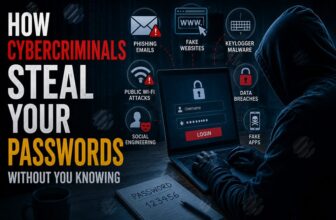
- Phishing: Fake emails or websites that trick you into entering your password
- Password reuse: Using the same password on multiple sites (if one site is breached, hackers try that password everywhere)
- Weak passwords: Simple passwords that hackers can guess with automated tools
- Malware: Spyware or keyloggers on your computer that capture your passwords
- Public Wi-Fi: Logging in on unsecured networks where hackers can intercept data
- Social engineering: Hackers manipulating you into revealing your password
Prevention starts by understanding the method used against you.
Q2: Will Facebook ban my account if it’s been hacked?
A: No. Facebook’s policy is that hacking is not the account owner’s fault. However:
- Your account may be temporarily restricted while you recover it
- If the hacker used your account to violate Facebook’s Community Standards (spam, phishing, scams), your account might be banned
- You can appeal a ban by providing proof of the hack through identity verification
Act quickly to recover your account and limit what the hacker can do in your name.
Q3: How long does it take to recover a hacked Facebook account?
A: Recovery time depends on your situation:
- If you can still log in: 15–30 minutes (just change your password)
- If your email was changed: 24–72 hours (Facebook reviews your identity verification)
- If you’re completely locked out: 24–72 hours (plus processing time for your recovery request)
- If the hacker changed your phone number: Up to 5 business days (requires additional verification)
The faster you act, the faster you’ll regain access.
Q4: Can hackers access my private messages or photos?
A: Yes. Once a hacker has access to your account, they can:
- Read all your private messages (DMs)
- View all your photos and videos (including archived ones)
- See your friends list and location information
- Access any personal information in your profile
- Download your data using Facebook’s “Download Your Information” feature
This is why acting immediately is so critical. Change your password and log out all sessions within hours to prevent the hacker from doing this.
Q5: What if the hacker changed my linked email or phone number?
A: This is more serious because it prevents you from using normal recovery methods:
- Go to facebook.com/login/identify
- Enter your name and any phone number or email you once used for the account
- Facebook will ask you to verify your identity (upload a photo ID)
- This process takes 24–72 hours
- Once verified, you’ll be able to change the email and phone number back
Don’t delay—the hacker can cause significant damage in 72 hours.
Q6: Should I delete my Facebook account instead of recovering it?
A: Only if you want to leave Facebook entirely. Consider recovery if:
- You use Facebook for business or marketing
- You value your friend network
- You want to preserve your content and memories
- Hackers might impersonate you if you don’t deactivate
If you decide to delete your account:
- Go to Settings & Privacy → Settings
- Click “Deactivation and Deletion”
- Choose “Permanently Delete Account”
- Enter your password and confirm
- Your account will be fully deleted after 30 days
Expert Tip: Recovery is usually better than deletion because it prevents the hacker from continuing to use your account.
Q7: How can I check if my password has been compromised in past data breaches?
A: Use Have I Been Pwned (haveibeenpwned.com):
- Go to haveibeenpwned.com
- Enter your email address
- The site will show if your email appeared in any known data breaches
- If it has, change that password immediately everywhere it was used
This helps you understand if your Facebook hack was part of a larger breach.
Q8: What’s the difference between “Deactivate” and “Delete” account?
A:
- Deactivate: Temporarily hide your account (you can reactivate it later within 30 days)
- Delete: Permanently remove your account after 30 days
For a hacked account, permanent deletion is better because it completely prevents the hacker from accessing it again.
Q9: Can I recover my account if the hacker changed my password to something I don’t know?
A: Yes—that’s the entire purpose of the “Forgotten Password?” recovery process:
- Go to facebook.com
- Click “Forgotten Password?”
- Enter your email or phone number
- Click “Search” or “Find Account”
- Facebook will email you a recovery link
- Click the link and create a new password
- You’re back in control
The “Forgotten Password?” feature exists specifically for situations like this.
Q10: Is it safe to use Facebook after being hacked?
A: Yes, once you’ve completed all recovery steps. Facebook is safe to use again once you’ve:
- Changed your password
- Enabled 2FA
- Logged out all other sessions
- Scanned your device for malware
- Verified no unauthorized changes to your account
The key is completing all security steps, not just changing your password.
Conclusion
Having your Facebook account hacked is stressful, but it’s recoverable. What to do after your Facebook account gets hacked is a process—not a single action. By following this step-by-step guide, you can regain access, secure your account, and protect yourself from future compromise.
The most critical actions you can take right now:
- Secure your email first (within 1 hour)
- Change your Facebook password using the recovery process (within 2 hours)
- Log out all other sessions to remove the hacker’s access (within 3 hours)
- Enable two-factor authentication as your primary defense (within 4 hours)
- Scan your devices for malware to prevent future compromise (within 8 hours)
- Warn your friends to prevent them from becoming victims too (within 24 hours)
- Implement strong password practices and use a password manager for long-term security
Remember: The faster you act, the less damage the hacker can do. A hacked account recovered within hours means minimal harm. A hacked account ignored for weeks means potential identity theft, fraudulent charges, or damaged relationships with friends who received phishing links.
You now have the knowledge to recover your account and prevent this from happening again. Take action today, and you’ll have your secure account back within hours.
Stay safe online.