
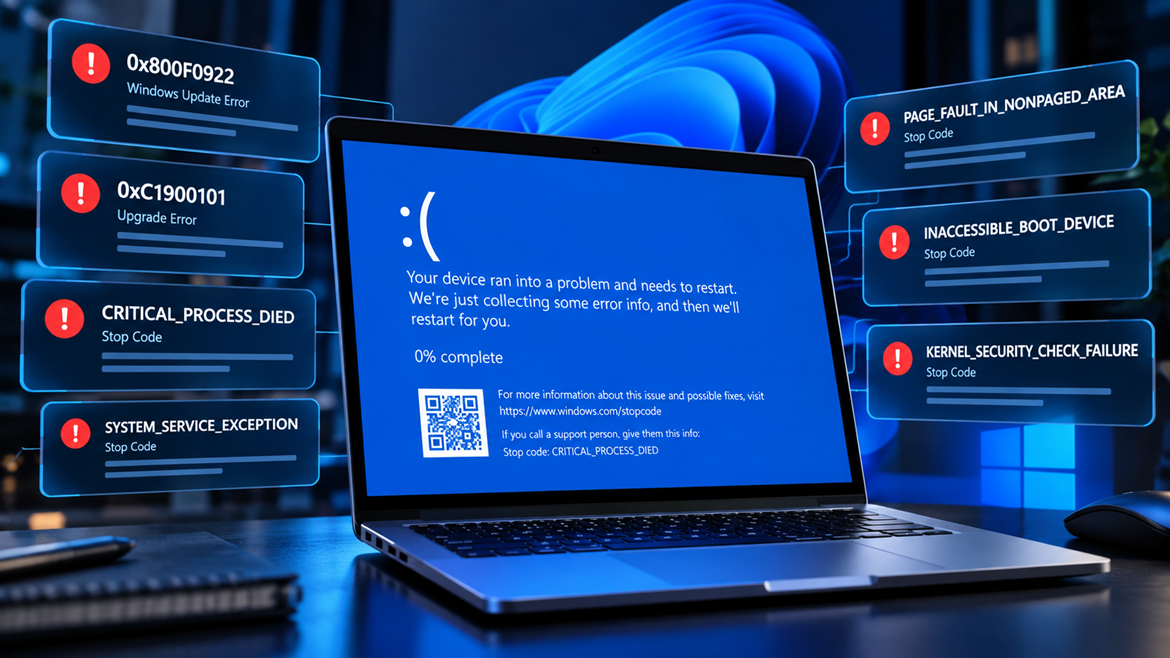
Encountering a Windows 11 error code or a Blue Screen of Death (BSOD) stop code can bring your productivity or gaming session to a crashing halt. Microsoft’s system of hex codes and text-based bugs can look intimidating, but they are actually precise roadmaps designed to help you pinpoint exactly what is wrong.
This master directory tracks the highest-volume Windows 11 error codes, categorizes them by their underlying root causes, and provides the exact terminal commands, driver utilities, and system configurations required to fix them cleanly.
Section 1: Windows Update Failure Errors
Windows Update failure codes typically trigger when cumulative system updates get stuck, download packages become corrupted, or system storage allocations are misaligned.
1. Error Code 0x800f0922
-
- Primary Root Cause: A system partition mismatch where the System Reserved (EFI) partition is out of space, or a failure to initialize the local .NET Framework configuration.
- The Zero-Click Fix:
-
- Press the Windows Key + R, type
optionalfeatures.exe, and press Enter. - Check the box for .NET Framework 3.5 and 4.8 Advanced Services.
- Click OK, let the wizard fetch files from Windows Update, and restart your computer.
- Advanced Option: Use a reputable third-party partition utility to expand the EFI System Partition from its default size up to 500MB to leave room for new update architectures.
- Press the Windows Key + R, type
-
2. Error Code 0x80070002 / 0x80070003
-
- Primary Root Cause: Missing or heavily corrupted directory file structures inside the temporary Windows update download repository.
- The Zero-Click Fix:
-
- Search for Command Prompt, right-click it, and choose Run as Administrator.
- Type
net stop wuauservand hit Enter to stop the update engine. - Type
net stop bitsand hit Enter. - Open File Explorer and navigate directly to:
C:\Windows\SoftwareDistribution\Download - Delete every single file and subfolder located inside this directory.
- Return to your administrator Command Prompt terminal, type
net start wuauserv, and press Enter. - Type
net start bitsand press Enter before checking for system updates again.
-
3. Error Code 0x800f081f
-
- Primary Root Cause: The Deployment Image Servicing and Management (DISM) engine cannot locate clean offline source components to repair an active operating system drop.
- The Zero-Click Fix:
-
- Launch an administrative Command Prompt instance.
- Input the direct Microsoft server retrieval string:
DISM /Online /Cleanup-Image /RestoreHealth - Press Enter and wait patiently for the progress tracker bar to reach 100%.
- Immediately follow up with the standard system integrity scan:
sfc /scannow
-
Section 2: Blue Screen of Death (BSOD) Stop Codes
Blue Screen of Death (BSOD) crashes force your hardware to shut down safely to prevent catastrophic system damage when kernel-level parameters fail.
4. IRQL_NOT_LESS_OR_EQUAL (0x0000000A)
-
- Primary Root Cause: An unhandled device driver or a third-party antivirus program attempting to access an unauthorized memory address segment.
- The Zero-Click Fix:
-
- Boot your computer straight into Windows Safe Mode.
- Download and launch Display Driver Uninstaller (DDU) to completely purge any traces of AMD or NVIDIA graphics software.
- Reboot back into normal Windows configuration cycles and perform a fresh, clean installation of your GPU driver package directly from the vendor’s site.
-
5. PAGE_FAULT_IN_NONPAGED_AREA (0x00000050)
-
- Primary Root Cause: System components looking for virtual data mapping sequences within sections of physical RAM or virtual page boundaries that no longer exist.
- The Zero-Click Fix:
-
- Tap the Windows Key, input
mdsched.exe, and press Enter to initiate the Windows Memory Diagnostic utility. - Select Restart now and check for problems to allow your motherboard to scan individual RAM module matrices for structural faults.
- If errors are flagged, turn off the PC, unseat your RAM sticks, clean the contacts, and test them one stick at a time.
- Tap the Windows Key, input
-
6. DPC_WATCHDOG_VIOLATION (0x00000133)
-
- Primary Root Cause: A device driver failing to respond or hanging within its designated Deferred Procedure Call (DPC) time threshold, common on high-speed NVMe solid-state storage.
- The Zero-Click Fix:
-
- Right-click the Windows Start menu button and select Device Manager.
- Expand the IDE ATA/ATAPI controllers section.
- Right-click your active controller layout block and choose Properties.
- Select the Driver tab, hit Update Driver, choose Browse my computer for drivers, and click Let me pick from a list.
- Swap from standard proprietary vendor configurations over to the generic Standard SATA AHCI Controller, then restart the computer.
-
Don’t Miss This
7. WHEA_UNCORRECTABLE_ERROR (0x00000124)
-
- Primary Root Cause: A definitive physical hardware error event triggered by voltage instability, extreme thermal overheating, or bad hardware overclocks.
- The Zero-Click Fix:
-
- Reboot your PC and repeatedly tap your specific motherboard hotkey (usually Del or F2) to open the BIOS/UEFI Configuration.
- Locate the main settings template and select Load Optimized Defaults to disable any custom voltage manipulation or CPU scaling overrides.
- Locate your RAM sub-menus and temporarily toggle Intel XMP or AMD EXPO configurations to Disabled.
- Save your changes and exit to check for structural hardware stability.
-
Section 3: System & App Execution Crashes
Execution crashes prevent specific utility applications or operating files from launching cleanly under native administrative access permissions.
8. Error Code 0xc000007b
-
- Primary Root Cause: An architecture load collision where a 64-bit Windows environment tries to run or parse files utilizing a 32-bit driver file wrapper layer.
- The Zero-Click Fix:
-
- Go to the official Microsoft download pages and pull the latest unified installer runtime package for the Microsoft Visual C++ Redistributable Packages (both x86 and x64 variants).
- Install both packages side-by-side to ensure all runtime dependencies are properly mapped across your environment paths.
- Restart your machine and relaunch the application using administrative access toggles.
-
9. Error Code 0x80070005
-
- Primary Root Cause: Windows System Restore utilities, backup engines, or software operations encountering blocked system privileges or locked storage paths.
- The Zero-Click Fix:
-
- Open an elevated Command Prompt console instance (Run as Administrator).
- Type the following file system permission sweep command to forcefully override targeted folder permissions:
icacls "C:\System Volume Information" /grant administrators:F - Press Enter, let the utility clear your permissions across the folder array, and re-run your backup or system restore operation.
-
10. INACCESSIBLE_BOOT_DEVICE
- Primary Root Cause: Windows completely losing physical storage tracking access to the base operating system startup partition layout mid-boot sequence.
- The Zero-Click Fix:
- Force-restart your computer three times consecutively to trigger the native blue Advanced Startup Options dashboard menu.
- Select Troubleshoot > Advanced Options > Command Prompt.
- Reconstruct your damaged system boot data directly by typing the following three commands sequentially, hitting Enter after each step:
-
bootrec /fixmbrbootrec /fixbootbootrec /rebuildbcd
-
- Close the command terminal and reboot your system normal to complete the restoration loop.