
How to Install an SSD in Your Laptop for Faster Speed: Complete Beginner’s Guide
TL;DR: Your laptop takes forever to boot up. Programs freeze. Files take ages to open. Before you spend hundreds on a new computer, there’s a simpler fix: upgrading to an SSD (Solid State Drive). This single upgrade can make…
Table of Contents
- Who This Guide Is For
- Quick Recommendations
- SSD Comparison Table
- Detailed Product Reviews
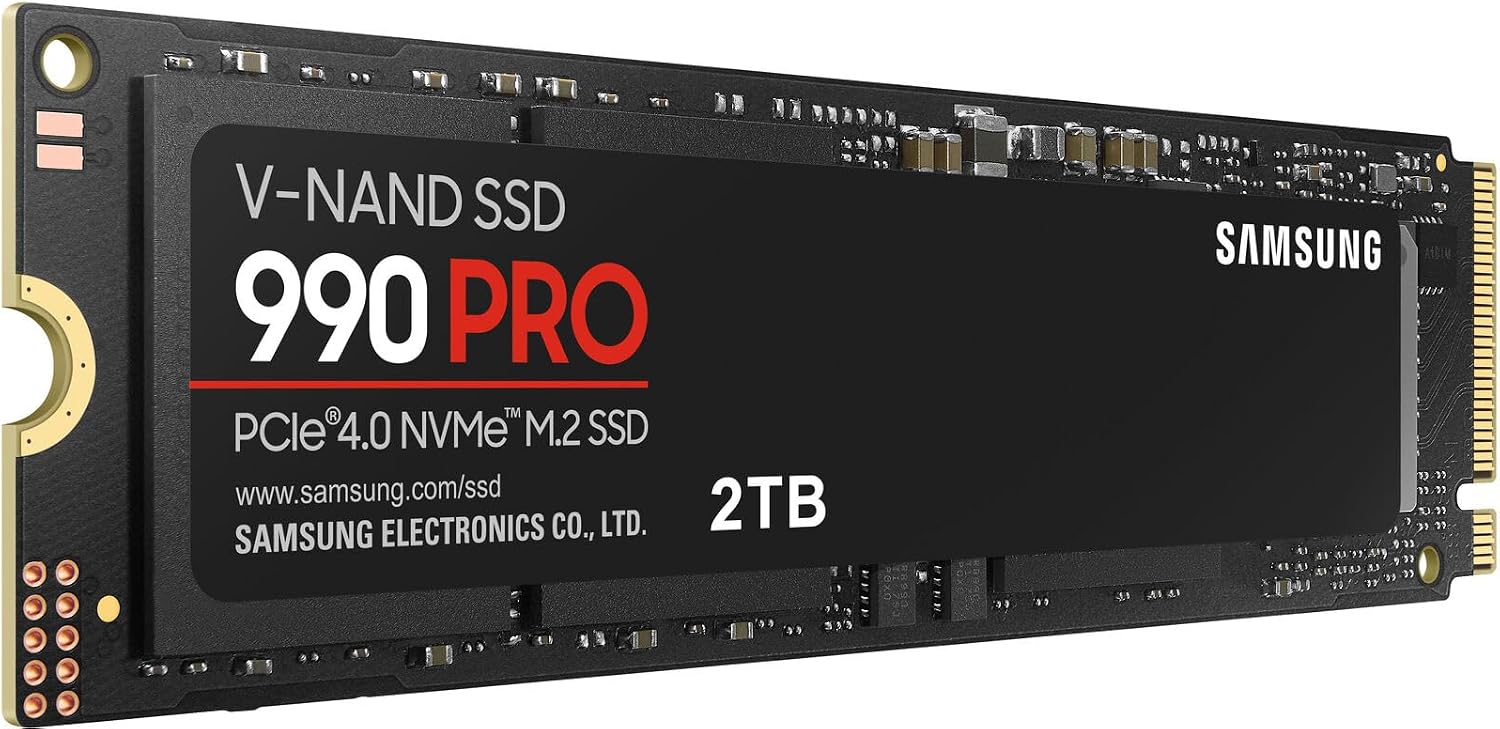
- Samsung SSD 990 PRO 2TB – Best for Most Laptop Upgrades
- Samsung SSD 9100 PRO 2TB – Maximum Performance for New Laptops
- What to Consider Before Buying an SSD
- Check Your Laptop’s Compatibility
- Capacity: How Much Storage Do You Need?
- Speed: PCIe 3.0 vs 4.0 vs 5.0
- Brand and Reliability
- Step-by-Step Installation Guide
- What You’ll Need
- Before You Start: Back Up Your Data
- Installation Steps
- After Installation: Setting Up Your New SSD
- Common Mistakes to Avoid
- Buying the Wrong Form Factor
- Not Checking PCIe Generation
Your laptop takes forever to boot up. Programs freeze. Files take ages to open. Before you spend hundreds on a new computer, there’s a simpler fix: upgrading to an SSD (Solid State Drive). This single upgrade can make a five-year-old laptop feel brand new, cutting boot times from minutes to seconds and making everything feel instantly responsive.
This guide walks you through everything you need to know about choosing and installing an SSD in your laptop, even if you’ve never opened a computer before. We’ll cover what to buy, how to install it, and how to transfer your data without losing anything.
Who This Guide Is For
This guide is written for complete beginners who want to speed up their laptop but have limited technical experience. You don’t need special tools or computer repair skills. If you can use a screwdriver and follow step-by-step instructions, you can do this upgrade yourself.
You’ll benefit from this guide if:
- Your laptop is slow to start up or runs sluggishly
- You’re comfortable opening your laptop case (or willing to learn)
- You want a cost-effective performance boost without buying a new computer
- You need more storage space for files, photos, and programs
- You’re tired of waiting for programs to load
This guide focuses on M.2 NVMe SSDs, the most common type used in modern laptops from 2015 onward. If your laptop is older, you may need a 2.5-inch SATA SSD instead, which we’ll address in the FAQ section.
Quick Recommendations
Best for Most Beginners: The Samsung SSD 990 PRO 2TB offers excellent speed at PCIe 4.0 performance levels that will max out what most laptops can handle. It’s fast, reliable, and compatible with virtually all modern laptops that support M.2 NVMe drives.
Best for Future-Proofing: The Samsung SSD 9100 PRO 2TB delivers cutting-edge PCIe 5.0 speeds if your laptop supports it. This is overkill for most users right now, but if you have a newer high-end laptop with PCIe 5.0 support, this drive will maximize your system’s potential.
SSD Comparison Table
| Feature | Samsung SSD 990 PRO 2TB | Samsung SSD 9100 PRO 2TB |
|---|---|---|
| Interface | PCIe 4.0 x4 | PCIe 5.0 x4 |
| Form Factor | M.2 2280 | M.2 2280 |
| Read Speed | Up to 7,450 MB/s | Up to 14,700 MB/s |
| Write Speed | Up to 6,900 MB/s | Up to 13,400 MB/s |
| Random Read/Write | Not specified | Up to 1,850K/2,600K IOPS |
| Capacity Options | 1TB to 4TB | Up to 8TB |
| Power Efficiency | 50% improvement over 980 PRO | 49% improvement over 990 PRO |
| Best For | Most modern laptops | Latest high-end laptops with PCIe 5.0 |
| Compatibility | Any PCIe 3.0/4.0 M.2 slot | PCIe 5.0 (backward compatible with 4.0/3.0) |
Don’t Miss This
Detailed Product Reviews
Samsung SSD 990 PRO 2TB – Best for Most Laptop Upgrades
The Samsung SSD 990 PRO 2TB is the sweet spot for most laptop upgrades. It delivers read speeds up to 7,450 MB/s and write speeds up to 6,900 MB/s, which means your laptop will boot in seconds and programs will open almost instantly.
Real-World Performance: In practical terms, you’ll see Windows boot in 10-15 seconds instead of 2-3 minutes. Large programs like Photoshop or video editing software that used to take 30 seconds to open will launch in 3-4 seconds. File transfers that took minutes will complete in seconds.
Who Should Buy This: This drive is ideal for anyone with a laptop made between 2018 and 2024 that supports PCIe 4.0 or PCIe 3.0. Even if your laptop only supports PCIe 3.0, this drive will work perfectly-it’s backward compatible and will still deliver excellent performance at PCIe 3.0 speeds.
Capacity and Storage: The 2TB capacity gives you plenty of room for your operating system, programs, and files. For context, 2TB holds approximately 500,000 photos, 500 hours of HD video, or 400 full games. If you need less space, this drive is available in 1TB. If you need more, it goes up to 4TB.
Power Efficiency: The 990 PRO uses 50% less power per watt compared to the older 980 PRO model. For laptop users, this translates to better battery life-expect an extra 30-60 minutes of use on a full charge compared to older hard drives.
Installation Ease: This is a standard M.2 2280 drive, which means it’s 22mm wide and 80mm long-the most common size in laptops. Installation takes about 10 minutes once you have the laptop open.
Tradeoffs: While incredibly fast, this drive won’t reach its full potential if your laptop only supports PCIe 3.0. However, it will still outperform any traditional hard drive by a massive margin. The drive also doesn’t include a heatsink, which is fine for most laptops since they have limited airflow anyway, but desktop users might want to add one.
Samsung SSD 9100 PRO 2TB – Maximum Performance for New Laptops
The Samsung SSD 9100 PRO 2TB is Samsung’s latest flagship drive, delivering PCIe 5.0 speeds up to 14,700 MB/s read and 13,400 MB/s write, literally twice as fast as the 990 PRO.
Real-World Performance: The speed difference between PCIe 4.0 and 5.0 is most noticeable when working with massive files. If you edit 4K or 8K video, work with large datasets, or run AI applications, you’ll see render times cut significantly. For everyday tasks like web browsing and document editing, the difference is minimal compared to the 990 PRO.
Who Should Buy This: This drive makes sense if you have a laptop released in 2023 or later with PCIe 5.0 support. Check your laptop’s specifications before buying—most laptops still use PCIe 4.0, and this drive’s extra speed won’t be utilized on those systems. It’s also worth considering if you plan to use the drive long-term and may upgrade to a PCIe 5.0 laptop in the future.
Random Performance: Beyond sequential speeds, the 9100 PRO excels at random read/write operations (1,850K/2,600K IOPS). This matters more than sequential speeds for everyday use, it’s what makes your system feel snappy when opening multiple programs, switching between tasks, or loading game levels.
Thermal Management: The 9100 PRO uses a 5nm controller that’s significantly more power-efficient than previous generations. Despite the higher speeds, it actually runs cooler and uses 49% less power than the 990 PRO at similar workloads. This is crucial in laptops where heat buildup can cause throttling.
Storage Options: Available up to 8TB, this drive offers massive storage capacity if you need it. The 8TB option is particularly useful for content creators who need to store large video libraries or photographers with extensive RAW photo collections.
Software Support: Samsung includes their Magician Software, which provides firmware updates, health monitoring, and secure erase functions. For beginners, this software makes it easy to clone your existing drive to the new SSD without reinstalling Windows.
Tradeoffs: The main drawback is compatibility, you need a PCIe 5.0 slot to use its full potential. While it works in PCIe 4.0 and 3.0 slots, you’ll only get PCIe 4.0 or 3.0 speeds respectively. For most users, the 990 PRO offers better value unless you specifically need PCIe 5.0 performance.
What to Consider Before Buying an SSD
Check Your Laptop’s Compatibility
Before buying any SSD, you need to confirm what type your laptop supports. Here’s how:
Step 1: Identify the Drive Type
- Look up your laptop model number (usually on a sticker on the bottom)
- Search “[your laptop model] SSD upgrade” online
- Check if it uses M.2 NVMe, M.2 SATA, or 2.5-inch SATA
Step 2: Check the PCIe Generation
- Find your laptop’s specifications on the manufacturer’s website
- Look for PCIe generation (3.0, 4.0, or 5.0)
- If not listed, assume PCIe 3.0 for laptops made before 2020
Step 3: Verify Physical Space
- M.2 drives come in different lengths: 2242, 2260, 2280
- Most laptops use 2280 (80mm long), which both drives in this guide are
- Check your laptop’s manual or existing drive to confirm
Capacity: How Much Storage Do You Need?
Here’s a practical breakdown:
1TB: Sufficient for basic use—Windows, Microsoft Office, web browsing, and moderate photo/document storage. Good if you stream most content and don’t install many games.
2TB: The sweet spot for most users. Enough room for Windows, all your programs, a large photo library, several games, and plenty of documents. This is what we recommend for most people.
4TB+: Needed if you work with video editing, have a massive game library, or store extensive media collections locally. Also useful if you want to consolidate multiple drives into one.
Speed: PCIe 3.0 vs 4.0 vs 5.0
Here’s what the numbers actually mean for daily use:
PCIe 3.0: Speeds around 3,500 MB/s. Still dramatically faster than any hard drive. You won’t notice a difference from PCIe 4.0 in everyday tasks like web browsing, document editing, or watching videos.
PCIe 4.0: Speeds up to 7,450 MB/s. Noticeably faster when transferring large files, loading games, or working with high-resolution photos. The 990 PRO maxes out PCIe 4.0 performance.
PCIe 5.0: Speeds up to 14,700 MB/s. Only beneficial for professional workloads involving massive file transfers, 8K video editing, or AI applications. Most users won’t notice the difference in everyday use.
The Reality: If your laptop supports PCIe 4.0, get the 990 PRO. If it supports PCIe 5.0 and you work with demanding applications, consider the 9100 PRO. If you only have PCIe 3.0, either drive will work but won’t reach full speed.
Brand and Reliability
Samsung is the world’s number one flash memory manufacturer since 2003. They produce all components in-house, including the controller, DRAM, and NAND flash. This vertical integration typically results in better quality control and reliability compared to brands that source components from multiple suppliers.
Both drives in this guide come with Samsung’s Magician Software for monitoring drive health, which is crucial for catching potential issues before they cause data loss.
Step-by-Step Installation Guide
What You’ll Need
- Your new SSD
- Small Phillips-head screwdriver (usually #0 or #1)
- Anti-static wrist strap (optional but recommended)
- External USB drive or cloud storage for backup
- 1-2 hours of time
Before You Start: Back Up Your Data
Before opening your laptop, back up everything important. Use an external hard drive, USB flash drive, or cloud storage like Google Drive or OneDrive. This is non-negotiable—even though the installation is straightforward, accidents happen.
Installation Steps
Step 1: Prepare Your Workspace
- Shut down your laptop completely (not sleep mode)
- Unplug the power cable
- Remove the battery if it’s removable
- Work on a clean, static-free surface
Step 2: Open Your Laptop
- Flip the laptop upside down
- Remove all screws from the bottom panel (keep them organized)
- Gently pry open the bottom panel using a plastic opening tool or credit card
- Some laptops have hidden screws under rubber feet—check online guides for your specific model
Step 3: Locate the M.2 Slot
- Find the M.2 slot on the motherboard (looks like a thin horizontal slot)
- If there’s an existing drive, you’ll see it installed at an angle
- Some laptops have multiple M.2 slots—use the one designated for storage (check your manual)
Step 4: Remove the Old Drive (if applicable)
- Remove the small screw holding the drive down
- The drive will pop up at an angle
- Gently pull it out of the slot by the edges (don’t touch the gold contacts)
Step 5: Install the New SSD
- Hold the new SSD by the edges
- Insert it into the M.2 slot at a 30-degree angle
- Push it in firmly until the gold contacts are no longer visible
- Press down gently and secure with the screw
- The drive should lie flat against the motherboard
Step 6: Reassemble Your Laptop
- Replace the bottom panel
- Screw in all screws (don’t overtighten)
- Reinsert the battery if you removed it
After Installation: Setting Up Your New SSD
When you first boot up, the SSD won’t have an operating system. You have two options:
Option 1: Clone Your Old Drive
If you replaced an existing drive, you can clone it before installation using Samsung Magician Software and a USB adapter. This copies everything—Windows, programs, files—to the new drive. You’ll boot up exactly where you left off.
Option 2: Fresh Windows Installation
For the cleanest experience, install Windows fresh:
- Create a Windows installation USB using Microsoft’s Media Creation Tool
- Boot from the USB drive
- Follow the Windows installation wizard
- Reinstall your programs and restore your files from backup
A fresh installation often results in better performance since you’re not carrying over years of accumulated software clutter.
Common Mistakes to Avoid
Buying the Wrong Form Factor
M.2 drives come in different lengths. The “2280” in the product names means 22mm wide and 80mm long. Some ultrabooks use shorter 2242 or 2260 drives. Verify your laptop’s specifications before ordering.