


Ever checked out of a hotel or Airbnb only to realise you’ve left your Netflix, Disney+, or other streaming account signed in on the TV? It happens more often than you might think, and if the next guest can still access your account, your personal profiles and viewing history could be exposed.
The good news is that you usually don’t need to return to the property to fix it. Many streaming platforms let you review connected devices and remotely sign out of TVs you no longer use. For example, you can manage devices through your Amazon account for Prime Video, or use the Netflix app on your smartphone to access your account settings and manage access to connected devices.
In this guide, we’ll explain how to log out of streaming services remotely after leaving a hotel, Airbnb, or vacation rental, including the steps for Netflix, Amazon Prime Video, Apple TV+, Disney+, Hulu, and other popular platforms. We’ll also cover what to do if you spot an unfamiliar device or suspect someone else is using your account.
It’s easier than ever to carry streaming accounts with us as we travel for work or pleasure. Many hotel rooms, Airbnbs, and other properties have smart TVs or set-top boxes from Roku and others that let us log in to Netflix, Hulu, Apple TV+, and other services. Some of these devices are configured so that after you check out, the configuration is refreshed, and any account information is removed. But not all–especially not in the informal world of Airbnb, VRBO, and other rental arrangements.
On a recent trip, I realized when I was hundreds of miles away that I had a mental note to log out of streaming TV services…and that note was absolutely still unchecked. Fortunately, streaming services track your authorized, connected devices and have a variety of pathways to bump systems you want to disconnect from.
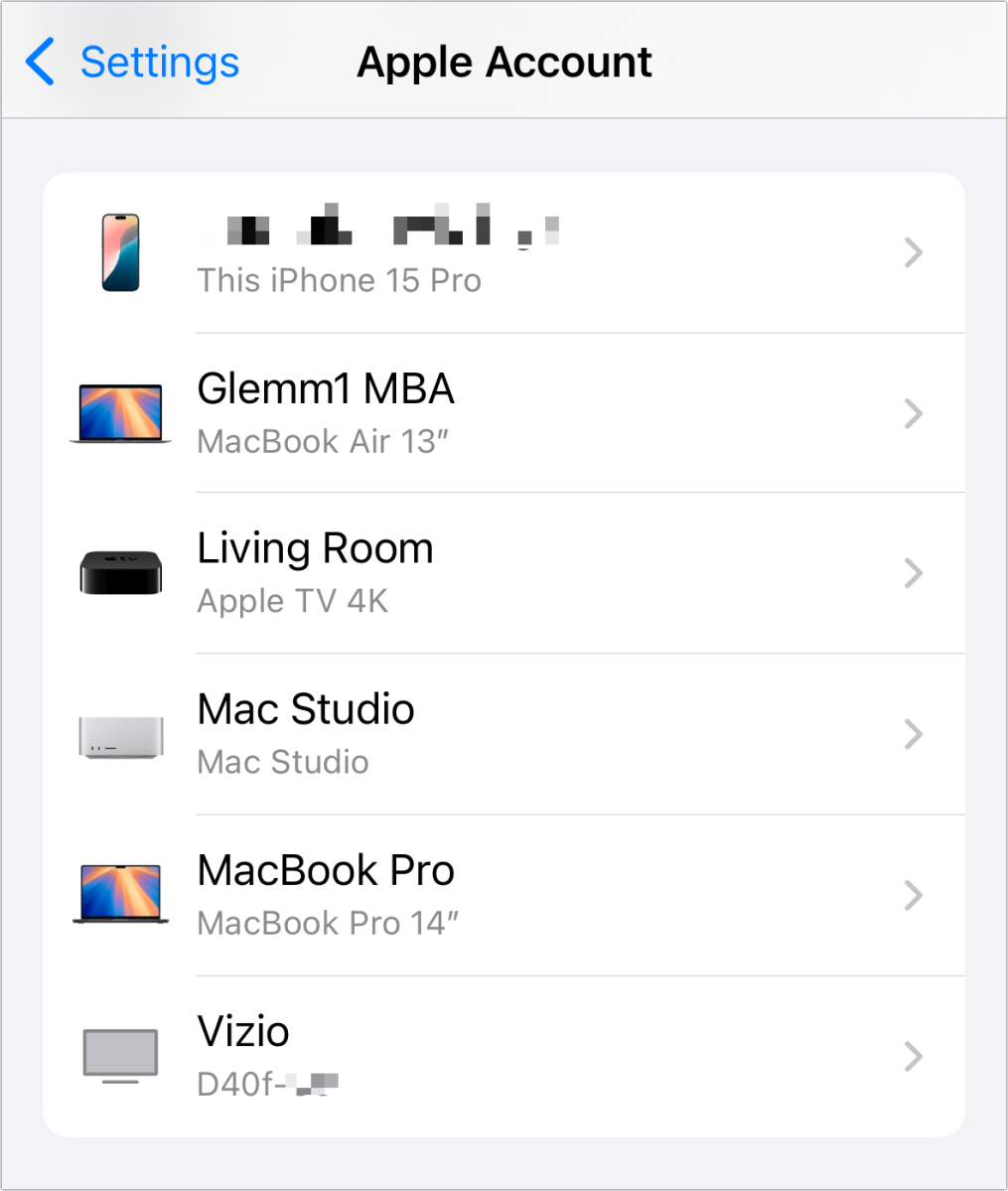
Here’s how for services that document individual device deregistration or for which I’ve found an answer:
- Amazon Prime Video: Go to Manage Your Content and Devices. Click Prime Video. Find the device by name or registration date, and then click the Deregister button and click Deregister to confirm.
- Apple TV+: You can use your iPhone, iPad, Mac, or Apple Account to remove an associated device from Apple TV+. On an iPhone, iPad, or Mac, go to Settings/System Settings, tap or click the account name, scroll down, and find the device on a list. The device’s name will have a generic header, like Vizio, and then part of a serial number or identifier. Tap or click the device, tap or click Remove from Account, and confirm. To use your Apple Account, log in at account.apple.com, click Devices, click the TV or other streaming device, click Remove from Account, and confirm.
- Crunchyroll: Using the website, navigate to Settings > General > Device Management. Find the device by name, click Deactivate next to its name, and confirm the removal.
- Discovery+: Go to discoveryplus.com, sign in, select your profile in the upper-right corner, and choose Account. Go to Devices > Manage Devices, click Remove next to the named device, and confirm.
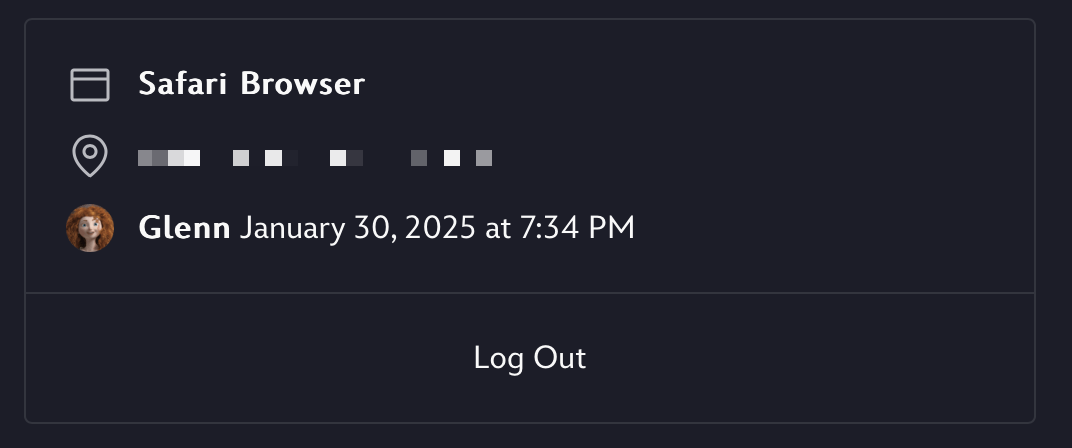
- Disney+: Go to your account page at Disney+, click Manage Devices, and click Log Out below the device you want to remove, then confirm.
- Fubo: Go to fubo.tv, navigate to your account, and choose Device Manager. Look for “Devices outside your Home Network,” find the device, click Remove Device, and confirm.
- Hulu: Go to a Hulu app or hulu.com, navigate to your Account page, and, under Watch Hulu on Your Devices, click Manage Devices. Click Remove and confirm the removal next to any device you want to delete.
- Max: Connect to your Max account through an app or https://max.com, choose your profile, then choose Account > Devices. Click the X next to the device you want to remove from your account and confirm.
- Netflix: In an app or at https://www.netflix.com/ choose your account. On an app, tap My Netflix, choose Account from the menu in the upper-right corner; at the website, click your account icon in the upper-right corner and choose Account. Tap or click “Manage access and devices,” tap or click Sign Out below the device you want to remove, and confirm.
Don’t Miss This
Conclusion
Forgetting to log out of streaming services on a vacation TV doesn’t mean your accounts have to remain accessible to strangers. Whether you stayed at a hotel, Airbnb, or vacation rental, you can remotely sign out of most streaming services without returning to the property.
Platforms like Netflix, Disney+, Hulu, Amazon Prime Video, and Apple TV+ offer account management options that let you review connected devices and remove those you no longer use.
To protect your privacy and prevent unauthorized access, make it a habit to check your connected devices after every trip. If you notice suspicious activity, sign out of unfamiliar devices, change your password, and enable two-factor authentication where available.
The bottom line: Knowing how to log out of streaming services remotely gives you greater control over your accounts, protects your personal information, and ensures your entertainment subscriptions stay secure wherever you travel.