You don’t notice storage… until it starts running out.
That’s when your laptop slows down, updates fail, and you’re deleting files just to install one app.
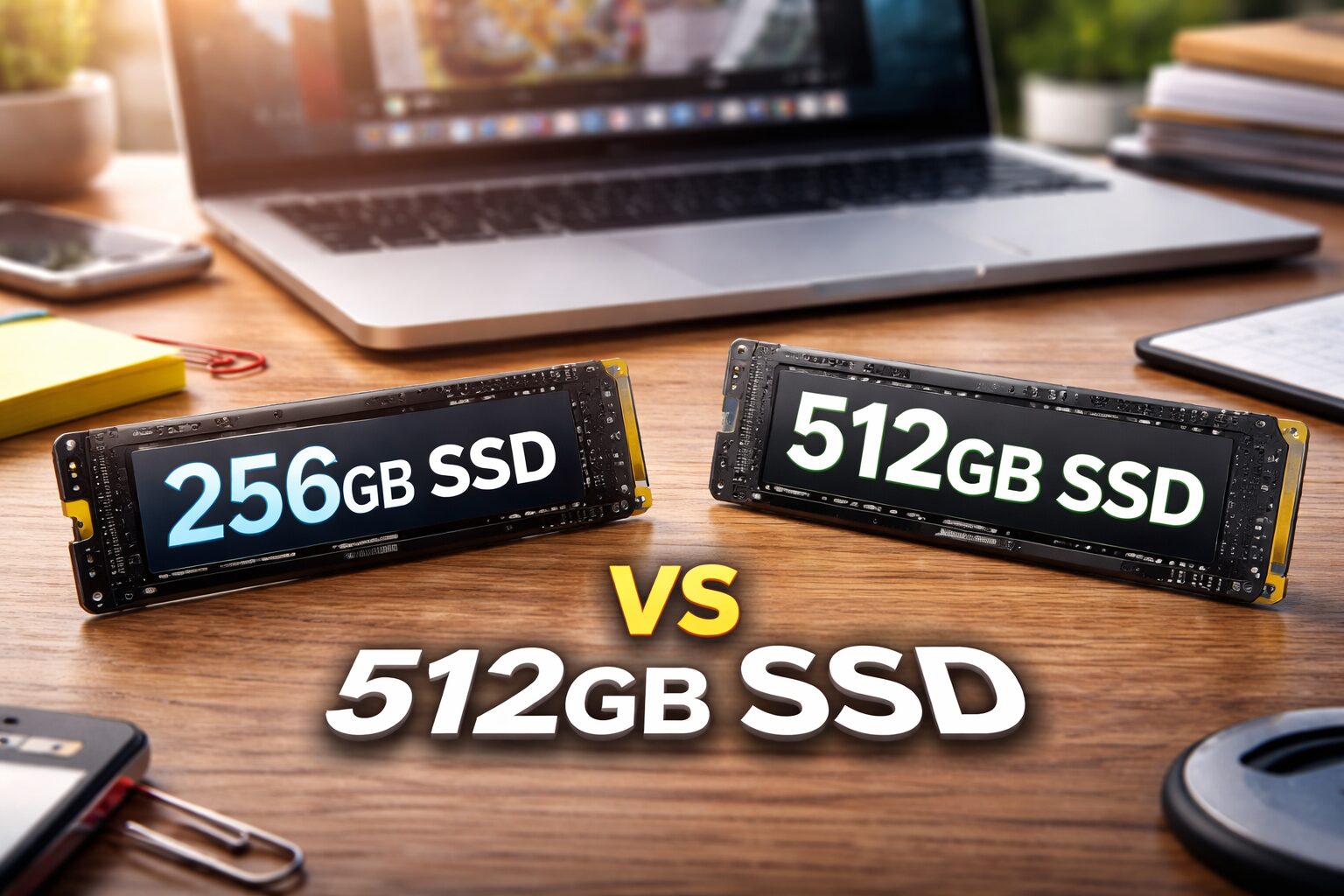
If you’re stuck choosing between 256GB and 512GB SSD, this guide will save you from that mistake.
The Moment Every Laptop Buyer Dreads
You finally found the laptop you want. The specs look good, the price is right – and then you hit the storage options: 256GB or 512GB SSD? You hover there for a minute, maybe ten. You don’t want to overpay for space you’ll never use, but you also really don’t want to be deleting files six months from now just to install an update.
This is one of the most common buying dilemmas people face, and most of the advice out there is either too vague or too technical to actually help. So here’s a practical breakdown – based on real-world usage – so you can make the call with confidence.
Short answer: it depends on what you actually do with your laptop. But by the time you finish reading this, you’ll know exactly which side you fall on.
What SSD Storage Actually Means (Without the Tech Overload)
SSD stands for Solid State Drive. Unlike the old spinning hard drives (HDDs), an SSD has no moving parts – it stores your data on chips, kind of like a massive USB stick built into your laptop. That’s why laptops with SSDs boot up in seconds and feel so much snappier.
The main advantages of SSD over HDD are speed, durability, and silence. Your laptop doesn’t heat up as fast, the battery lasts longer, and files open almost instantly. Pretty much every modern laptop ships with an SSD now, so the real question isn’t SSD vs HDD – it’s how much SSD storage you actually need.
How Much Space Do You Actually Get?
Here’s the thing nobody mentions upfront: you never get the full advertised storage. A 256GB SSD doesn’t give you 256GB of free space. Not even close.
Windows 11 takes up around 30–40GB on its own. macOS is a bit leaner at 15–20GB, but it still eats into your space. Add your browser, a few apps, drivers, and system files, and you’re already looking at 50–60GB gone before you’ve saved a single personal file.
Here’s a rough idea of what common things eat up:
- Google Chrome with extensions and cache: 1–5GB
- Microsoft Office Suite: 3–8GB
- Adobe Photoshop: ~4GB
- Adobe Premiere Pro: ~8GB
- A single AAA game (like Call of Duty): 70–150GB
- A 1-hour 1080p video: ~4–8GB
- A full semester of university documents and PDFs: 2–10GB
So on a 256GB SSD, you realistically have ~180–220GB of usable space. On a 512GB drive, you’re working with ~420–460GB. That gap is bigger than it sounds when apps and files start piling up.
256GB SSD: Honestly, Who Is It For?
Let’s not write off the 256GB option – it’s genuinely fine for a certain type of user. If your daily routine looks anything like this, 256GB will probably do the job:
- You’re a student writing essays, storing PDFs, and using Google Docs or Office
- You browse the web, stream Netflix or YouTube, and occasionally video call
- You don’t game, don’t edit videos, and your photo collection lives on Google Photos or iCloud
- You’re buying a budget or secondary laptop and you know cloud storage will handle the overflow
The upside: 256GB laptops are noticeably cheaper. You can often save $80–$150 compared to the same machine with 512GB storage. For someone who’s disciplined about cloud backups and doesn’t hoard files, that saving is real money.
The downside: Storage fills up faster than most people expect. Windows updates alone can sneak up on you. If you ever want to try a new app, download a game, or store a few vacation videos locally, you’ll suddenly feel very squeezed. Many users on 256GB find themselves doing a storage cleanup every few months, which gets old fast.
If you’re a student or light user who wants a capable everyday machine and is okay managing storage carefully, the Acer Aspire 3 with 256GB SSD is a solid budget-friendly pick worth checking out.
512GB SSD: Who Actually Needs This?
If 256GB is the “I’ll make it work” option, 512GB is the “I actually have room to breathe” option. Here’s who should genuinely go for it:
- Remote workers who have multiple large projects, client files, and apps running simultaneously
- Content creators who work with photos, videos, or design files – even at a moderate level
- Gamers who want to keep more than one or two titles installed at a time
- Anyone buying a laptop they plan to use for 4+ years without wanting to think about storage
- Professionals using software like AutoCAD, Final Cut Pro, DaVinci Resolve, or Adobe CC
The upside: You get genuine breathing room. Install your apps, keep a few movies for long flights, store your project files, and still have space left. It’s not that you’ll always use 400GB – it’s that you won’t hit a wall every few months. There’s also a performance argument: SSDs tend to slow down as they fill up, so more headroom means a snappier drive for longer.
The downside: You’ll pay more. On budget laptops, the 512GB version might cost $60–$120 extra. On premium machines, sometimes more. Whether that’s worth it depends entirely on how you use the laptop.
For professionals and serious users, a machine like the Lenovo IdeaPad 5 with 512GB SSD hits a great balance of performance and storage for the price. Alternatively, if you’re eyeing Apple’s ecosystem, the MacBook Air M2 with 512GB is hard to beat for creative work.
Real-Life Use Cases: Side-by-Side
Let’s look at actual people in actual situations, because specs only make sense when they’re attached to real life.
The College Student vs The Video Editor
A student studying business or law doesn’t need much raw storage. Word docs and PDFs are tiny. Slides and spreadsheets barely dent a drive. A 256GB SSD is comfortable here – especially if the student uses OneDrive, Google Drive, or Dropbox for backups. They’d be fine for their entire degree.
A video editor, even a part-time one, lives in a different world. A single 10-minute 4K clip can easily run 10–20GB. Keep a few projects on the drive and you’ve burned through 256GB before finishing your second client job. For anyone editing video – even casually – 512GB is the starting point, not an upgrade.
The Office Worker vs The Gamer
Most office workers – reports, spreadsheets, emails, Zoom calls – don’t need a lot of local storage. Their files usually live in SharePoint or Google Drive. 256GB handles a typical office setup fine, assuming they’re not storing everything locally.
Gamers, on the other hand, are almost always storage-hungry. Modern games are enormous. Red Dead Redemption 2 is 150GB. Call of Duty: Warzone has crossed 100GB with updates. Install two or three games and a 256GB drive is gone. For gaming, 512GB is really the minimum – and even then, you’ll likely want to cycle games in and out.
Can You Upgrade Later? (And Should You Plan For It?)
This question matters because it changes the math. If upgrading is easy, you could start with 256GB and add more later. If it’s not, you should get the right size upfront.
Desktop PCs: Storage upgrades are easy and cheap. You can add an internal SSD for under $60. Most users could buy any size and upgrade whenever they want.
Laptops: It’s more complicated. Some laptops – especially budget models and thin ultrabooks from brands like Dell XPS, Apple MacBook, or Microsoft Surface – have their storage soldered directly to the motherboard. That means zero upgrade path. Other mid-range and business laptops have accessible M.2 slots that make swapping or adding storage straightforward. Always check before buying.
External SSDs as an alternative: If you’re already on 256GB and running low, an external SSD is a genuinely good solution for overflow storage. They’re fast, portable, and much cheaper than replacing a whole drive. Something like the Samsung T7 Portable SSD gives you 500GB or 1TB of fast external storage that you can carry anywhere – great for creative files, backups, or game installs on compatible platforms.
If you’re unsure, it’s smarter to go bigger from the start.
Alternative: External SSD
If you go with 256GB, you can always add external storage like:
SanDisk 1TB Extreme Portable SSD
It’s fast, portable, and perfect for backups or large files.
256GB vs 512GB SSD: Quick Comparison
Here’s a clean overview so you can see everything at a glance:
| 256GB SSD | 512GB SSD | Notes | |
| Typical Price Range | $300–$600 (laptops) | $450–$900 (laptops) | Prices vary by brand & specs |
| Usable Storage | ~220GB after OS | ~440GB after OS | Windows 11 takes ~30–40GB |
| Best For | Students, light users, browsing & docs | Creators, remote workers, gamers | See use cases section |
| Limitations | Fills up fast; constant management needed | Slightly pricier upfront | Neither handles 4K editing well alone |
| Future-Proof? | Not really – 2–3 yr window | Yes – solid for 4–5+ years | 512GB wins here clearly |
| Upgrade Possible? | Yes, if laptop allows it | Yes, but less urgent | Many ultrabooks are sealed |
Don’t Miss This
Which One Should You Actually Choose?
Here’s the honest answer – without hedging.
Go with 256GB if:
- You’re on a tight budget and need to keep costs down
- Your usage is genuinely light: web, docs, streaming, email
- You’re comfortable using cloud storage (Google Drive, OneDrive, iCloud) as your main storage layer
- It’s a secondary device or a school-only laptop
- The laptop model you want doesn’t come in 512GB without a major price jump
Go with 512GB if:
- You’re unsure – and if you’re unsure, this is your answer
- You game, edit photos or videos, or work with large files
- You plan to use this laptop for 3–5 years or more
- You hate managing storage and just want it to work without thinking about it
- The price difference between 256GB and 512GB is less than $100 on your shortlisted model
The practical advice? If the 512GB option is within $100 of the 256GB version, just take it. You’re buying peace of mind as much as storage space. On the other hand, if 256GB saves you $150+ and your usage is genuinely light, that money might be better spent elsewhere – like a better processor or more RAM.
If you’re still on the fence, the Dell Inspiron 15 with 512GB SSD is one of the most popular all-rounder laptops for exactly this kind of buyer – reliable, roomy, and reasonably priced.
Frequently Asked Questions
Is 256GB SSD enough for students?
Yes, if your work is mostly documents, browsing, and streaming. But if you store videos or install many apps, it fills up quickly.
Is 256GB SSD enough for gaming?
Not really. Modern games can take 50GB–150GB each, so 256GB will run out fast.
Do I really need 512GB SSD?
If you want to avoid storage issues and keep your laptop for years, 512GB is the safer choice.
Which is better: 256GB or 512GB SSD for everyday use?
For light use, 256GB works. For flexibility and long-term use, 512GB is better.
Final Thoughts
Storage is one of those things you only notice when you don’t have enough of it. Nobody ever complains that their drive has too much space. But plenty of people regret going too small.
That said, the right answer isn’t always “just buy more” – it’s about matching storage to real usage. A student who manages cloud backups well can thrive on 256GB. A freelancer who handles client video projects will feel cramped on anything less than 512GB, probably within the first month.
So before you click buy, ask yourself one honest question: what do I actually do on a laptop every week? The answer will tell you everything you need to know.
If it’s mostly light stuff – 256GB is probably fine. If there’s any creative, gaming, or professional work involved – 512GB is worth every penny.
Choose based on how you actually use technology – not just what looks good on a spec sheet.
Don’t Miss This