

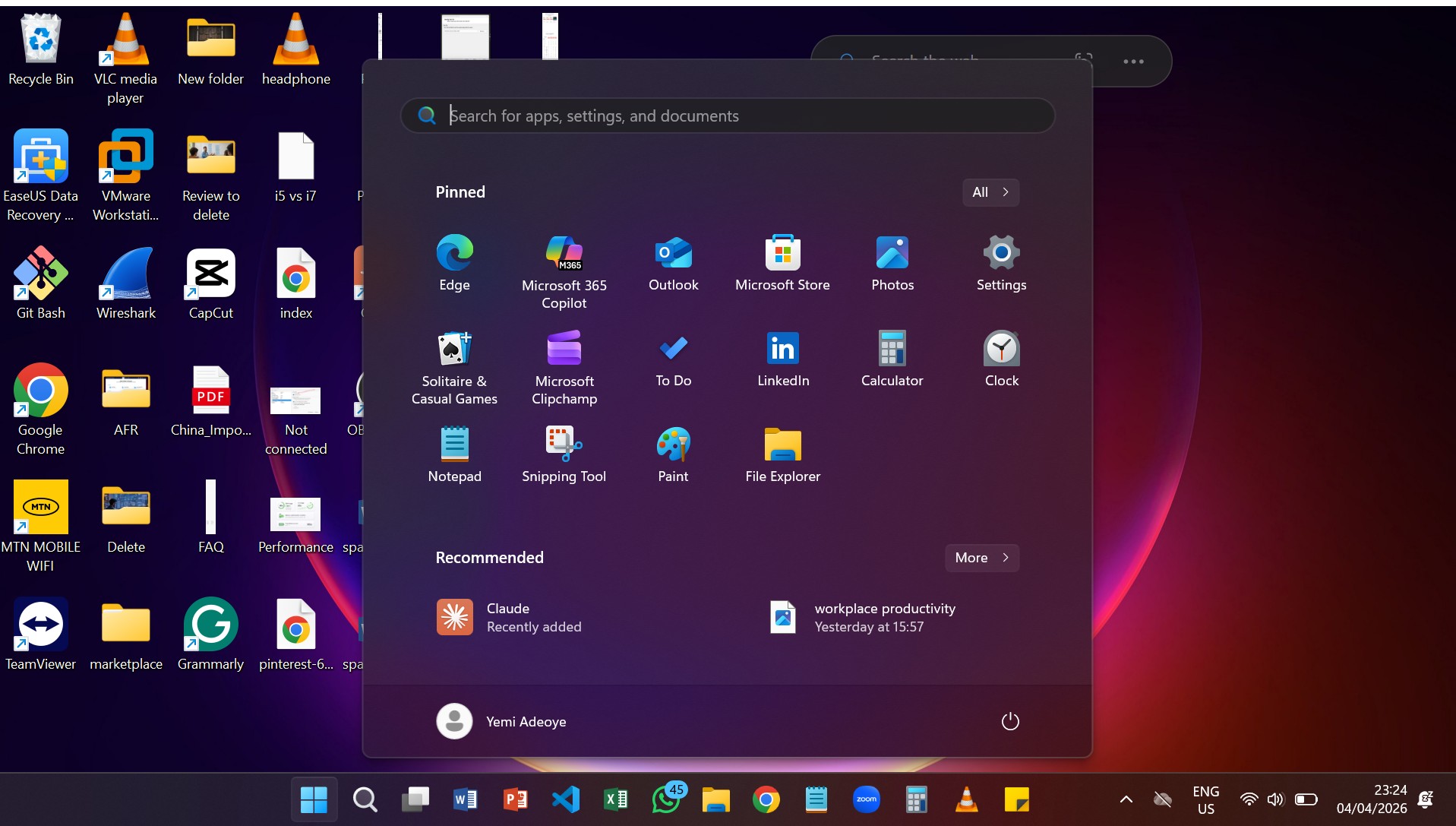
The Start menu is the heartbeat of Windows. You click it dozens of times a day without thinking about it, which is exactly why Microsoft’s sweeping redesign in Windows 11 deserves a proper, no-hype breakdown. From a unified scrollable layout to built-in phone mirroring, the Microsoft update is awesome. Here is every meaningful change and what it means for how you actually work.
Why Microsoft Redesigned the Start Menu
The original Windows 11 Start menu launched in 2021 to a divided response. Critics called it stripped-down compared to Windows 10’s live tile ecosystem; power users complained about limited customization; and everyday users struggled with a layout that felt more restrictive than it should be. Microsoft has been listening, and the updated Start menu represents one of the most significant interface overhauls since Windows 11 launched.
The driving philosophy behind the redesign is simple: fewer clicks, more control, smarter organization. Whether Microsoft has delivered on that promise is what we’ll unpack feature by feature below.
The 10 Key Improvements in Detail
A Unified, Scrollable Layout Most Impactful
The most structurally significant change is the merger of what were previously three separate, siloed sections — Pinned apps, Recommended files, and All apps — into a single continuous scrollable view. Previously, navigating between these areas required deliberate clicks and mental mode-switching. Now, everything flows together.
In practice, this means your pinned shortcuts, recently opened files, and the full application list are all accessible through a single, unified scroll gesture. It’s a design decision borrowed from mobile app philosophy, where continuous scroll has long outperformed paginated navigation for discovery and speed.
The tradeoff? Users who preferred the compartmentalized structure of the old layout may find the merged view requires more vertical scrolling, especially on smaller displays. That said, for most users, the benefit of eliminating click layers outweighs the occasional extra swipe.
Faster access to apps
The updated Start menu in Windows 11 improves how quickly users can find and open their apps. With the new scrollable layout and multiple viewing options like grid and category views, frequently used apps are easier to spot without digging through long lists. This reduces the time spent searching and makes everyday tasks more efficient.
In addition, the smarter arrangement of apps and better spacing helps users visually scan through options faster. Instead of navigating through several clicks, everything is more centralized, allowing users to launch apps almost instantly. This is especially useful for people who rely on speed and productivity while working on their computers.
Improved search experience
Search in Windows 11 has become more responsive and integrated, making it easier to find apps, files, and even web results in one place. The search bar works faster and delivers more accurate results, helping users get what they need without unnecessary delays.
Another improvement is how search connects with both local and online content. Whether you’re looking for a document on your PC or information from the web, the system provides suggestions instantly. This makes the search feature more powerful and useful as a central tool for navigation.
Cleaner and modern interface
The Start menu in Windows 11 features a cleaner and more modern design that aligns with the overall look of the operating system. With a centered layout, smoother edges, and simplified visuals, it feels less cluttered and more organized compared to previous versions.
This modern interface not only improves appearance but also enhances usability. By reducing unnecessary elements and focusing on simplicity, users can interact with the menu more comfortably. The design creates a better user experience, especially for new users who prefer a neat and intuitive layout.
Deeper Customization Controls User-Friendly
One of the most consistent criticisms of Windows 11’s original Start menu was that it felt opinionated, it showed what Microsoft wanted you to see, not necessarily what you wanted. The updated version directly addresses this with granular toggle controls that let you turn on or off:
Recently added apps — useful for power users installing software frequently; easy to disable if you prefer a static menu.
Recommended files — surfaces documents you’ve recently worked on, pulling from across OneDrive and local storage.
Websites from browsing history — a genuinely new addition that surfaces frequently visited sites directly inside Start, bridging the gap between browser and OS.
This level of per-element control moves Windows closer to how Android and iOS handle home screens, letting the experience reflect the individual rather than the platform default. It’s a welcome shift, even if some users might wish the toggles lived somewhere more prominent than deep in Settings.
Three New Ways to Browse All Apps Power Users
The “All apps” section has been completely rethought. Instead of a single alphabetical list, you now have three distinct view modes to choose from depending on your workflow:
List view preserves the classic alphabetical layout that experienced Windows users are most familiar with, no learning curve required. Grid view switches to an icon-forward visual grid, ideal for touch-screen devices or users who rely on visual recognition rather than name recall. Category view is the boldest addition: Windows automatically groups your installed applications into categories like Productivity, Entertainment, Games, Development, and more.
Category view is particularly powerful for users with hundreds of installed apps who struggle with scroll fatigue in traditional lists. The major caveat is that categories are assigned automatically, there is currently no way to manually reclassify an application or create custom groupings. For most users, the auto-categorization is accurate enough to be useful. For power users with niche software, it can occasionally misfile tools.
The Ability to Fully Remove Recommendations Clean UI
The “Recommended” section, which shows recently opened files, installed apps, and websites, has always been a point of contention. For some, it’s a productivity shortcut. For others, it’s visual clutter that reveals your activity to anyone who glances at your screen.
Windows 11 now lets you completely disable the Recommended section. Not just minimize it or reduce it, remove it entirely. This gives the pinned apps area substantially more breathing room and produces a dramatically cleaner, more focused Start menu. For users in professional environments, shared workstations, or anyone who simply prefers a distraction-free interface, this is the single most useful toggle in the entire redesign.
Better Control Over Pinned Apps Efficiency
Pinned apps are the core of most users’ Start menu workflow, yet the original Windows 11 layout limited how many were visible at once, hiding overflow apps behind an extra click. The updated version resolves this with two meaningful changes.
First, you can now show all pinned apps by default without needing to click to expand the grid. What was previously a hidden gesture is now the standard view. Second, the pinned app area has been expanded, particularly beneficial on larger displays and high-resolution monitors, allowing significantly more shortcuts to appear simultaneously. For users who rely on pinned apps as a quick launcher, this reduces friction meaningfully.
A Wider, Adaptive Design That Scales Display-Dependent
The Start menu itself is now physically wider by default and dynamically adjusts its layout based on your screen resolution and display size. On a 27-inch 4K monitor, you get a generously expanded panel that can surface significantly more content at a glance. On a laptop display, it adapts proportionally.
This adaptive scaling is the right approach for a world where Windows runs on everything from 11-inch tablets to triple-monitor workstations. That said, users on smaller screens, particularly those with older 1366×768 laptops, may find the wider default footprint feels oversized. For those users, the expanded customization options elsewhere in the redesign help compensate by letting them strip back what’s displayed.
Built-In Phone Integration via Phone Link New Feature
This is the feature that signals the most ambitious direction for the Start menu’s future. A new dedicated sidebar within Start connects directly to your smartphone through Microsoft’s Phone Link service, surfacing:
Messages — read and reply to SMS and supported messaging apps without picking up your phone.
Calls — manage incoming and outgoing calls directly from your PC.
Photos — browse and access your phone’s camera roll.
File transfer, send files between your PC and phone without cables, Bluetooth pairing, or third-party apps.
The Phone Link integration currently works most seamlessly with Android devices, with broader iOS compatibility still evolving. For users already in Microsoft’s ecosystem, or those who’ve long wished their PC and phone felt less like separate islands, this addition is genuinely exciting. It positions the Start menu not just as an app launcher, but as a true cross-device control center.
The big picture: Microsoft is quietly repositioning the Start menu as more than an app drawer. With phone integration, browsing history surfacing, and adaptive layouts, Windows 11‘s Start is beginning to function like a personal dashboard, a hub for your digital life, not just a list of installed software. Whether that’s the right vision depends entirely on how much of your workflow lives inside Windows.
What You Gain vs. What You Trade
No redesign is without compromise. Here’s an honest accounting:
What You Gain
- Fewer clicks to reach anything
- Granular control over every section
- Three ways to browse apps
- Full recommendation toggle-off
- Phone integration in one place
- More visible pinned apps
- Scales to any display size
The Tradeoffs
- More scrolling in unified view
- App categories can’t be customized
- Wider design may feel oversized on small screens
- Phone Link works best with Android
- Customization options still buried in Settings
- No live tile or widget replacement yet
Don’t Miss This
Quick Reference: Every Change at a Glance
| Feature | What Changed | Best For |
|---|---|---|
| Unified Layout | All sections merged into one scroll | General users |
| Customization | Toggle apps, files, sites on/off | Everyone |
| App Views | List, Grid, Category options | Power users |
| Remove Recommendations | Full section disable option | Privacy-focused users |
| Pinned Apps | More visible, no extra click needed | Heavy Start menu users |
| Adaptive Width | Wider, scales to screen size | Large display owners |
| Phone Integration | Messages, calls, photos, file transfers | Android users |
| Faster Access to Apps | Quicker navigation and app launching | Productivity-focused users |
| Improved Search | Faster, more accurate results across apps and web | All users |
| Modern Interface | Cleaner, minimal, visually appealing design | New and casual users |
Frequently Asked Questions
A Meaningful Upgrade with Room to Grow
The Windows 11 Start menu redesign isn’t revolutionary, but it is a genuinely thoughtful evolution. Microsoft has addressed the most consistent user complaints from the original launch: the lack of customization, the rigidity of the layout, and the feeling that the menu served the OS’s needs more than the user’s.
The addition of Phone Link integration is the most forward-looking change and hints at where Microsoft sees Windows going, not just as a computing platform, but as the command center for your entire digital life. Whether that vision excites or unnerves you may say more about your relationship with Microsoft’s ecosystem than about the quality of the feature itself.
For everyday users, the new Start menu will simply feel faster and tidier. For power users, the app view options and granular toggles provide meaningful new control. And for anyone who ever wanted to read a text message without reaching for their phone, that option now lives one click away from the Windows key.
The categories that can’t yet be customized, and the wider layout that won’t suit every display, are fair criticisms. But they feel like version 1.1 problems rather than fundamental design failures. Microsoft has shown it is listening. The question now is how quickly it iterates.
Don’t Miss This

