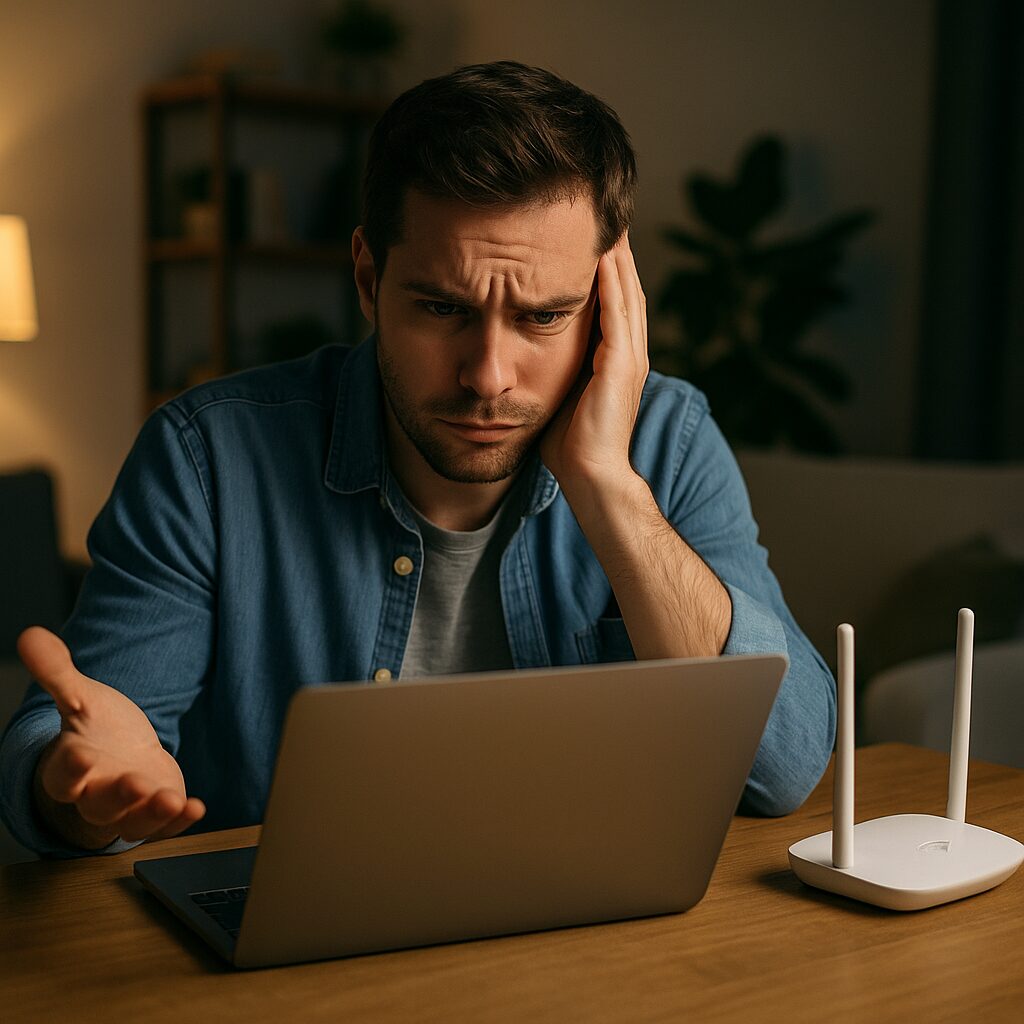
Dealing with slow WiFi on your laptop can be a frustrating experience, especially when you’re trying to meet a deadline, attend an online class, or stream your favorite series. Fortunately, there are several steps you can take to troubleshoot and improve your WiFi speed. Whether you’re a student, a remote worker, or a small business user, these simple, non-technical solutions can help you enjoy faster internet without the need for a tech expert.
Understanding the Causes of Slow WiFi
TL;DR: Dealing with slow WiFi on your laptop can be a frustrating experience, especially when you’re trying to meet a deadline, attend an online class, or stream your favorite series. Fortunately, there are several steps you…
Table of Contents
Before diving into the solutions, it’s crucial to understand what might be causing your slow WiFi. Some common culprits include:
- Distance from the router
- Interference from other devices
- Outdated hardware or software
- Overloaded bandwidth
Don’t Miss This
Quick Fixes to Improve WiFi Speed on Your Laptop
Check Your Laptop’s Placement
The location of your laptop in relation to your WiFi router plays a significant role in your internet speed. If possible, move closer to your router. Avoid physical obstructions like walls and large metal objects, as they can weaken the signal.
Limit Bandwidth-Heavy Applications
Streaming services, large downloads, and online games can consume a significant portion of your bandwidth, leaving less available for other tasks. Close any unnecessary applications and tabs to free up bandwidth.
Update Your Network Adapter Driver
Outdated drivers can lead to a plethora of connectivity issues, including slow WiFi. To update your network adapter driver:
- Open Device Manager in Windows.
- Expand the “Network adapters” section.
- Right-click on your wireless device and select “Update driver.”
- Choose “Search automatically for updated driver software.”
Follow any additional prompts to complete the update process.
Change Your WiFi Band
Modern routers offer dual-band frequencies: 2.4GHz and 5GHz. The 5GHz band is faster and less prone to interference but has a shorter range. If your laptop supports it, switching to the 5GHz band can significantly improve your WiFi speed.
Reset Your Router
Sometimes, the simplest solution can be the most effective. Unplugging your router, waiting for a minute, and plugging it back in can resolve many connectivity issues.
Use a WiFi Extender
If you’re experiencing slow WiFi due to distance from your router, a WiFi extender can help. It boosts the signal’s reach, ensuring better coverage throughout your home or office.
When to Consider Hardware Upgrades
If you’ve tried all the above steps and your WiFi is still slow, it might be time to consider hardware upgrades. Older routers may not support the latest WiFi standards, leading to slower speeds and reduced range. Similarly, if your laptop’s WiFi card is outdated, it might not be able to keep up with current internet speeds.
Conclusion
Slow WiFi on your laptop is a common issue, but it doesn’t have to be a permanent one. By understanding the causes and implementing the solutions outlined above, you can significantly improve your WiFi speed. Remember, start with the simplest fixes like checking your laptop’s placement and limiting bandwidth-heavy applications before moving on to hardware upgrades. With a bit of troubleshooting, you can enjoy faster, more reliable internet connectivity on your laptop.
Last Refreshed: March 21, 2026