TL;DR
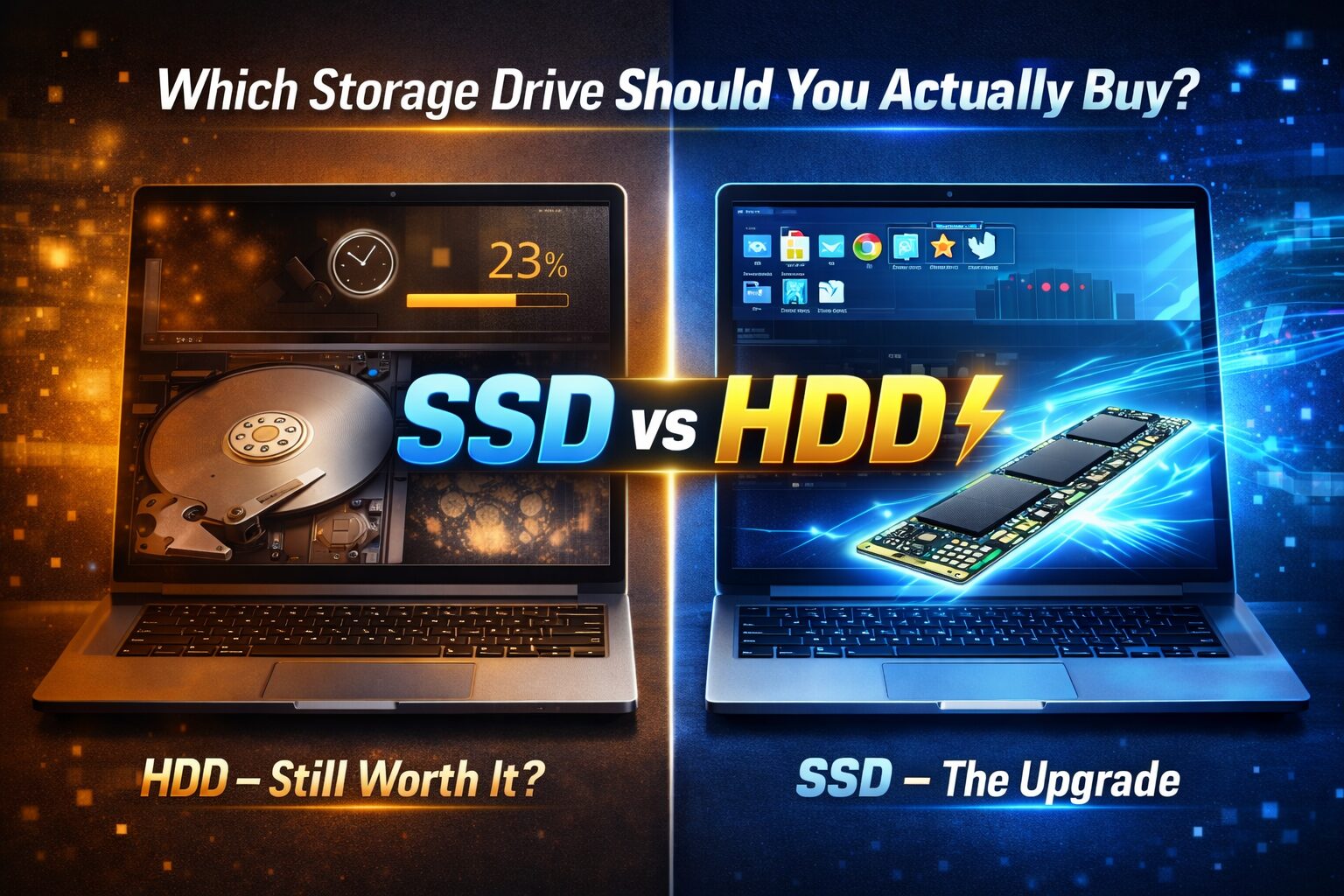
Buy an SSD. It’s faster, lighter, more durable, and battery-friendly. Only consider HDD if you need massive, cheap storage on a very tight budget.
Quick Verdict
If you’re buying a laptop in 2025 and debating between SSD and HDD storage, the short answer is: get the SSD. For most people, students, professionals, creatives, casual users, a solid-state drive transforms the day-to-day laptop experience in ways that raw specs can’t fully capture. Boot times drop from minutes to seconds. Apps snap open. The whole machine just feels alive.
That said, HDDs still serve a purpose. If you’re on a tight budget, need massive local storage (think 2TB or more), and your primary use case is storing large media files rather than running demanding software, a high-capacity HDD in a budget laptop can stretch your money further. Just know you’re making a real sacrifice in speed and responsiveness.
Side-by-Side Comparison Table
| Feature | SSD Laptop | HDD Laptop |
|---|---|---|
| Storage Type | NAND Flash (no moving parts) | Spinning magnetic platters |
| Typical Speeds | 500MB/s–7,000MB/s (SATA to NVMe) | 80–160MB/s |
| Capacity Range | 256GB–2TB (mainstream) | 500GB–2TB (mainstream) |
| Boot Time | 8–15 seconds | 45–90 seconds |
| Battery Impact | Lower power draw | Higher power draw |
| Durability | Shock-resistant, no moving parts | Vulnerable to drops and vibration |
| Weight Impact | Lighter overall build | Heavier chassis |
| Noise | Silent | Audible spinning/seek noise |
| Price per GB | Higher (~$0.08–$0.15/GB) | Lower (~$0.02–$0.04/GB) |
| Best For | Speed, portability, everyday use | Budget buyers, bulk local storage |
Design & Build Quality
How Storage Affects the Laptop’s Physical Form
This is where most buyers don’t connect the dots. The type of storage inside a laptop directly shapes how the machine is built.
SSD-equipped laptops tend to be thinner and lighter. Because SSDs are compact chips rather than spinning disk assemblies, manufacturers have more freedom to design slim chassis, think the ultrabook category. Many modern SSDs are M.2 form factor, barely larger than a stick of gum. This is why you see 13-inch laptops that weigh under 1.2kg with SSDs inside, while budget HDD laptops rarely dip below 1.8kg.
HDD laptops, by contrast, require thicker enclosures to house the 2.5-inch disk assembly and the mechanism that protects it. They’re heavier, which matters more than people admit, carry a laptop in a bag five days a week and that extra 400–600 grams starts to feel like a lot.
Durability tells a starker story. HDDs have spinning platters and read/write heads that float nanometers above the disk surface. Drop an HDD laptop mid-operation and you risk a head crash – potentially catastrophic data loss. SSDs have no moving parts whatsoever. They handle drops, bumps, and vibration without flinching. For anyone who travels frequently or uses a laptop in non-ideal environments (coffee shops, commutes, job sites), this alone is a significant argument for SSD.
Performance Comparison
Where the Difference Actually Lives
Benchmarks put SSDs ahead by factors of 5x to 50x depending on the drive type (SATA SSD vs NVMe SSD vs HDD). But raw numbers rarely translate to real life the way reviewers pretend they do. Here’s what actually changes.
Don’t Miss This >> 8GB vs 16GB RAM for Programming Power Users
Programming and Development
If you work in software development, SSD is non-negotiable. Compiling code, running local servers, spinning up Docker containers, and indexing large codebases are heavily storage-dependent. On an HDD, a full Gradle build on an Android project that takes 45 seconds on an NVMe SSD can stretch to 4–6 minutes. That’s not a marginal difference. That’s a workflow-destroying bottleneck that compounds across a full workday.
Package managers like npm and pip perform dramatically better on SSD too, since they write thousands of small files rapidly, exactly the operation where HDDs suffer most.
Gaming
Gaming on a laptop HDD is functional but increasingly frustrating. Modern open-world games, anything from Elden Ring to Microsoft Flight Simulator, rely on streaming assets from storage in real time. On an HDD, you get longer load screens, texture pop-in, and stuttering as the game struggles to pull data fast enough. On SSD, load times shrink by 60–75% in most titles, and open-world streaming becomes nearly seamless.
Competitive gamers care about more than frame rates. Getting into a match 90 seconds faster, every time, adds up. And the stutter caused by HDD bottlenecks during gameplay can spike latency in ways that feel like a GPU problem but aren’t.
Office Work and Everyday Use
This is where SSDs win the most converts who weren’t expecting it. If your daily laptop use involves a browser with 15+ tabs, a PDF reader, Slack or Teams, an email client, and a spreadsheet open simultaneously, an HDD makes this feel sluggish. Not broken, just perpetually slow to respond.
On an SSD, switching between apps is instant. Search in Windows or macOS indexes faster. File Explorer or Finder doesn’t freeze when you navigate to a folder with hundreds of files. These are the micro-frustrations that erode productivity quietly over months.
Multitasking
Multitasking performance depends on RAM first, storage second. But when RAM fills up and the system starts using virtual memory (the page file), storage speed becomes critical. An HDD system that’s running low on RAM will crawl, sometimes to the point of being unresponsive for 20–30 seconds. The same situation on an SSD is uncomfortable but recoverable. For anyone running virtual machines, multiple applications simultaneously, or working on large datasets, this matters enormously.
Editing (Photo, Video, Audio)
Video editing is arguably the most storage-intensive creative workload. Scrubbing through a 4K timeline requires continuous high-speed data reads. On an HDD, editing 4K footage is painful, expect dropped frames during playback, slow export times, and crashes when scrubbing quickly. On a SATA SSD it’s workable; on NVMe it’s genuinely smooth.
Photo editing is more forgiving, but Lightroom catalog loading, batch exports, and working with large RAW files all benefit meaningfully from SSD speeds.
Battery Life & Thermals
The Hidden SSD Advantage
Most people focus on performance and skip this section. That’s a mistake.
HDDs consume more power than SSDs, typically 4–10W during active use versus 1–3W for an SSD. In a laptop, that gap translates directly to battery runtime. On a moderate workload, SSD laptops can squeeze an additional 45–90 minutes of battery life compared to equivalent HDD systems. Over a full workday, that’s meaningful.
Thermals are another overlooked factor. HDDs generate heat from their spinning mechanism and they transmit vibration through the chassis. SSDs run cooler and contribute to a quieter, more thermally stable system. This matters for sustained performance, a cooler laptop throttles less under load.
One practical note: NVMe SSDs, particularly high-performance PCIe Gen 4 drives, can run hot themselves under sustained writes. This is mostly relevant in workstations and high-performance laptops where proper thermal design is essential. In mainstream everyday laptops, it’s rarely an issue.
Value for Money
Pricing Has Shifted Dramatically
Here’s the honest picture in 2025: SSDs are no longer the premium option they once were. The price gap has narrowed considerably. A 512GB SSD-equipped laptop can be found at nearly every price tier above $300. Budget laptops that would have shipped with HDDs three years ago now often include 256GB SSDs by default.
Where HDD still offers genuine value is in raw capacity per dollar. A 2TB HDD costs roughly $50–$60 standalone. A 2TB SSD costs $100–$150. If you’re buying a laptop specifically to store a large local media library – say, a video archive, a music collection, or a backup drive – HDD’s cost-per-gigabyte is still substantially better.
The value calculation shifts when you consider longevity. SSDs are more durable, consume less power, and will keep the laptop feeling fast for longer. An HDD laptop may become frustratingly slow within 2–3 years as software demands grow, while an SSD laptop tends to age more gracefully.
For most buyers, paying $50–$100 more for an SSD configuration is one of the highest-return upgrades available in a laptop purchase.
Who Should Buy an SSD Laptop?
Students and professionals who need a fast, responsive machine for daily work, SSD makes everything from booting up in class to switching between apps feel effortless.
Developers and engineers who compile code, run local environments, or work with large repositories will find HDD storage actively slowing their workflow in measurable ways.
Travelers and commuters who carry a laptop regularly, SSD laptops are lighter, more shock-resistant, and last longer on a charge.
Gamers and creatives who edit video, work with large files, or care about load times, SSD is a genuine necessity at this point.
Anyone who owns a modern operating system – Windows 11 and macOS are frankly not designed to feel good on spinning disk storage. They expect fast storage.
Who Should Buy an HDD Laptop?
Extremely budget-constrained buyers who need a functional laptop under $250 and can tolerate slower performance, some HDD systems at this price point remain viable for very light use.
Bulk local storage users who need 1–2TB of space and can’t afford to buy both a fast SSD laptop and external storage separately, though pairing a small SSD laptop with an external HDD is usually the smarter long-term move.
Casual secondary machine users who need a laptop that lives on a desk, rarely moves, and is used only for web browsing and document editing – HDD degradation is less noticeable in very low-intensity usage.
Those who can upgrade later – some older laptop models allow you to replace an HDD with an SSD yourself, which is the best of both worlds if you’re buying used.
Don’t Miss This >> What CPU Cores Actually Mean
Common Buyer Mistakes
Mistake 1: Assuming HDD is “basically fine” for modern use. It isn’t. Windows 11 on a 5400RPM HDD is a genuinely poor experience. The system takes minutes to settle after boot, updates slow everything to a crawl, and the perpetual disk usage indicator hovering at 100% is a warning sign, not a quirk.
Mistake 2: Confusing storage with RAM. Many buyers think more storage means a faster laptop. Storage speed affects load times and file operations. RAM affects multitasking and application performance. Both matter, but they’re different.
Mistake 3: Ignoring SSD type. Not all SSDs are equal. A SATA SSD is roughly 3–5x faster than an HDD but about 5–10x slower than a PCIe NVMe SSD. If a laptop advertises “SSD storage,” it’s worth checking whether it’s SATA or NVMe, the difference is significant for demanding workloads.
Mistake 4: Overlooking capacity. Buying a 128GB SSD to save money is a false economy. Windows alone consumes 30–40GB. Add Office, a browser, some apps, and a few project folders, and you’ll hit the limit within months. 256GB is the practical minimum; 512GB is the sweet spot.
Mistake 5: Thinking external drives solve everything. External HDDs are great for backup and archiving. They are not a replacement for fast internal storage. Your OS, applications, and active project files need to live on fast internal storage to benefit from SSD speeds.
Final Recommendation
For the overwhelming majority of laptop buyers today, SSD is the right choice, and it’s not particularly close.
The performance gap between SSD and HDD isn’t a spec sheet abstraction. It changes how a laptop feels to use every single day. Boot times, app responsiveness, multitasking under load, battery runtime, and physical durability all improve meaningfully with solid-state storage.
HDD laptops retain a narrow use case: ultra-budget buyers who prioritize raw storage capacity over speed and don’t mind a slower experience. Even then, the smarter move is usually to buy a modest SSD laptop and add an external HDD for bulk storage when needed.
If you’re choosing between two otherwise similar laptops and one has an SSD while the other has an HDD, pick the SSD every time. It’s the single component upgrade that will have the most noticeable impact on how much you enjoy using your machine, not just on day one, but three years from now.