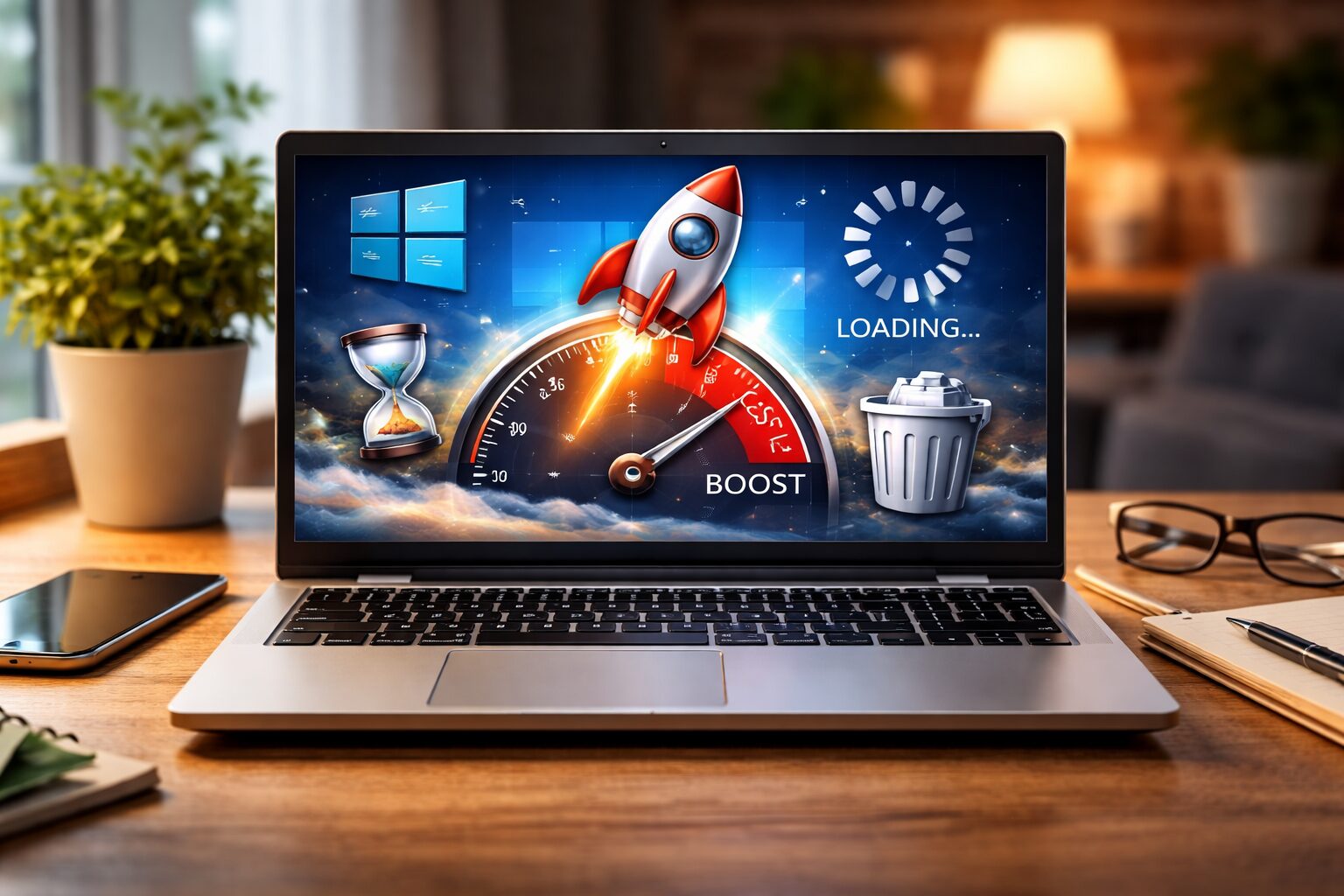
You sit down to get something done, open your laptop – and Windows 10 takes three full minutes just to load your desktop. Sound familiar?
Maybe it was fine when you first bought it. But somewhere along the way, your once-zippy laptop turned into a sluggish, fan-blasting machine that freezes every time you open Chrome. You’re not imagining it, and your laptop probably isn’t broken.
The good news? In most cases, a slow Windows 10 laptop is a software problem – not a hardware one. That means you can fix it yourself, right now, for free. This guide walks you through the fastest, most effective fixes – the ones IT professionals actually use – in plain English.
Let’s get your laptop running like new again.
Why Is Your Windows 10 Laptop So Slow?
Before diving into fixes, it helps to understand what’s actually happening. Windows 10 laptops slow down for a handful of very common reasons:
- Too many startup programs hogging memory before you even open a single app.
- A cluttered hard drive with gigabytes of junk files Windows quietly accumulates.
- Visual effects that Windows enables by default – pretty, but needlessly taxing on older hardware.
- Background apps running silently and eating up your RAM and CPU.
- Outdated drivers or Windows updates causing conflicts and bottlenecks.
- An overloaded or fragmented hard drive (less relevant if you have an SSD).
The following fixes tackle all of these, starting with the ones that make the biggest difference the fastest.
Fix 1: Disable Startup Programs (The Biggest Win)
This is almost always the #1 reason a Windows 10 laptop feels slow right after booting. Every program you’ve ever installed loves to add itself to your startup list. Result: Windows has to load 20+ apps before you’ve even touched your keyboard.
How to Disable Startup Programs
- Press Ctrl + Shift + Esc to open Task Manager.
- Click the “Startup” tab at the top.
- You’ll see a list of programs with a “Startup impact” column on the right – look for anything marked High.
- Right-click any program you don’t need at startup and choose “Disable.”
- Restart your laptop and feel the difference.
Pro Tip: Safe ones to disable: Spotify, Discord, Skype, Teams (unless you use it first thing), OneDrive auto-launch, Adobe Updater, Slack. Leave your antivirus and anything labeled “Microsoft” running.
Warning: Don’t disable programs you don’t recognize. If you’re unsure, Google the app name first. Disabling the wrong thing (like your touchpad driver) can cause issues.
Fix 2: Run Disk Cleanup (Delete Hidden Junk Files)
Windows 10 quietly builds up a mountain of temporary files over time – cached updates, installer leftovers, thumbnail databases, old error logs. None of it serves you. All of it slows your system down.
Using the Built-In Disk Cleanup Tool
- Press the Windows key and type Disk Cleanup. Open it.
- Select your main drive (usually C:) and click OK.
- Click “Clean up system files” for a deeper clean.
- Select your drive again and wait for the second scan.
- Check all boxes – especially Temporary files, Recycle Bin, and Windows Update Cleanup.
- Click OK > Delete Files. Done.
On a laptop that hasn’t been cleaned in a while, this can free up anywhere from 1 GB to 10+ GB of space – which directly improves loading times and responsiveness.
Also: Right-click the Recycle Bin on your desktop and select “Empty Recycle Bin.” Small win, takes five seconds.
Fix 3: Turn Off Visual Effects for Instant Snappiness
Windows 10 has beautiful animations – windows that slide, menus that fade, shadows under icons. On a brand-new high-end machine, it’s lovely. On an older laptop with integrated graphics and 4GB RAM? It’s dragging the whole system down.
Adjust Visual Effects for Best Performance
- Press Windows key + R, type sysdm.cpl, and press Enter.
- Go to the Advanced tab and click “Settings” under Performance.
- Select “Adjust for best performance” to turn off all effects at once.
- Or choose “Custom” and keep just two: “Smooth edges of screen fonts” and “Show thumbnails instead of icons.”
- Click Apply > OK. The change is instant.
Pro Tip: The biggest gains come from turning off “Animate windows when minimizing and maximizing” and “Fade or slide menus into view.” These two alone can make your UI feel twice as fast.
Fix 4: Check What’s Eating Your CPU and RAM Right Now
Sometimes one rogue process silently consumes 80% of your CPU and kills your laptop’s speed. Malware, a stuck Windows Update, browser extensions gone wrong – they all show up the same way: your laptop is hot, the fan is roaring, and everything lags.
Find and Stop Resource-Hungry Processes
- Open Task Manager with Ctrl + Shift + Esc.
- Click the CPU column header to sort by CPU usage (highest first).
- Look for any process using more than 20–30% when you’re not actively doing anything.
- If it’s your browser with 10 tabs open – that’s expected. Close some tabs.
- If it’s something unfamiliar, search the process name online before doing anything.
- To stop a safe-to-close process: right-click > “End Task.”
Don’t Miss This
Windows Update sometimes runs silently in the background while you’re trying to work. That’s normal. If TiWorker.exe or Windows Update is the culprit, just wait – it’ll finish on its own.
Warning: Never end a process labeled “System,” “CSRSS,” “lsass.exe,” or anything tied to your antivirus. Terminating these can crash Windows.
Also: Switch Your Power Plan
If your laptop is on “Power Saver” mode, Windows actively limits your CPU speed to preserve battery. Great for battery life, terrible for performance.
- Press Windows key + R, type powercfg.cpl, press Enter.
- Select “Balanced” or “High Performance.”
- Notice the difference immediately – especially when opening apps.
Fix 5: Optimize Your Storage Drive (HDD Users, This Is for You)
If your laptop still has a traditional spinning hard drive (HDD) rather than a solid-state drive (SSD), this step is crucial. Fragmented data scattered across the disk forces the drive to work overtime on every single operation.
Defragment Your Hard Drive (HDD Only)
- Press the Windows key, type defrag, and open “Defragment and Optimize Drives.”
- Select your C: drive and click “Optimize.”
- If it says Solid State Drive (SSD) – skip this entirely. SSDs should never be defragmented.
- For HDDs, this can take 10–45 minutes. Run it when you’re not using the laptop.
Pro Tip – The Single Best Hardware Upgrade: If your laptop still has an HDD and feels permanently sluggish, replacing it with a $40–$60 SSD is the single biggest speed boost money can buy. It’s a bigger improvement than buying a new laptop in many cases.
Bonus Fixes: Go Even Further
Already done the five core fixes? These extra steps take a bit more time but deliver serious results.
Check for Malware
A slow laptop is one of the most common signs of a malware infection. Press the Windows key, search for Windows Security, open it, and run a full scan. It’s built in, free, and surprisingly effective.
Update Your Drivers
Outdated graphics or chipset drivers can tank performance. Go to Device Manager (search it in the Start menu), right-click on key components like your display adapter, and select “Update driver.”
Add More RAM (If Possible)
If your laptop has only 4GB of RAM and you run Chrome, that’s your entire memory budget just for the browser. Upgrading to 8GB is inexpensive and transformative. Check your laptop model’s specs to see if RAM slots are accessible and upgradeable.
Consider a Clean Windows Reset
If you’ve tried everything and your laptop is still sluggish, a Windows reset often fixes deep-rooted issues. Go to Settings > Update & Security > Recovery > Reset this PC. Choose “Keep my files” to avoid losing your data.
Your 5-Minute Speed-Up Checklist
Bookmark this. Run through it whenever your laptop starts dragging.
- Disable high-impact startup programs in Task Manager
- Run Disk Cleanup and delete system files
- Empty the Recycle Bin
- Set Visual Effects to “Adjust for best performance”
- Check Task Manager for CPU/RAM hogs and end rogue processes
- Switch power plan from “Power Saver” to “Balanced”
- Defragment your HDD (skip if you have an SSD)
- Run a Windows Security full scan for malware
- Check for driver updates
Frequently Asked Questions
Why is my Windows 10 laptop so slow even after a restart?
A fresh restart doesn’t fix the underlying causes – too many startup apps, bloated system files, or aggressive visual effects all kick back in the moment Windows loads. The fixes in this guide address those root causes, not just the symptom.
Is it safe to disable startup programs?
Yes, for user-installed apps like Spotify, Discord, or Skype. Disabling these doesn’t uninstall them – they’ll still open normally when you click them. It just stops them from launching automatically in the background at every startup. Avoid disabling Microsoft system entries or your antivirus.
Will these fixes work on a very old laptop (5–10 years old)?
Absolutely – in fact, older laptops benefit most from these tweaks. Disabling visual effects and trimming startup programs can feel particularly dramatic on machines from 2013–2018.
Should I use third-party optimization tools like CCleaner?
You don’t need them. Everything in this guide uses tools built directly into Windows 10. Third-party “PC cleaners” often do little beyond what’s covered here, and some of the less reputable ones can cause more problems than they solve.
My laptop is still slow after all these fixes. What next?
At that point, the bottleneck is likely hardware – specifically, an aging HDD or insufficient RAM. Upgrading to an SSD delivers the most dramatic single improvement possible. If hardware upgrades aren’t an option, a clean Windows reinstall is the next logical step.
Internal Linking Suggestions
- Link “SSD upgrade” to your hardware guide or laptop upgrade article
- Link “malware infection” to your Windows Security or antivirus guide
- Link “clean Windows reset” to your Windows reinstall walkthrough
- Link “add more RAM” to your laptop RAM upgrade guide
Conclusion: Your Laptop Isn’t Dead – It Just Needed Some Attention
A slow Windows 10 laptop is one of the most fixable tech problems you’ll ever deal with. The causes are almost always mundane – too much clutter, too many background apps, too many visual bells and whistles running on limited hardware. None of that requires a new laptop or a technician.
Start with the checklist above. Disable those startup programs first – that single change often makes an immediately noticeable difference. Work your way through the rest, and don’t skip the power plan check if you’re running on battery.
And if you’re on an old HDD? Seriously consider that SSD upgrade. It’s the closest thing to a miracle that exists in consumer tech. A $50 part and 30 minutes can give a decade-old laptop a new lease on life.
You’ve got this. Go enjoy a fast laptop again.