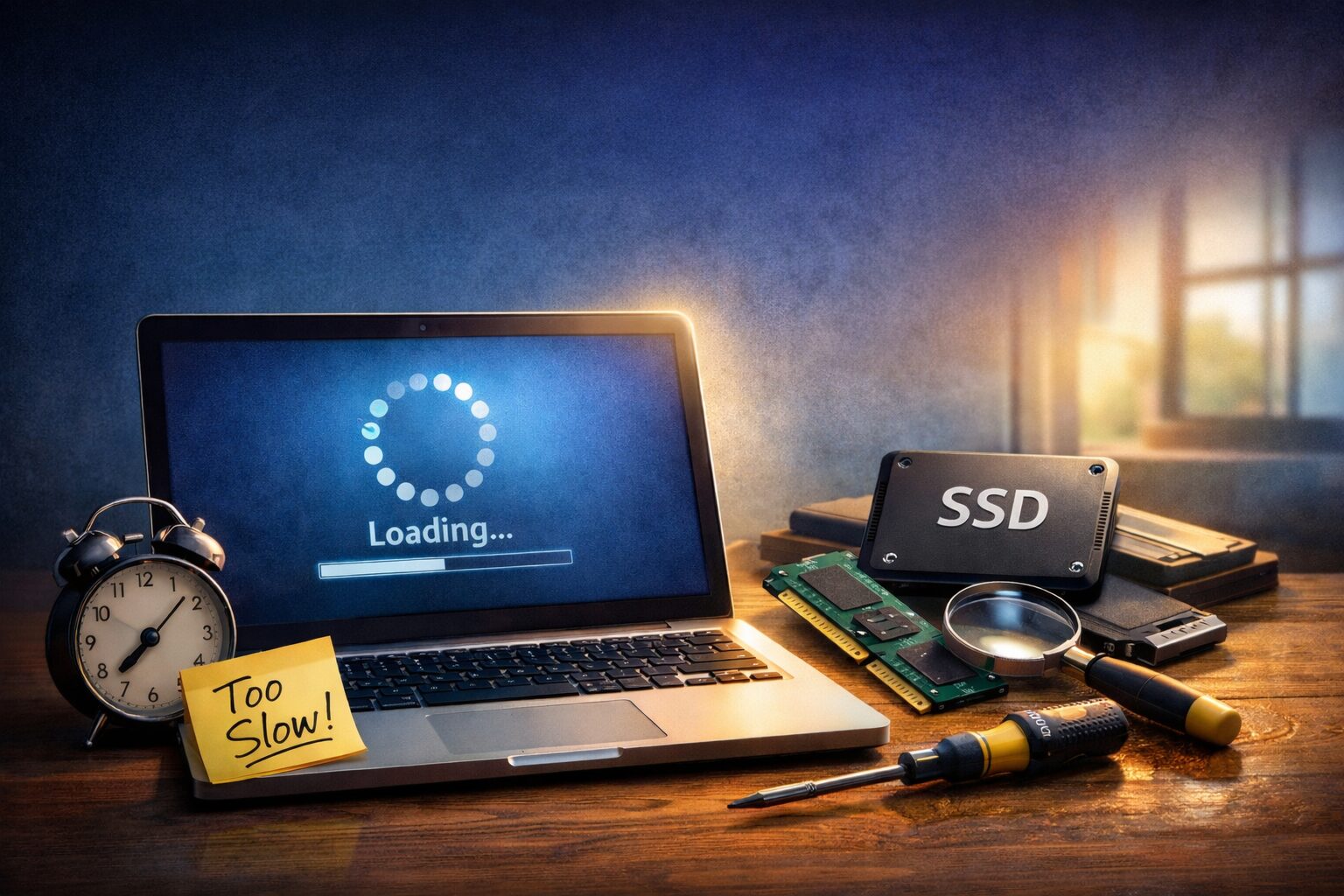
Picture this: it’s Monday morning, you’re already running five minutes late, you flip open your laptop – and then you wait. And wait. The loading spinner keeps going. The desktop finally appears, but then every icon takes another minute to settle. By the time your machine is actually usable, you’ve already missed your first meeting alert and your coffee has gone cold.
If that sounds painfully familiar, you’re definitely not alone. A laptop that takes forever to start is one of the most common tech complaints out there – and the good news is that in most cases, you can fix it yourself without spending a single cent on a repair shop.
In this guide, we’re going to break down exactly why your laptop startup is slow, and then walk through 12 proven fixes you can apply today – from quick software tweaks to hardware upgrades that can genuinely transform your machine. Whether you’re a total beginner or a semi-technical user, there’s something here for you.
Why Is Your Laptop Startup So Slow?
Before jumping into the fixes, it helps to understand what’s actually happening when your laptop boots up. When you press the power button, your machine goes through a chain of events: it initializes the hardware, loads the operating system, then fires up every program and background service that’s set to start automatically. The more steps in that chain – and the older or fuller your hardware – the longer the whole process takes.
Here are the most common culprits behind a slow laptop boot time:
- Too many startup programs: Every app you install often adds itself to the startup queue. Over time, you end up with dozens of programs all competing to load at once.
- An old hard drive (HDD): Traditional spinning hard drives are significantly slower than modern solid-state drives. If your laptop is more than five years old and still running an HDD, this is likely your biggest bottleneck.
- Low RAM: When your system runs out of memory, it starts using slower storage as a substitute – which slows everything down dramatically.
- Outdated operating system or drivers: Old software is often less optimized and can create compatibility issues that slow things down.
- Malware or background apps: Viruses, adware, and bloatware love to run silently in the background, eating up processing power from the moment your laptop starts.
- Fragmented or almost-full storage: When your drive is nearly full or badly fragmented, your system has to work much harder to find and load the files it needs.
12 Proven Ways to Fix a Slow Laptop Startup
Let’s get into it. Work through these in order – the first few are the easiest and most impactful.
Fix 1: Disable Unnecessary Startup Programs
This is the single easiest win, and it works immediately. Most people are surprised by how many programs have quietly added themselves to their startup list.
On Windows 10/11:
- Press Ctrl + Shift + Esc to open Task Manager.
- Click on the Startup tab.
- Sort by “Startup Impact.”
- Right-click anything marked High or Medium that you don’t need immediately at startup (things like Spotify, Discord, Teams, OneDrive, Adobe Updater, etc.) and click Disable.
On a Mac: Go to System Settings > General > Login Items and remove anything you don’t need loading on startup.
You’ll likely notice a difference the next time you boot up.
Don’t Miss This
Fix 2: Upgrade from HDD to SSD
If your laptop still has a traditional spinning hard drive, upgrading to an SSD (Solid-State Drive) is the single biggest performance improvement you can make. We’re talking about cutting boot times from 2–3 minutes down to under 15 seconds. It’s genuinely night-and-day.
Modern SSDs are affordable (often $40–70 for a quality 500GB drive), and the upgrade process is straightforward on most laptops. Popular and reliable options include the Samsung 870 EVO, Crucial MX500, and WD Blue.
If you’re not confident doing it yourself, a local computer shop will typically charge $50–$80 for the swap including data transfer.
Fix 3: Add More RAM
If your laptop has 4GB of RAM or less, it’s going to struggle – especially with Windows 10 or 11. The minimum comfortable amount these days is 8GB, and 16GB is ideal if you multitask or use memory-hungry apps.
Before buying, check if your laptop’s RAM is upgradeable (some modern ultra-thin laptops have RAM soldered to the board). A quick search of your model number will tell you. DDR4 RAM is widely available and reasonably priced.
Fix 4: Remove Unnecessary Software
Bloatware is real. Many laptops come pre-loaded with software you’ll never use – trial antivirus suites, manufacturer utilities, games, and promotional apps. These take up storage, sometimes run in the background, and slow down your boot.
On Windows:
- Go to Settings > Apps > Installed Apps.
- Sort by size or install date.
- Uninstall anything you don’t recognize or haven’t used in months.
A free tool like Bulk Crap Uninstaller (BCU) makes this process even faster.
Fix 5: Update Your Operating System and Drivers
Running an outdated OS or old drivers can cause all kinds of performance issues, including slow startups. Microsoft and Apple regularly release updates that include performance improvements and bug fixes.
On Windows: Go to Settings > Windows Update and install any pending updates.
On Mac: Go to System Settings > General > Software Update.
Also update your graphics card drivers, chipset drivers, and storage drivers – especially if you recently did a hardware upgrade. You can usually find these on your laptop manufacturer’s website under Support.
Fix 6: Scan for Malware
Malware doesn’t always announce itself. Many infections are designed to run quietly, hogging CPU and memory from the moment your machine starts. If your laptop startup is slow and you haven’t run a malware scan recently, do it now.
Recommended tools:
- Malwarebytes Free (excellent for catching things your built-in antivirus misses)
- Windows Defender (built-in and solid for everyday protection)
- AdwCleaner (great for removing adware specifically)
Run a full scan, not just a quick one, and let it remove anything suspicious.
Fix 7: Clean Out Temporary Files
Your laptop accumulates junk over time: temporary files, cached data, old update packages, and leftovers from uninstalled programs. Clearing these out frees up storage and can noticeably speed up your system.
On Windows:
- Press Windows Key + R, type %temp%, and hit Enter.
- Select all files and delete them (skip any that say ‘in use’).
- Also run Disk Cleanup (search for it in the Start menu) and check “Clean up system files.”
Alternatively, a free tool like CCleaner does all of this in one click.
Fix 8: Reduce Background Services
Windows runs dozens of background services by default, and not all of them are necessary for everyday use. Reducing these can meaningfully speed up your laptop startup.
- Press Windows Key + R, type msconfig, and hit Enter.
- Click the Services tab and check “Hide all Microsoft services.”
- Review what’s left and disable anything you don’t need.
Be cautious here – if you’re not sure what a service does, leave it alone. Disabling the wrong thing can cause app issues.
Fix 9: Optimize BIOS Settings
Your BIOS (Basic Input/Output System) is the firmware that runs before Windows even loads. A few tweaks here can trim startup time noticeably.
Two key settings to look for:
- Fast Boot: Enable this to skip some hardware checks on startup.
- Boot Order: Make sure your primary drive (SSD) is listed first. If your laptop is checking a USB or DVD drive first, it wastes time.
To access BIOS, restart your laptop and press the key shown on screen (usually F2, F12, Delete, or Esc) immediately after pressing the power button. Consult your laptop’s manual for the exact key.
Fix 10: Enable Fast Startup (Windows)
Windows has a built-in Fast Startup feature that saves a snapshot of your system state when you shut down, so the next boot happens much quicker. It’s a hybrid between a full shutdown and hibernation.
- Go to Control Panel > Power Options.
- Click “Choose what the power buttons do.”
- Click “Change settings that are currently unavailable.”
- Check “Turn on fast startup” and save changes.
Note: This can occasionally cause issues with some updates or dual-boot setups. If you notice problems, simply turn it off.
Fix 11: Reset or Reinstall the Operating System
If you’ve tried everything above and your laptop startup is still crawling, a clean OS reinstall might be the nuclear option you need. Over time, Windows in particular can accumulate registry errors, corrupted files, and layers of junk that are hard to clean up individually.
On Windows: Go to Settings > System > Recovery and choose “Reset this PC.” You can keep your files or do a full clean install.
Back up everything important first. A fresh Windows install on a clean SSD can feel like a brand-new laptop.
Fix 12: Keep Storage Below 80% Capacity
When your drive fills up, your system struggles to find room for temporary files, virtual memory, and system processes. A good rule of thumb: keep at least 20% of your storage free at all times.
If you’re consistently running tight on space, consider offloading files to an external drive, using cloud storage (Google Drive, OneDrive, or iCloud), or upgrading to a larger SSD.
Laptop Upgrade Recommendations
If you want to go beyond software fixes and genuinely transform your machine’s performance, these are the upgrades that deliver the best return on investment:
SSD Upgrades
- Samsung 870 EVO (SATA SSD) – Reliable, fast, and widely compatible. Great for older laptops.
- WD Blue SN580 (NVMe SSD) – Even faster, for laptops with an M.2 NVMe slot.
- Crucial P3 Plus – Budget-friendly NVMe option with solid performance.
RAM Upgrades
- Crucial 16GB DDR4 – Excellent everyday upgrade for Windows laptops.
- Corsair Vengeance SODIMM – Reliable and available in multiple capacities.
External Storage Solutions
If you can’t upgrade internal storage, an external SSD (like the Samsung T7 or SanDisk Extreme) connected via USB-C gives you fast, portable extra storage and keeps your main drive breathing room.
How to Prevent Slow Startup in the Future
Once you’ve gotten your boot times under control, here’s how to keep it that way:
- Audit startup programs every few months. Apps sneak back into the startup queue after updates. Make it a habit to check.
- Keep your OS and drivers updated. Security patches and performance fixes are bundled together.
- Run a malware scan monthly. Even if everything seems fine.
- Clear temp files regularly. Once a month is plenty.
- Avoid installing software you don’t need. Every extra app is a potential startup program and storage hog.
- Restart (don’t just sleep) your laptop regularly. A full restart clears memory, installs updates, and keeps things running cleanly.
When It’s Time to Replace Your Laptop
Not every slow laptop can be saved. Sometimes, the hardware is simply too old to keep up with modern software demands. Here are signs it might be time to start shopping for a new machine:
- Your laptop is more than 7–8 years old and struggling even after upgrades.
- The CPU is a low-end model from 2014 or earlier (e.g., early Intel Celeron or Pentium series) that can’t be replaced.
- RAM is soldered and maxed out at 4GB with no upgrade path.
- The battery no longer holds a meaningful charge.
- Repair costs would exceed half the cost of a comparable new machine.
If you’re in this situation, upgrading makes more financial sense than continuing to invest in an aging machine.
Conclusion
A slow laptop startup is frustrating, but it’s almost always fixable. The key is to start with the simplest solutions first: disabling unnecessary startup programs and cleaning temp files take about ten minutes and often deliver immediate results. From there, work your way up through the more involved fixes like updating your OS, scanning for malware, and adjusting BIOS settings.
If you’re still hitting a wall, a hardware upgrade – especially swapping an old HDD for an SSD – is genuinely transformative. It’s one of the best investments you can make in an aging laptop.
The goal is simple: you should be able to press the power button, pour yourself a coffee, and sit down to a laptop that’s fully ready to go. With these fixes in place, that’s not just possible – it’s expected.
Frequently Asked Questions
Q1: Why does my laptop take 5–10 minutes to start up?
A startup that slow is almost always caused by a combination of too many startup programs, an old HDD, and low available RAM. Start by disabling startup programs in Task Manager and see if that helps. If your laptop has an HDD, upgrading to an SSD will make the single biggest difference.
Q2: How much faster is an SSD compared to an HDD for boot times?
Dramatically faster. A typical HDD-based laptop might boot in 60–3 minutes. The same laptop with an SSD can boot in 10–20 seconds. It’s one of the most impactful upgrades you can make.
Q3: Can malware cause a slow laptop startup?
Absolutely. Many types of malware – especially adware and spyware – are designed to run at startup so they can operate continuously in the background. If your laptop startup slowed down suddenly with no obvious explanation, running a full malware scan should be one of your first steps.
Q4: Is it safe to disable startup programs?
Yes, for the most part. Disabling a startup program doesn’t uninstall it – it just stops it from automatically opening when your laptop boots. You can still open the program manually whenever you need it. The only things to be careful about are system utilities your laptop manufacturer requires, or security software.
Q5: How often should I restart my laptop to keep it running fast?
At least once a week is a good practice. Restarting (not just sleeping or closing the lid) clears memory, applies pending updates, and resets background processes that can accumulate and slow things down over time.
Don’t Miss This