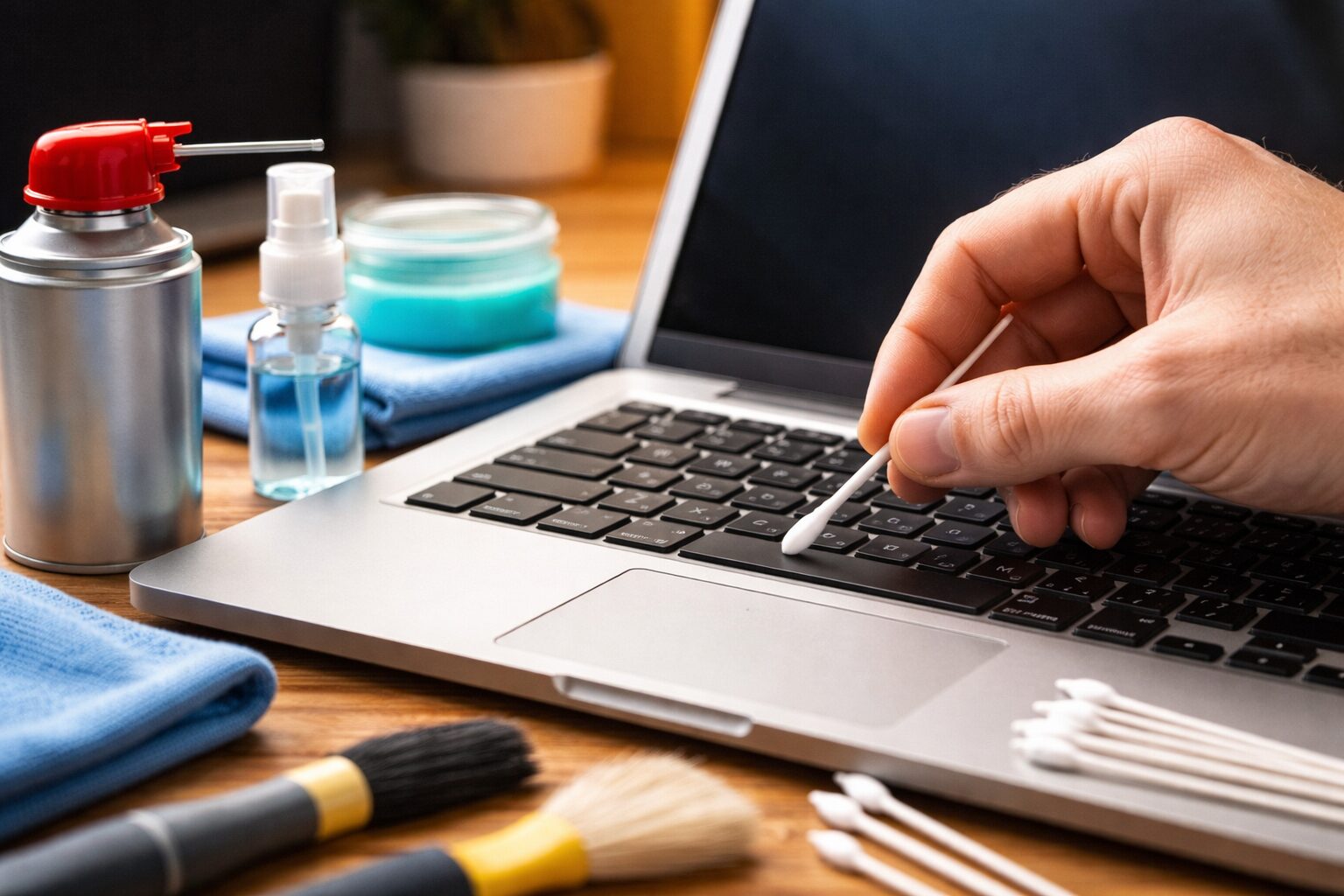
Your laptop keyboard is one of the most frequently touched surfaces in your daily life, yet it’s often one of the most neglected when it comes to cleaning. Think about it, every time you type, you’re transferring oils from your fingers, tiny food particles, dust from the air, and countless germs onto those keys. Studies have shown that the average keyboard can harbor more bacteria than a toilet seat, which is pretty alarming when you consider how much time we spend with our hands on those keys.
Dirty keyboards aren’t just unsightly or unhygienic, they can actually cause real problems. Sticky keys that don’t respond properly, dust buildup that affects performance, and even overheating issues can all stem from a keyboard that hasn’t been properly maintained. The good news? Cleaning your laptop keyboard safely is easier than you might think, and it doesn’t require expensive equipment or technical expertise.
In this comprehensive guide, I’ll walk you through everything you need to know about how to clean laptop keyboard surfaces safely and effectively. Whether you’re dealing with everyday dust or tackling sticky residue from an unfortunate coffee spill, you’ll learn the proper techniques to remove dust from laptop keyboard components without causing any damage. Let’s get your keyboard looking and functioning like new again.
Why You Should Clean Your Laptop Keyboard Regularly
TL;DR: Your laptop keyboard is one of the most frequently touched surfaces in your daily life, yet it’s often one of the most neglected when it comes to cleaning. Think about it, every time you type, you’re transferring oil…
Table of Contents
- Why You Should Clean Your Laptop Keyboard Regularly
- Performance Issues
- Sticky Keys and Residue
- Health Concerns
- Reduced Laptop Lifespan
- Airflow and Overheating Issues
- Things You Should Do Before Cleaning Your Laptop Keyboard
- Power Down Completely
- Disconnect All Power Sources
- Remove External Devices
- Choose Your Workspace
- Gather Your Cleaning Tools
- Tools You Need to Clean a Laptop Keyboard Safely
- Microfiber Cloth
- Compressed Air
- Soft Brush
- Cotton Swabs
- Isopropyl Alcohol (70% or Higher)
- Keyboard Cleaning Gel
- Small Container
- Step-by-Step Guide to Cleaning Your Laptop Keyboard
- Step 1: Turn Off and Unplug the Laptop
- Step 2: Turn the Laptop Upside Down
- Step 3: Use Compressed Air to Remove Dust
- Step 4: Clean Between the Keys with a Soft Brush
- Step 5: Wipe Keys with Isopropyl Alcohol
- Step 6: Use Cotton Swabs for Tight Spaces
- Step 7: Let the Keyboard Dry Completely
- How to Disinfect Your Laptop Keyboard Properly
- Choose the Right Disinfectant
- Apply Properly
- Contact Time Matters
- Focus on High-Touch Areas
- Regular Disinfection Schedule
- Common Mistakes to Avoid When Cleaning a Laptop Keyboard
- Spraying Liquid Directly on the Keyboard
- Using Harsh Chemicals
- Applying Too Much Pressure
- Removing Keys Without Proper Knowledge
- Cleaning While the Laptop Is Powered On
- Using Too Much Compressed Air
- Neglecting the Edges and Surrounding Areas
- How Often Should You Clean Your Laptop Keyboard?
- Light Cleaning: Weekly
- Deep Cleaning: Monthly
- Disinfecting: As Needed
- Post-Spill Cleaning: Immediately
- Adjust Based on Your Environment
- Best Accessories for Cleaning Laptop Keyboards
- Keyboard Cleaning Kits
- Electric Air Dusters
- Microfiber Cleaning Cloths
- Keyboard Covers
- Cleaning Gel
- Precision Cleaning Brushes
- Signs Your Laptop Keyboard Needs Cleaning
- Sticky or Unresponsive Keys
- Visible Dust and Debris
- Keys Not Registering
Regular keyboard maintenance isn’t just about aesthetics, it’s about protecting your investment and your health. Here’s what happens when you neglect your keyboard:
Performance Issues
Dust and debris that accumulate under your keys can interfere with the mechanical components that register your keystrokes. You might notice keys becoming less responsive, requiring harder presses, or occasionally not registering at all. This isn’t just annoying; it can slow down your work and lead to typos and frustration.
Sticky Keys and Residue
If you’ve ever eaten near your laptop or accidentally spilled a drink, you know how quickly keys can become sticky. Sugar residues from sodas, oils from snacks, and other substances create a tacky surface that makes typing uncomfortable and can eventually cause keys to stick in the down position.
Health Concerns
Research from microbiologists has found that keyboards can harbor harmful bacteria including E. coli and Staphylococcus. When you consider that the average person touches their face 16 times per hour, the connection between dirty keyboards and illness becomes clear. Regular cleaning and disinfecting can significantly reduce your exposure to these pathogens.
Reduced Laptop Lifespan
Dust doesn’t just settle on your keys, it works its way into the internal components of your laptop. Over time, this buildup can interfere with cooling systems, cause overheating, and put unnecessary strain on your laptop’s components. A clean keyboard contributes to better overall laptop health.
Airflow and Overheating Issues
Many modern laptops draw air through or around the keyboard area as part of their cooling system. When dust clogs these pathways, your laptop has to work harder to stay cool, leading to reduced performance, fan noise, and potential long-term damage to sensitive components.
Things You Should Do Before Cleaning Your Laptop Keyboard
Preparation is crucial when learning how to clean laptop keyboard safely. Taking these steps will protect your device and make the cleaning process more effective:
Power Down Completely
Always turn off your laptop completely, don’t just put it to sleep. This prevents accidental key presses from triggering commands and eliminates the risk of electrical issues when using cleaning liquids. Hold down the power button until the device shuts down completely.
Disconnect All Power Sources
Unplug your laptop from the charger and remove the battery if possible. This extra safety step is particularly important if you’re using any liquid cleaning solutions. Even small amounts of moisture can cause short circuits if power is flowing through the device.
Remove External Devices
Disconnect all USB devices, external mice, headphones, and any other peripherals. This gives you clear access to the entire keyboard area and prevents accidental damage to connected devices.
Choose Your Workspace
Work on a clean, flat surface with good lighting. A desk or table covered with a clean towel works perfectly. Good lighting helps you see dust and debris that might otherwise be missed. Avoid working over carpet or upholstered furniture where small parts could get lost if a key accidentally pops off.
Gather Your Cleaning Tools
Have everything you need within reach before you start. This makes the process smoother and prevents you from leaving your partially cleaned laptop unattended. We’ll cover exactly what tools you need in the next section.
Tools You Need to Clean a Laptop Keyboard Safely
Having the right tools makes all the difference when you clean laptop keyboard safely. Here’s what you should have on hand:
Microfiber Cloth
These soft, lint-free cloths are perfect for wiping down keys without scratching surfaces. They’re also excellent for applying cleaning solutions evenly. Keep several on hand, use one for applying cleaner and another for drying.
Compressed Air
A can of compressed air is your best friend for removing loose dust and debris from between keys. Look for cans specifically designed for electronics cleaning. The narrow straw attachment helps direct air precisely where you need it.
Soft Brush
A small, soft-bristled brush (like a clean makeup brush or a dedicated electronics brush) helps dislodge stubborn particles without scratching. The gentle bristles can reach into crevices that compressed air might miss.
Cotton Swabs
These are perfect for detailed cleaning around the edges of keys and in tight corners. They allow precise application of cleaning solution to specific areas without over-wetting the keyboard.
Isopropyl Alcohol (70% or Higher)
This is the gold standard for disinfecting laptop keyboards. It evaporates quickly, kills germs effectively, and doesn’t leave residue. Never use lower concentrations or substitute with other types of alcohol, as they may contain additives that can damage your keyboard.
Keyboard Cleaning Gel
This sticky, putty-like substance molds into the spaces between keys and picks up dust, crumbs, and debris. It’s reusable and particularly useful for regular maintenance cleaning. The gel reaches areas that are difficult to access with other tools.
Small Container
Use this to hold your isopropyl alcohol for dipping cotton swabs. Never spray or pour liquid directly onto your keyboard, always apply it to your cleaning tool first.
Step-by-Step Guide to Cleaning Your Laptop Keyboard
Now let’s walk through the complete laptop keyboard cleaning guide. Follow these steps carefully for the best results:
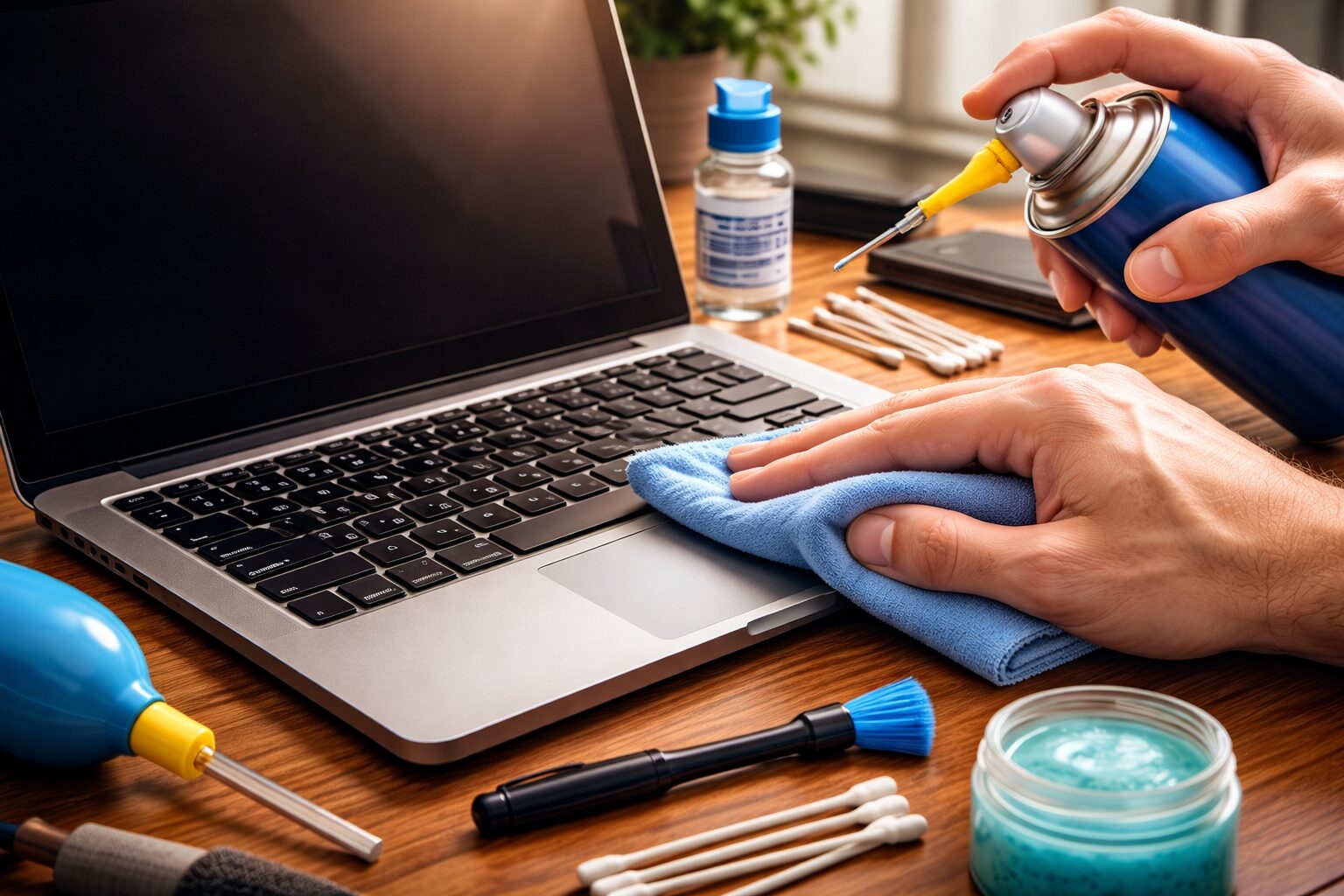
Step 1: Turn Off and Unplug the Laptop
As mentioned earlier, completely power down your laptop and disconnect all cables. If your laptop has a removable battery, take it out. This eliminates any risk of electrical damage or accidental commands being triggered during cleaning. Wait a few minutes for any residual charge to dissipate before proceeding.
Step 2: Turn the Laptop Upside Down
Gently flip your laptop upside down and give it a few light shakes over your workspace. You’ll be surprised how much loose debris falls out, crumbs, dust, hair, and other particles that have worked their way under the keys. Hold the laptop at different angles to help dislodge material from various areas. Be gentle and don’t shake too vigorously, as this could damage internal components.
Step 3: Use Compressed Air to Remove Dust
This is where you remove dust from laptop keyboard crevices that shaking alone can’t reach. Hold the compressed air can upright (never at an angle, as this can release liquid propellant) and use short bursts rather than continuous spraying. Start at one corner of the keyboard and work systematically across and down.
Angle the laptop at about 75 degrees so gravity helps the debris fall out rather than pushing it deeper into the device. Pay special attention to the spaces between keys and along the edges. The straw attachment helps you direct air precisely into tight spots. Work in a well-ventilated area, as compressed air can kick up a lot of dust.
Step 4: Clean Between the Keys with a Soft Brush
After using compressed air, take your soft brush and gently sweep between and around the keys. Use light strokes and work in one direction to guide debris toward the edges where you can wipe it away. The brush catches particles that compressed air loosened but didn’t fully remove.
Be especially thorough around keys that you use frequently, like the space bar, Enter key, and commonly used letters. These areas tend to accumulate the most debris. Don’t press too hard, you’re sweeping, not scrubbing.
Step 5: Wipe Keys with Isopropyl Alcohol
Now it’s time to clean and disinfect the key surfaces. Dampen (don’t soak) your microfiber cloth with isopropyl alcohol. The cloth should be moist but not dripping. Gently wipe each key, working in small sections. The alcohol cuts through oils from your fingers and kills bacteria and viruses.
Use a systematic approach, start at the top left and work across each row. This ensures you don’t miss any keys. Pay extra attention to keys you touch most often, like the space bar, Shift keys, and Enter key. These tend to be the grimiest.
For stubborn spots or sticky residue, you can apply a bit more pressure, but never scrub aggressively. If something won’t come off easily, let the alcohol sit on it for a few seconds to break down the residue, then wipe again.
Step 6: Use Cotton Swabs for Tight Spaces
Dip a cotton swab in isopropyl alcohol and squeeze out any excess liquid. Use the swab to clean around the edges of each key where the cloth couldn’t reach. These edges collect surprising amounts of grime that can make your keyboard look dirty even after you’ve cleaned the key tops.
Work the swab gently around each key’s perimeter. Replace swabs frequently as they become dirty, using a dirty swab just spreads grime around. For particularly tight spaces, you can trim the cotton tip to make it smaller and more precise.
Step 7: Let the Keyboard Dry Completely
This step is critical. Even though isopropyl alcohol evaporates quickly, you should wait at least 5-10 minutes before powering on your laptop. Leave the laptop open in a well-ventilated area. If you used more liquid than intended, wait longer, it’s better to be cautious.
Never use heat sources like hair dryers to speed up drying, as excessive heat can damage keyboard components. Room temperature air drying is safest. Once you’re confident everything is completely dry, you can reconnect the battery and power cable.
Don’t Miss This
How to Disinfect Your Laptop Keyboard Properly
Disinfecting goes beyond regular cleaning to kill germs and viruses. Here’s how to disinfect laptop keyboard surfaces without causing damage:
Choose the Right Disinfectant
Isopropyl alcohol at 70% concentration or higher is your best option. It’s effective against most bacteria and viruses, including common cold and flu viruses. Some manufacturers also approve disinfecting wipes specifically designed for electronics, but always check your laptop manufacturer’s guidelines first.
Apply Properly
Never spray or pour disinfectant directly onto your keyboard. Always apply it to your cleaning cloth or wipe first. The cloth should be damp, not wet. Excess liquid can seep under keys and damage the electronic components underneath.
Contact Time Matters
For effective disinfection, the surface should remain wet with the disinfectant for at least 30 seconds to one minute. This “contact time” is necessary for the alcohol to kill germs. If the surface dries before this time, apply a bit more disinfectant.
Focus on High-Touch Areas
Pay special attention to the keys you touch most frequently: space bar, Enter, Shift, and commonly used letters. Also disinfect the palm rest area where your hands naturally rest while typing. These areas have the highest concentration of germs.
Regular Disinfection Schedule
During cold and flu season, or if you share your laptop with others, consider disinfecting your keyboard daily. For personal use in normal conditions, weekly disinfection is usually sufficient to maintain good hygiene.
Common Mistakes to Avoid When Cleaning a Laptop Keyboard
Learning what not to do is just as important as knowing the right techniques. Avoid these common errors that can damage your keyboard:
Spraying Liquid Directly on the Keyboard
This is the number one mistake people make. Liquid can seep between keys and damage the delicate circuitry underneath. Always apply cleaning solutions to your cloth or swab first, never directly to the keyboard. Even a small amount of liquid in the wrong place can cause keys to stop working or create short circuits.
Using Harsh Chemicals
Bleach, ammonia-based cleaners, hydrogen peroxide, and household cleaners can damage the plastic keys, remove printed letters, or corrode internal components. Stick to isopropyl alcohol or cleaners specifically designed for electronics. Even some “all-purpose” cleaners are too harsh for laptop keyboards.
Applying Too Much Pressure
Laptop keyboards, especially modern scissor-switch and butterfly mechanisms, are delicate. Pressing too hard while cleaning can damage the key mechanism or even crack the keys themselves. Use gentle pressure, if something won’t come clean with light pressure, let the cleaning solution do the work rather than scrubbing harder.
Removing Keys Without Proper Knowledge
While it’s possible to remove keys for deep cleaning, modern laptop keyboards aren’t designed for this. The mechanisms are fragile and key-specific, meaning you can’t just pop any key back in any position. Unless you have specific instructions for your laptop model and are confident in your technical skills, don’t remove keys. Surface cleaning is sufficient for most situations.
Cleaning While the Laptop Is Powered On
Never clean your keyboard while the laptop is on or in sleep mode. This risks electrical damage, accidental commands, and data loss. Always power down completely and disconnect from power sources before cleaning.
Using Too Much Compressed Air
Holding the compressed air can at an angle or too close to the keyboard can release liquid propellant that can damage components. Always hold the can upright, use short bursts, and maintain a distance of at least 4-6 inches from the keyboard.
Neglecting the Edges and Surrounding Areas
The keyboard isn’t isolated, dust and grime accumulate on the palm rest, around the trackpad, and along the edges of the keyboard area. Clean these areas too for a thorough job and to prevent debris from migrating back onto your freshly cleaned keys.
How Often Should You Clean Your Laptop Keyboard?
The ideal cleaning frequency depends on your usage patterns and environment, but here are some general guidelines:
Light Cleaning: Weekly
Once a week, do a quick maintenance clean. Turn off your laptop, flip it upside down to shake out loose debris, and use compressed air to blow out dust. Wipe down the keys with a dry microfiber cloth. This takes just a few minutes and prevents buildup from becoming a bigger problem.
Deep Cleaning: Monthly
Once a month, perform the full cleaning process outlined in this guide. This includes compressed air, brushing, wiping with isopropyl alcohol, and detailed cleaning with cotton swabs. Monthly deep cleaning keeps your keyboard in optimal condition and prevents sticky keys and performance issues.
Disinfecting: As Needed
Disinfect your keyboard weekly during cold and flu season, or more frequently if you’re sick or someone in your household is ill. If you share your laptop with others, disinfect after each person uses it. For personal use in normal conditions, monthly disinfection is usually adequate.
Post-Spill Cleaning: Immediately
If you spill anything on your keyboard, act immediately. Power off the laptop, disconnect it from power, remove the battery if possible, and flip it upside down to drain liquid. Let it dry for at least 24-48 hours before attempting to power it on. Once dry, perform a thorough cleaning to remove any sticky residue.
Adjust Based on Your Environment
If you work in a dusty environment, have pets, or eat frequently near your laptop, you may need to clean more often. Pay attention to how quickly your keyboard accumulates debris and adjust your cleaning schedule accordingly.
Best Accessories for Cleaning Laptop Keyboards
While basic cleaning can be done with household items, these specialized accessories make the job easier and more effective:
Keyboard Cleaning Kits
Complete cleaning kits typically include compressed air, cleaning solution, microfiber cloths, brushes, and swabs all in one package. These kits are convenient and ensure you have everything you need. Look for kits specifically designed for electronics rather than general-purpose cleaning kits.
Electric Air Dusters
These rechargeable devices provide continuous airflow without the waste of disposable compressed air cans. They’re more environmentally friendly and cost-effective if you clean multiple devices regularly. They’re particularly useful for people who need to clean their keyboards frequently.
Microfiber Cleaning Cloths
Invest in high-quality microfiber cloths specifically designed for electronics. They’re lint-free, soft enough not to scratch, and can be washed and reused many times. Having several on hand means you always have a clean cloth available.
Keyboard Covers
Prevention is better than cure. Silicone keyboard covers fit over your keys and protect against dust, spills, and debris while still allowing normal typing. They’re washable and can significantly reduce how often you need to deep clean your keyboard. Make sure to get one designed specifically for your laptop model for the best fit.
Cleaning Gel
This reusable gel substance molds into the spaces between keys and picks up dust and debris. It’s particularly useful for regular maintenance cleaning and can reach areas that are difficult to clean with other tools. The gel can be used multiple times before needing replacement.
Precision Cleaning Brushes
Small brushes with soft bristles, similar to those used for camera lenses, are perfect for laptop keyboards. Look for anti-static brushes designed for electronics to prevent static discharge that could damage components.
Signs Your Laptop Keyboard Needs Cleaning
Don’t wait for your keyboard to become obviously dirty. Watch for these warning signs that it’s time for a cleaning:
Sticky or Unresponsive Keys
If keys don’t spring back immediately when pressed, feel sticky, or require more force than usual to register, debris or residue has likely built up under the keys. This is one of the clearest signs that cleaning is overdue.
Visible Dust and Debris
If you can see dust, crumbs, or other particles between or on top of your keys, it’s definitely time to clean. What you can see on the surface is usually just a fraction of what’s accumulated underneath.
Keys Not Registering
When you press a key and nothing appears on screen-or the wrong character shows up-it’s a strong signal that debris has found its way under the key mechanism. This can happen gradually as particles build up, interfering with the electrical contact beneath the key. A thorough cleaning often resolves this issue without the need for repairs or replacement.
Unusual Sounds While Typing
A clean keyboard should produce a consistent sound with every keystroke. If you notice crunching, scratching, or a dull thud instead of the usual click, something is lodged beneath your keys. Even a single crumb under the space bar can create a noticeable and annoying sound with every press.
Discolored or Grimy-Looking Keys
Keys that have turned yellowish, look shiny from finger oils, or are visibly stained are telling you it’s time for a deep clean. This kind of buildup doesn’t just look bad-it’s a sign that bacteria and grime have been accumulating for a while.
Strong or Unusual Odors
If your keyboard has developed an unpleasant smell, it’s likely due to sweat, food residue, or moisture that has built up over time. This is especially common if you frequently eat or drink near your laptop. Regular cleaning and disinfecting will eliminate odors and the bacteria causing them.
Conclusion
Keeping your laptop keyboard clean is a simple habit that pays off in a big way. A well-maintained keyboard not only looks better-it performs better, lasts longer, and keeps you healthier by reducing your exposure to germs and bacteria. With the right tools and a consistent routine, cleaning your keyboard takes just a few minutes a week and can prevent costly repairs or replacements down the road.
Whether you’re doing a quick weekly wipe-down or a thorough monthly deep clean, the steps outlined in this guide give you everything you need to keep your keyboard in top condition. Remember to always power down before cleaning, use isopropyl alcohol rather than harsh chemicals, and never apply liquid directly to the keyboard. Follow these simple rules and your keyboard will stay clean, responsive, and hygienic for years to come.
Frequently Asked Questions (FAQ)
Can I use water to clean my laptop keyboard?
Plain water is not recommended for cleaning laptop keyboards. It dries slowly, can cause corrosion, and doesn’t disinfect. Stick with isopropyl alcohol (70% or higher) applied to a microfiber cloth; it cleans effectively and evaporates almost instantly, making it safe for electronics.
Is compressed air safe for laptop keyboards?
Yes, compressed air is one of the safest and most effective tools for removing dust from laptop keyboards, as long as you use it correctly. Always hold the canister upright to prevent liquid propellant from spraying out, use short bursts rather than prolonged blasts, and keep the nozzle about an inch from the keys. Avoid tilting the can sideways or upside down during use.
How often should I disinfect my laptop keyboard?
For personal use, disinfecting your laptop keyboard once or twice a month is generally sufficient. During cold and flu season, or if you share your laptop with others, bump this up to once a week. Regular disinfection with isopropyl alcohol wipes takes less than five minutes and keeps germ levels under control.
Can alcohol damage laptop keys?
When used correctly, isopropyl alcohol at 70% or higher concentration is safe for laptop keyboard keys. The key is to apply it sparingly, dampen the cloth, don’t soak it, and avoid letting alcohol pool in the gaps between keys. Do not use harsh alcohols like denatured alcohol or alcohol blends with added chemicals, as these can strip key labels and damage the plastic over time.