How to Speed Up a Slow Windows 10 Laptop in 5 Minutes
You sit down to get some work done, open your laptop, and… nothing. The loading spinner just keeps spinning. Apps take forever to open, your browser freezes mid-scroll, and even typing feels like a chore. Sound familiar?
You’re definitely not alone. A slow Windows 10 laptop is one of the most common tech frustrations people deal with – and the good news is, you don’t need to be a tech expert to fix it. Most of the time, the problem comes down to a few simple things your system is doing (or not doing) in the background.
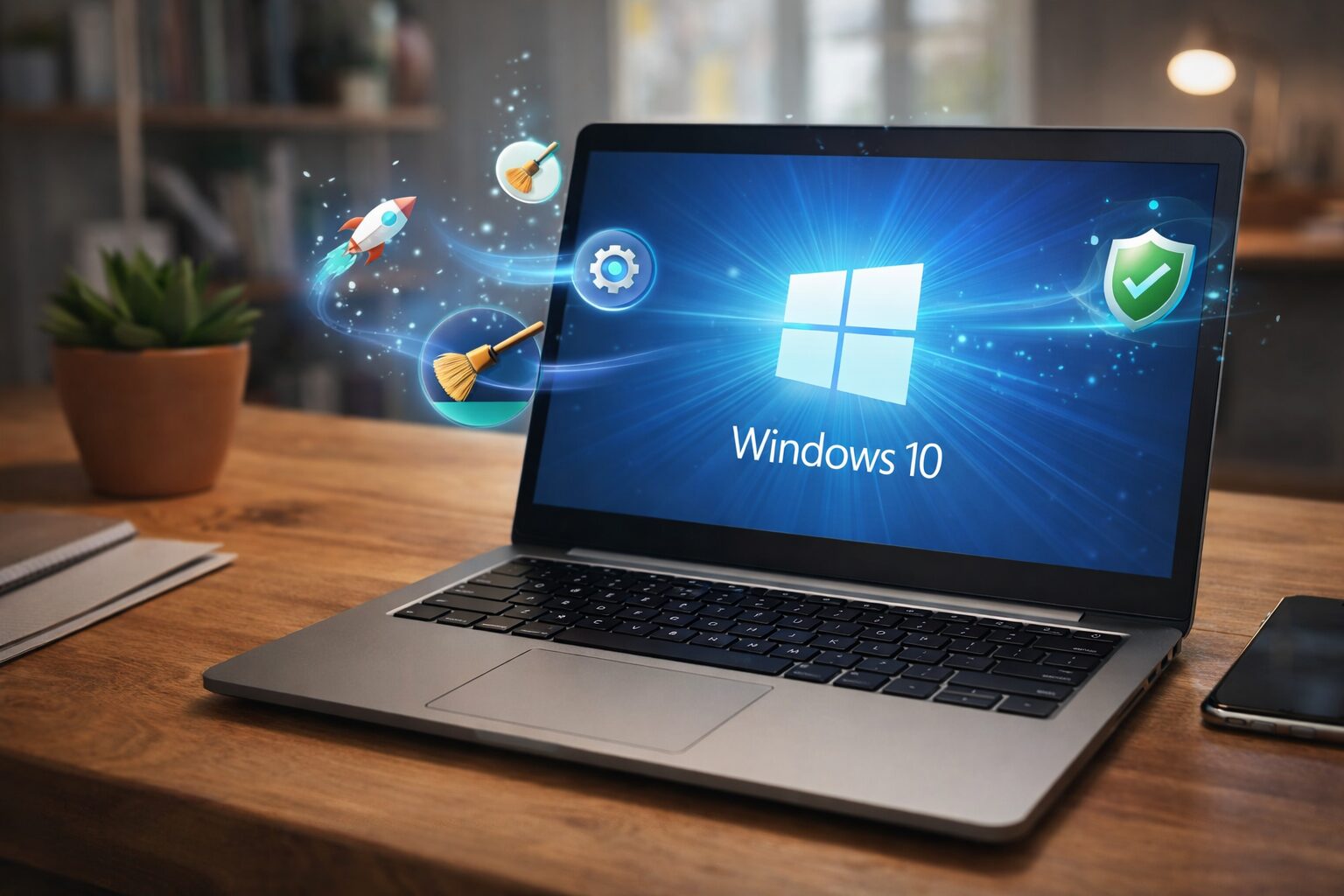
Here’s how to speed up your Windows 10 laptop in under 5 minutes – no reinstalls, no expensive repairs.
-
Disable Startup Programs
You might have noticed your laptop takes ages just to become usable after you turn it on. This usually happens when too many apps are set to launch automatically at startup – even ones you never use.
Every extra program that starts with Windows eats into your RAM and CPU right from the beginning. The fix is quick:
- Press Ctrl + Shift + Esc to open Task Manager
- Click on the Startup tab
- Look through the list and right-click → Disable any app you don’t need at boot (things like Spotify, Discord, OneDrive, etc.)
Pro Tip: Focus on apps with “High” startup impact – those are the biggest culprits slowing your boot time.
This one change alone can cut your startup time dramatically.
-
Clear Out Temporary Files
Every time you browse the web, install software, or run programs, Windows quietly creates temporary files in the background. Over time, these pile up into gigabytes of digital junk that slows everything down.
Here’s a quick fix:
- Press Windows + R to open the Run dialog
- Type %temp% and hit Enter
- Select all files (Ctrl + A) and delete them
- Skip any files that say they’re currently in use
Then do it again with just temp (without the % signs) to clear another temp folder.
You’ll be surprised how much space – and speed – you can reclaim in seconds.
-
Turn Off Background Apps
This usually happens without most people realizing it: apps keep running in the background even when you’re not using them, quietly consuming your RAM and draining performance.
To stop this:
- Go to Settings → Privacy → Background Apps
- Toggle off any apps you don’t need running 24/7
Things like Maps, Camera, and the Xbox Game Bar rarely need to run in the background. Turn them off and feel the difference.
-
Check for Overheating
Here’s something people often overlook – when your laptop gets too hot, it automatically slows itself down to protect the hardware. This is called “thermal throttling,” and it can make your machine feel incredibly sluggish even if nothing else is wrong.
Signs of overheating include:
- The bottom of your laptop is very hot to the touch
- The fan is constantly running loud
- Performance drops during heavy tasks
A simple and affordable fix is to use a laptop cooling pad. It improves airflow under your laptop and keeps temperatures in check.
Recommended Tool: Laptop Cooling Pad Improves airflow, prevents throttling, and keeps your laptop running at full speed.
Warning: Never use your laptop on a bed or pillow – it blocks the vents and causes serious overheating.
Don’t Miss This
-
Free Up Disk Space with Storage Sense
If your hard drive is nearly full, Windows 10 struggles to operate efficiently. A good rule of thumb is to always keep at least 10–15% of your storage free.
Here’s how to clean up quickly:
- Go to Settings → System → Storage
- Turn on Storage Sense – Windows will automatically delete temporary files and empty the recycle bin on a schedule
- Click “Free up space now” for an immediate cleanup
If you find yourself constantly running low on space, consider adding external storage.
Recommended Tool: Portable External SSD Fast, compact extra storage that connects in seconds and keeps your main drive breathing room.
-
Adjust Your Power Plan
One quick setting most people miss – your laptop might be running on a “Power Saver” plan, which intentionally limits performance to save battery.
- Search “Power Plan” in the Start menu
- Select “Balanced” or “High Performance”
Switching to High Performance when plugged in can give you a noticeable speed boost.
Frequently Asked Questions
Why did my laptop suddenly get so slow? This usually happens when background apps accumulate, your storage fills up, or your system hasn’t been restarted in a while. Sometimes a Windows update running in the background is the hidden culprit.
Will resetting my PC make it faster? Yes, a factory reset can help – but try the steps above first. A reset should be your last resort since it removes all your files and apps.
How often should I clear temp files and cache? Aim for at least once a month. If you use your laptop heavily, doing it every two weeks keeps things running smoothly.
Do I need antivirus software if my laptop is slow? It’s worth running a quick malware scan. Viruses and spyware can silently drain system resources and are a common cause of sudden slowdowns.
Will adding more RAM help? If your laptop supports it, yes – upgrading from 4GB to 8GB RAM makes a huge difference for multitasking. But try these fixes first since they’re free.
Conclusion
A slow laptop doesn’t mean it’s time for a new one. Most of the time, a few simple tweaks are all it takes to bring it back to life. Start with disabling startup programs and clearing your temp files – you might be amazed at how fast things improve.
Try these fixes right now, and if you found this helpful, bookmark it for the next time your laptop starts acting up. A little regular maintenance goes a long way.