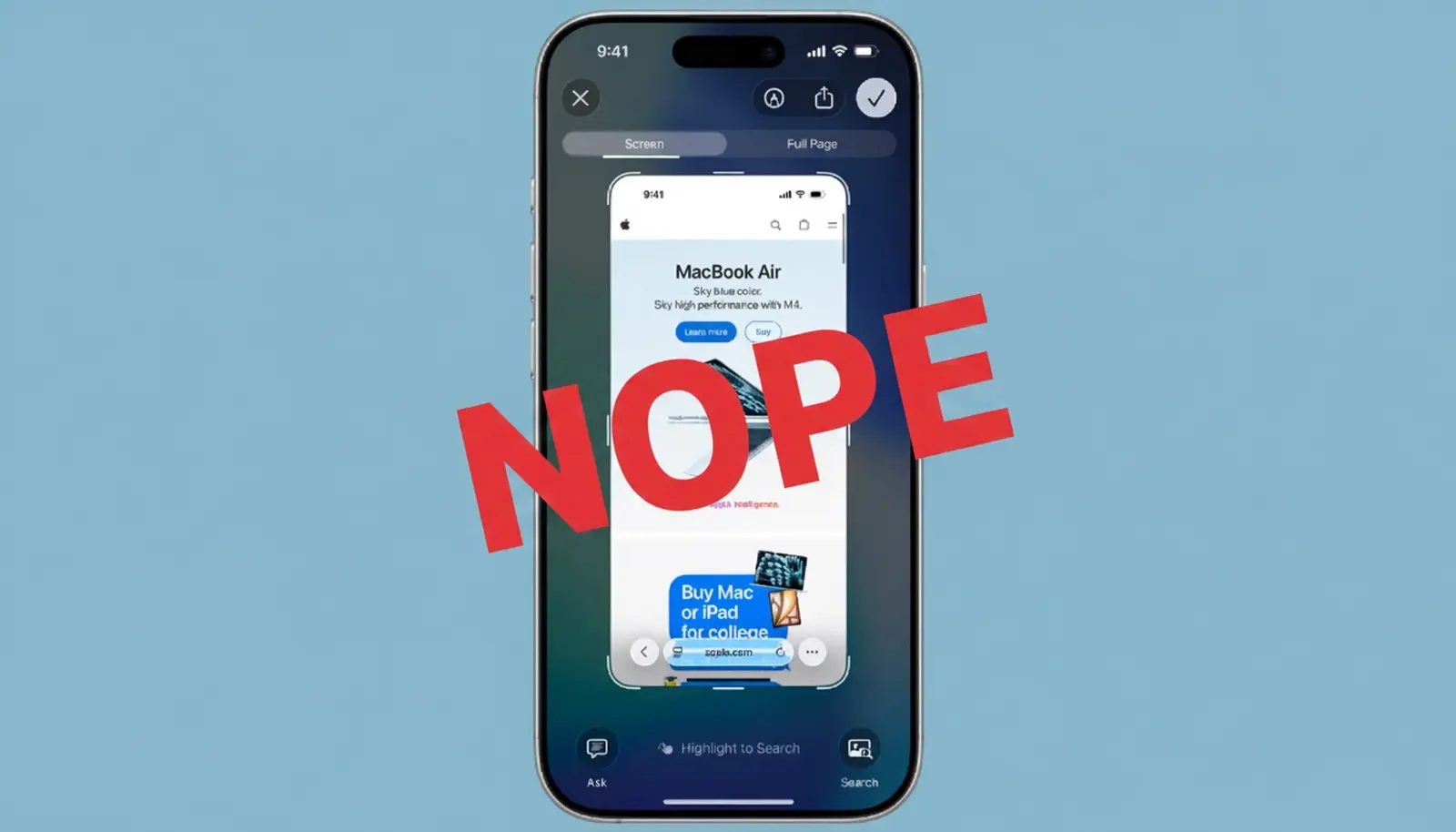
Capturing screenshots on your iPhone used to be straightforward: just press the Side Button and the Volume Up Button at the same time, and you’re done. But with the release of iOS 26, Apple introduced a more feature-rich screenshot system that can sometimes feel more like a hurdle than a help, especially if you’re used to the quick save method. Don’t worry—if the new setup’s too cumbersome, I’ll walk you through how to revert to the classic way that saves screenshots instantly to your Photos app.
Taking iPhone screenshots is a handy habit—one that keeps a visual record of receipts, directions, social media posts, error messages, or any info you want to hold onto. It’s perfect for sharing something quickly with friends, showing support tech issues to customer service, or keeping a visual note for work or school. That instant snapshot feature is invaluable, which is why the recent changes in iOS 26 might slow you down if you prefer the old, simple method.
Under the new iOS 26 system, capturing a screenshot still involves pressing the same buttons. But instead of the image automatically being saved, your iPhone pops up a full-screen preview where you can annotate, crop, send, or save the screenshot manually. It’s loaded with extra options, but if your main goal is to get the image into Photos immediately without extra steps, this can be an annoyance.
The good news is, Apple makes it easy to switch back. Reverting to the previous setup, where screenshots automatically go straight to your Photos, is just a matter of tweaking one setting. Open your Settings app, tap on ‘General,’ and then find the new entry called ‘Screen Capture.’ It’s a feature that many might not have noticed at first, but it’s where all the magic happens now.
On the next screen, you’ll see an option called ‘Full-Screen Previews.’ By default, this is enabled—the feature that shows a full preview of your screenshot and requires you to tap the checkmark and manually save if you want it stored. To restore the old behavior, simply toggle off the ‘Full-Screen Previews’ option. Once you do that, the moment you press the buttons to take a screenshot, it will automatically dive into your Photos app, just like it used to.
That’s all there is to it. No more extra taps or confusing overlays, just instant screenshots saved for quick access. Whether you’re capturing a quick message or a receipt, this simple tweak will turn your iPhone back into the quick-and-easy screenshot tool you’re used to.
If you’re curious about other iOS 26 features or want more tips on customizing your iPhone experience, keep an eye out for our other guides. Apple continues to enhance iOS with new features, but sometimes the simplest tools should stay simple, and now you know how to keep your screenshot workflow smooth and straightforward again.