Adobe just dropped something pretty huge. As of December 10, 2025, you can now use Photoshop, Adobe Express, and Acrobat directly inside ChatGPT. No switching between apps, no complicated downloads – just type what you want, and boom, you’re editing photos and PDFs in the same window where you’re already chatting.
This integration brings Adobe’s professional-grade tools to ChatGPT’s 800 million weekly users, making photo editing, graphic design, and document management way more accessible. Whether you’re touching up vacation photos, designing a party invitation, or merging PDFs for a job application, you can now do it all through simple conversation.
Why This Matters
Here’s the thing: Adobe’s tools have always been powerful but intimidating. Photoshop has a reputation for being complex, and not everyone has the time (or patience) to learn professional software. This integration changes the game by letting you describe what you want in plain English instead of hunting through menus and learning technical workflows.
Think of it this way: instead of spending 30 minutes watching tutorials on how to blur a background, you just say “blur the background” and it happens. The barrier between your idea and the final result just got a lot smaller.
Plus, these tools are completely free to use in ChatGPT. You’re getting access to industry-standard editing capabilities without needing expensive software subscriptions. For students, freelancers, small business owners, and anyone who needs quick edits but isn’t a design professional, this is a massive advantage.
What You Need
Getting started is surprisingly simple. Here’s your checklist:
Required:
- A ChatGPT account (free or paid – both work)
- Access to ChatGPT on web, desktop, or iOS (Android users have Express now, with Photoshop and Acrobat coming soon)
- For Adobe Express and Acrobat: An Adobe ID (free to create)
Not Required:
- Adobe Creative Cloud subscription
- Previous experience with Adobe software
- Any special setup or installation
Good to Know:
- Photoshop features work without signing into Adobe
- Acrobat and Express require you to sign in with your Adobe ID before you can save or export files
- You can seamlessly open your work in the full Adobe web apps if you need more advanced features
Step-by-Step Instructions
Enabling Adobe Apps in ChatGPT
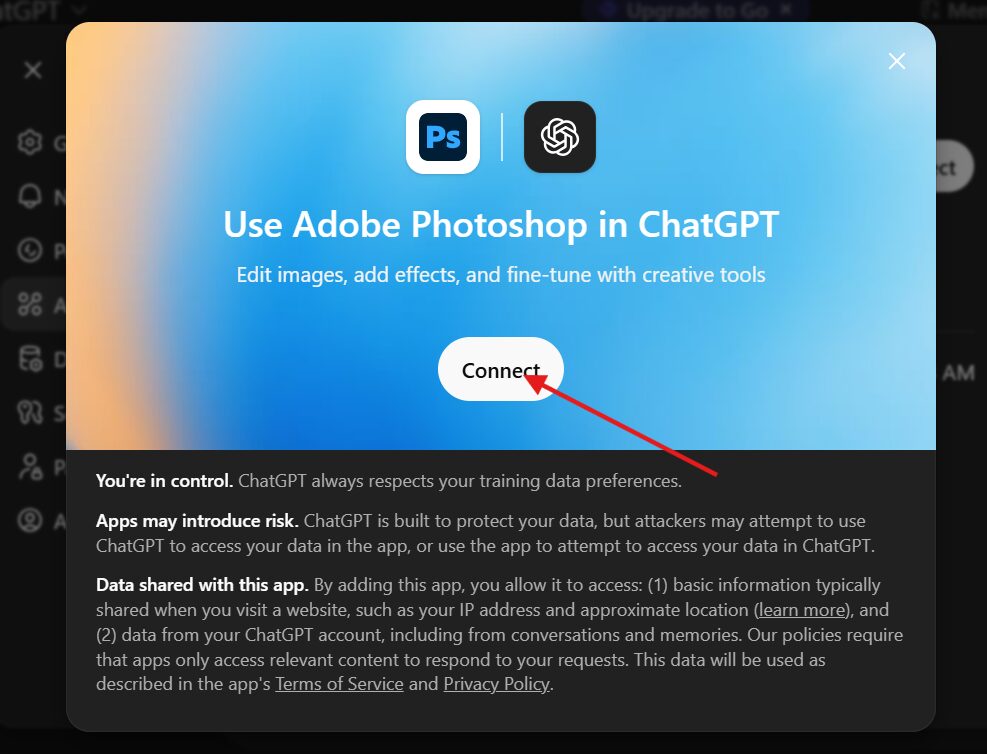
The first time you use an Adobe app in ChatGPT, you’ll need to connect it:
- Open ChatGPT (web, desktop, or mobile app)
- Click your profile icon in the top-right corner
- Select “Settings” from the dropdown menu
- Navigate to “Apps & Connectors”
- Find the Adobe app you want to use (Photoshop, Express, or Acrobat)
- Click “Connect” and sign in with your Adobe ID when prompted (for Express and Acrobat)
Once connected, you’re good to go. You won’t need to repeat this process.
Using Adobe Photoshop in ChatGPT
For basic photo editing:
- Upload your image by clicking the attachment icon in ChatGPT
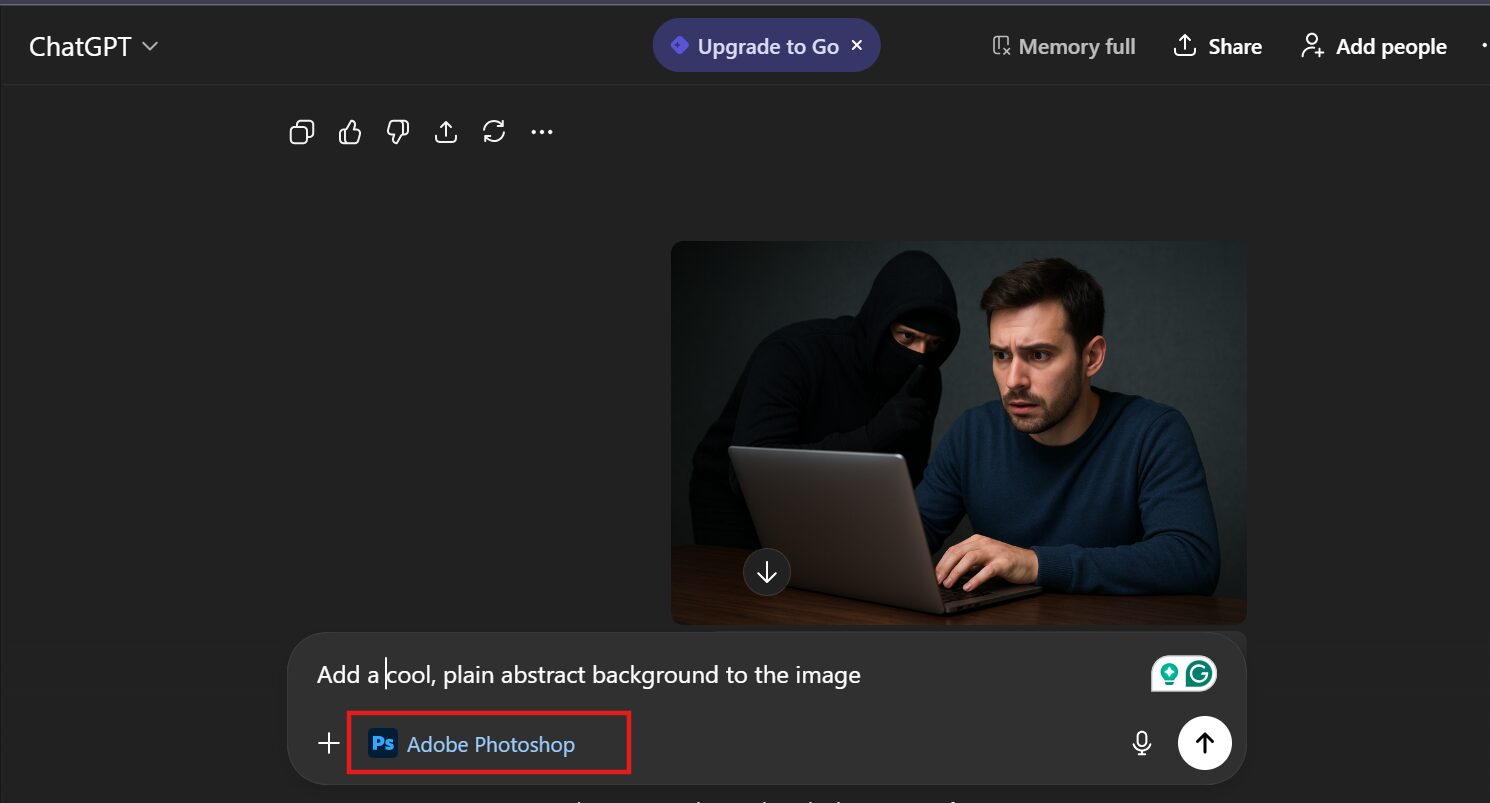
- Type your request starting with “Adobe Photoshop” followed by what you want
- Example: “Adobe Photoshop, make the people in this photo stand out”
- Example: “Adobe Photoshop, brighten this image and add a vintage effect”
- Review the results ChatGPT will show you the edited image
- Fine-tune using sliders Click on the image to access adjustment controls for brightness, contrast, exposure, and more
- Make additional edits You can keep chatting to refine: “Now add a warm tone” or “Remove the background”
What you can do with Photoshop:
- Adjust brightness, contrast, exposure, and shadows
- Apply creative effects (glitch, glow, tritone, halftone, mosaic, motion blur)
- Edit specific parts of an image selectively
- Remove or blur backgrounds
- Add artistic effects to objects or the entire image
- Apply filters for vintage, grainy, or stylized looks
Pro tip: After your first prompt mentions “Adobe Photoshop,” you don’t need to repeat it in the same conversation. Just describe what you want next.
Using Adobe Express in ChatGPT
For creating designs from scratch:
- Start with a conversational prompt including “Adobe Express”
- Example: “Adobe Express, create a birthday invitation for a space-themed party”
- Example: “Adobe Express, design a poster for my band’s concert”
- Choose from templates Adobe Express will show you multiple professional design options
- Customize your selection Ask for changes like:
- “Change the background color to navy blue”
- “Make the text bigger”
- “Replace the image with this one” (upload your own photo)
- Add animation (optional) Request animated elements: “Animate this with a popping effect”
- Finalize and save Download your design or open it in the full Adobe Express app for more control
What you can create:
- Invitations (birthdays, weddings, events)
- Social media graphics
- Posters and flyers
- Business cards
- Logos
- Animated designs
Using Adobe Acrobat in ChatGPT
For managing and editing PDFs:
- Upload your PDF(s) to ChatGPT
- Type your request starting with “Adobe Acrobat”
- Example: “Adobe Acrobat, merge these three files into one PDF”
- Example: “Adobe Acrobat, extract the text from this document”
- Make edits directly in chat A sidebar will appear for text editing and formatting
- Review and save Download your edited PDF or open it in Acrobat for additional work
What you can do with Acrobat:
- Merge multiple files into a single PDF
- Edit text and formatting within PDFs
- Extract text or tables from documents
- Compress large files for easier sharing
- Convert files to PDF (and from PDF to other formats)
- Organize and reorder pages
- Redact sensitive information
- Use OCR to extract text from scanned documents
Common use case: Creating job application packages
- Upload your resume, cover letter, and references
- Say: “Adobe Acrobat, combine these into a single PDF”
- Edit the cover letter to customize it for different companies
- Download the polished, professional package
Tips & Best Practices
Writing Better Prompts:
- Be specific and descriptive. Instead of “make it better,” try “increase brightness by 20% and add more contrast”
- Break complex requests into steps. Rather than asking for everything at once, focus on one change at a time
- Describe what you don’t want. If results include something unwanted, mention it: “brighten the sky but don’t oversaturate the colors”
- Use examples when helpful. “Make it look like a vintage photo from the 1970s”
Getting the Most From Each Tool:
- Photoshop: After applying an effect, use the sliders for precise control. Don’t settle for the first result – iterate
- Express: Browse multiple template options before choosing. The AI generates several variations, so pick your favorite first
- Acrobat: When editing text in PDFs, highlight the section you want to change for more accurate results
Workflow Optimization:
- Start broad, then narrow. Begin with general requests, then add specific details
- Save your work frequently if you’re making lots of changes
- If you need advanced features, click “Open in [App Name]” to seamlessly transition to the full Adobe web app
- Remember that projects started in ChatGPT can be opened in Adobe’s native apps with all your adjustments intact
Platform Considerations:
- The experience is most robust on desktop and web
- iOS has full functionality for all three apps
- Android currently only supports Express (Photoshop and Acrobat coming soon)
Common Mistakes to Avoid
Don’t try to do everything in one prompt. ChatGPT works better when you make requests sequentially. Instead of “brighten the image, remove the background, add a vintage filter, and increase contrast,” try those as separate steps.
Don’t forget to mention the app name in your first prompt. Start with “Adobe Photoshop,” “Adobe Express,” or “Adobe Acrobat” so ChatGPT knows which tool to activate. After that initial mention, you can drop the app name.
Don’t expect desktop software-level control. These integrations are incredibly powerful but intentionally simplified. For complex, multi-layer projects or super precise edits, you’ll want to use the full Adobe applications.
Don’t ignore the sliders and manual controls. When Photoshop or Express gives you adjustment sliders, use them. They give you way more control than relying solely on text descriptions.
Don’t skip signing in for Acrobat and Express. If you want to save or export your work from these apps, you need to be logged into your Adobe account. Photoshop doesn’t require this for basic edits.
Don’t assume it’ll read your mind. Be clear about what you want. “Make it pop” means different things to different people. Try “increase saturation and contrast to make colors more vivid.”
Don’t forget to save your work. Content created in these apps isn’t automatically saved to your Adobe account. Download files or click “Open in [App Name]” to save to Adobe’s cloud storage.
Adobe’s integration with ChatGPT is a genuine game-changer for creative work. It takes tools that were once reserved for professionals and makes them available to literally anyone who can describe what they want in a sentence. That’s powerful.
Whether you’re a complete beginner who’s never opened Photoshop or a creative pro looking to speed up repetitive tasks, there’s value here. The conversational interface removes the intimidation factor while still giving you access to professional-grade results.
The best part? It’s free, it’s accessible, and it’s available right now. You don’t need to down