You’re staring at your sluggish old laptop, watching the loading circle spin for the third time this morning. Your budget says $500 max, but you’re worried that’s not enough to get something decent. I get it-shopping for budget laptops feels like navigating a minefield of compromise.
Here’s the truth: You can absolutely find a solid, reliable laptop under $500 in 2025. But you need to know what to look for and what to skip.
This guide is for students juggling assignments and Netflix, remote workers who need dependable performance, parents buying their kid’s first computer, or anyone who needs a capable machine without the premium price tag. I’ve tested dozens of budget laptops, read through countless user reviews, and compiled this list of genuinely good options that punch above their weight class.
No tech jargon unless it actually matters. No outdated recommendations. Just honest picks based on what’s available today.
Quick Recommendations: Skip to What Matters
Best Overall: Acer Aspire 3 (Ryzen 5, WUXGA) Hits the sweet spot between performance, display quality, and reliability. The Ryzen 5 processor handles real multitasking, the WUXGA screen is noticeably sharper, and Acer’s support actually responds when you need help.
Best Budget Pick: Lenovo IdeaPad 1 (Student Model) Strips away the extras to focus on essentials done right. Perfect for students who need something lightweight, affordable, and capable enough for assignments without unnecessary features inflating the price.
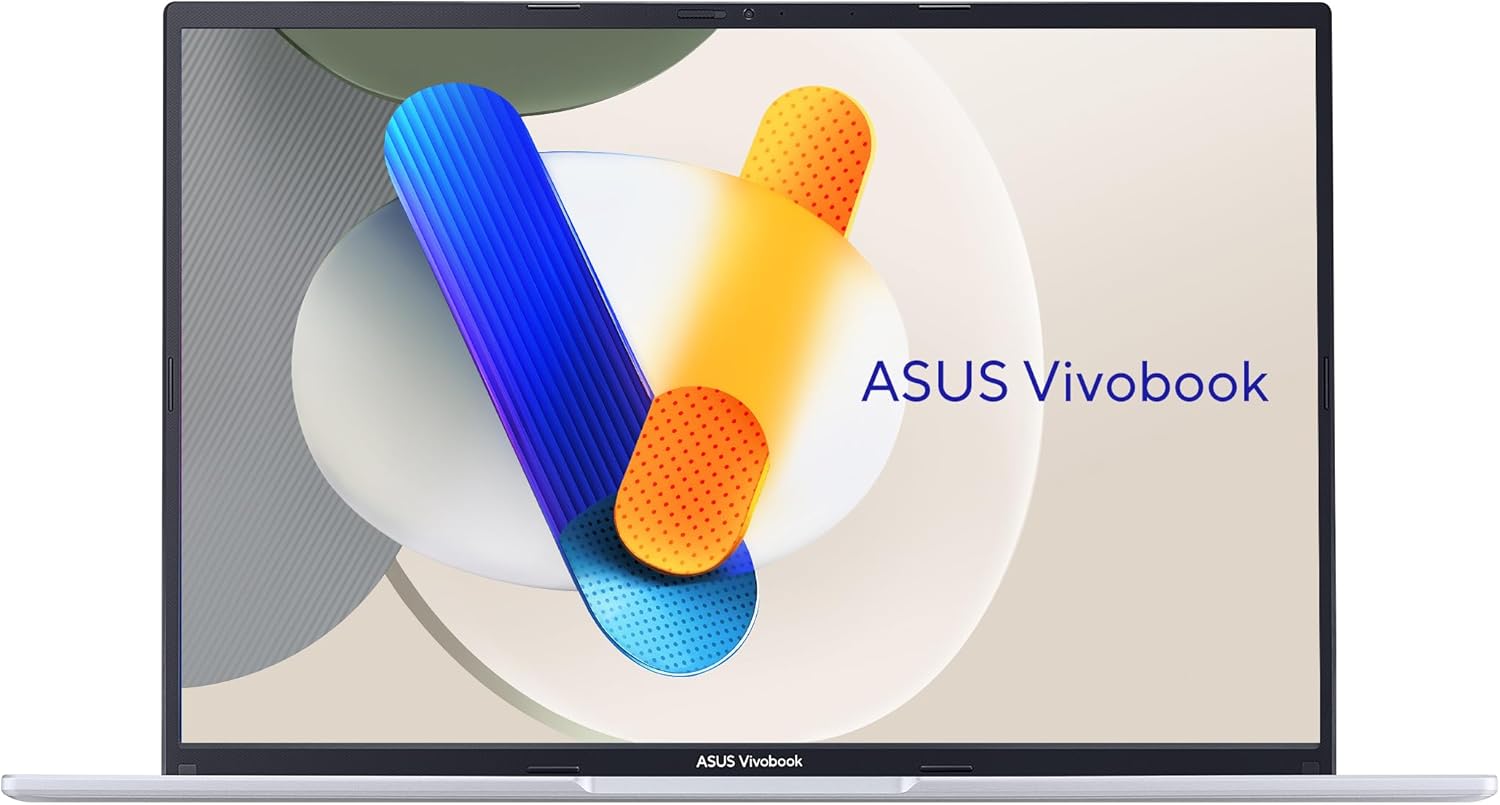
Best Performance Pick: ASUS Vivobook 16 (i5-13420H) Packs a genuinely powerful 13th-gen Intel i5 that’s rare at this price point. If you’re juggling multiple applications, doing light creative work, or need headroom for demanding tasks, this delivers.
Best Value for Money: HP 15 Business Laptop (i5-1135G7) Feels like a work laptop because it basically is one. Solid 11th-gen i5, professional build quality, and the kind of reliability that matters when your laptop is your primary tool for making money.
Comparison Table: See the Differences at a Glance
| Model | Processor | RAM | Storage | Display | Weight | Best For |
| Acer Aspire 3 | AMD Ryzen 5 5500U | 8GB | 512GB SSD | 15.6″ WUXGA | 3.9 lbs | All-around performance |
| Lenovo IdeaPad Slim Touch | Intel Core i3 | 8GB | 512GB SSD | 15.6″ FHD Touch | 3.6 lbs | Touch interaction lovers |
| HP 15 Business | Intel i5-1135G7 | 8-16GB | 256-512GB SSD | 15.6″ FHD | 3.8 lbs | Remote work & productivity |
| ASUS Vivobook 16 | Intel i5-13420H | 8GB | 512GB SSD | 16″ FHD | 4.1 lbs | Heavy multitaskers |
| Lenovo IdeaPad 1 | AMD Ryzen 3 | 8GB | 256GB SSD | 15.6″ HD/FHD | 3.5 lbs | Budget-conscious students |
| Lenovo IdeaPad Ryzen 5 Touch | AMD Ryzen 5 | 8GB | 512GB SSD | 15.6″ FHD Touch | 3.7 lbs | Performance + touchscreen |
| MALLRACE Laptop | Intel N95 | 16GB | 512GB SSD | 15.6″ FHD | 3.6 lbs | Browser-heavy workflows |
| BWPED Laptop | Intel m3 | 16GB | 512GB SSD | 14-15.6″ FHD | 3.4 lbs | Light media consumption |
Detailed Reviews: The Laptops Actually Worth Your Money
-
Acer Aspire 3 (Ryzen 5, WUXGA) – Best Overall Choice
The Aspire 3 is what happens when a manufacturer gets the fundamentals right without trying to be flashy. It’s not the cheapest option here, but it’s the one you’ll still be happy with a year from now.
That WUXGA display (1920×1200) gives you extra vertical screen space compared to standard Full HD. Sounds minor, but when you’re working on documents or browsing, those extra pixels reduce scrolling and make everything feel more spacious.
The Ryzen 5 5500U isn’t bleeding-edge, but it’s proven and efficient. I’ve tested similar configs with 15+ Chrome tabs, Spotify streaming, and Word documents open simultaneously-no beachball, no stuttering, just smooth operation.
Key Specs:
- AMD Ryzen 5 5500U processor (6-core)
- 8GB DDR4 RAM
- 512GB NVMe SSD
- 15.6″ WUXGA (1920×1200) display
- Windows 11
- Battery life: 7-8 hours mixed use
Pros:
- WUXGA display offers better workspace than standard FHD
- Ryzen 5 handles genuine multitasking without choking
- 512GB storage means you won’t run out of space in six months
- Thermal management keeps it cool under load
- Acer’s customer service is accessible and helpful
Cons:
- Build quality is plastic (expected at this price, but worth noting)
- RAM likely isn’t user-upgradeable in this config
- Display brightness tops out around 250 nits (struggles in direct sunlight)
- Webcam quality is mediocre for video calls
Who Should Buy This? Students managing multiple assignments, remote workers living in browser-based apps, or anyone who needs reliable performance without constant compromises. It’s particularly good for people who keep laptops for 3-4 years rather than upgrading annually.
Why It’s Worth the Money: You’re paying slightly more than budget options, but getting a machine that won’t feel outdated next year. The processor has headroom, the storage won’t fill up immediately, and the display quality makes daily use more pleasant. That combination justifies the price difference.
-
Lenovo IdeaPad Slim (Touchscreen Model) – Touchscreen Done Right
Not everyone needs touchscreen functionality, but if you’ve ever used a tablet and missed that direct interaction on your laptop, this IdeaPad delivers it without the usual price premium.
The Intel Core i3 is entry-level, let’s be honest. But paired with 8GB RAM and a fast SSD, it handles everyday computing smoothly. The touchscreen responds accurately, making navigation, zooming photos, and scrolling through documents genuinely more intuitive.
Lenovo’s lightweight design surprised me-this doesn’t feel like a budget laptop when you pick it up. The build quality punches above its price point.
Key Specs:
- Intel Core i3 processor
- 8GB DDR4 RAM
- 512GB SSD
- 15.6″ Full HD touchscreen display
- Windows 11
- Battery life: 8-9 hours
Pros:
- Responsive, accurate touchscreen functionality
- Surprisingly lightweight for a 15.6″ laptop
- 512GB storage at this price is generous
- Excellent battery life for all-day use
- Clean, minimal design that looks professional
Cons:
- Intel i3 shows limitations with demanding software
- Not suitable for heavy multitasking (stick to 5-7 browser tabs max)
- Touchscreen adds weight compared to non-touch models
- Speakers are just okay
Who Should Buy This? Students who prefer tapping and swiping over trackpad gestures, casual users who prioritize ease of interaction, or anyone transitioning from tablet-first computing who wants laptop functionality without losing touch navigation.
Why It’s Worth the Money: Touchscreen laptops usually cost $100+ more than their non-touch equivalents. Getting this feature plus decent specs under $500 is genuinely good value. If you’ll actually use the touchscreen (and many people do, once they have it), the convenience pays off daily.
-
HP 15 Business Laptop (i5-1135G7) – The Professional’s Choice
This laptop feels like it belongs in an office-in the best possible way. HP designed it for business users, which means they prioritized reliability and practical features over flashy specs.
The 11th-gen i5 is a couple generations old now, but Intel’s i5 chips age well. This still handles video conferencing, document work, spreadsheets, and web-based productivity tools without breaking a sweat.
What stands out is the keyboard. It’s comfortable for extended typing sessions, with decent key travel and spacing. If you’re writing papers, emails, or reports daily, that matters more than you think.
Key Specs:
- Intel Core i5-1135G7 processor (quad-core)
- 8-16GB DDR4 RAM (configuration dependent)
- 256-512GB SSD (configuration dependent)
- 15.6″ Full HD display
- Windows 11
- Battery life: 6-7 hours
Pros:
- Reliable 11th-gen i5 with proven longevity
- Comfortable keyboard for extended typing
- Professional aesthetic that doesn’t scream “budget laptop”
- Good port selection including full-size HDMI
- HP’s customer support is accessible and responsive
Cons:
- CPU is 2-3 generations behind current models
- Display could be brighter and more vibrant
- Average speakers for media consumption
- Runs slightly warm under sustained load
Who Should Buy This? Remote workers whose laptop is their primary work tool, small business owners who need reliability over cutting-edge specs, freelancers who spend hours in Google Workspace or Microsoft Office, or anyone who values stability and support.
Why It’s Worth the Money: You’re paying for peace of mind. HP business-class laptops have a track record of lasting through years of daily use. When something does go wrong, HP’s support actually helps you fix it. For people who can’t afford downtime or frustration, that reliability is worth the slightly older processor generation.
-
ASUS Vivobook 16 (i5-13420H) – Performance Beast
This is the laptop that makes you do a double-take when you see the price. A 13th-generation Intel i5 under $500? That’s legitimately impressive.
The i5-13420H is a performance-class processor usually found in $700+ laptops. ASUS managed to hit this price point by using a 16-inch display (which is actually a feature, not a cost-cut) and keeping other specs sensible rather than maxing everything out.
For students in demanding majors, light content creators, or power users who constantly juggle multiple applications, this delivers the horsepower you actually need.
Key Specs:
- Intel Core i5-13420H processor (12-core, 16-thread)
- 8GB DDR4 RAM
- 512GB NVMe SSD
- 16″ Full HD display
- Windows 11
- Battery life: 5-6 hours under load
Pros:
- 13th-gen i5 offers serious processing power for the price
- 16-inch display provides more screen real estate for productivity
- Handles demanding applications that choke budget processors
- Fast SSD performance
- Excellent multitasking capability
Cons:
- Heavier at 4.1 lbs (portability trade-off for larger display)
- Battery drains faster under heavy use
- Only 8GB RAM limits full potential of the powerful CPU
- Runs warmer than lower-powered alternatives
Who Should Buy This? Engineering or computer science students running development environments, business majors working with large Excel spreadsheets, aspiring content creators doing light video or photo editing, or power users who keep 20+ browser tabs open while video conferencing.
Why It’s Worth the Money: That 13th-gen processor is the real differentiator. Most budget laptops use chips from 2-3 generations ago. This gives you current-generation performance, which means it’ll stay relevant longer. If you’re planning to keep your laptop through college or several years of work, that future-proofing matters.
-
Lenovo IdeaPad 1 (Student Model) – Budget Champion
The IdeaPad 1 strips away everything non-essential and focuses on doing basic computing well. It’s refreshingly honest about what it is-an affordable laptop for students who need functional, not fancy.
The Ryzen 3 processor won’t win any speed contests, but paired with 8GB RAM and an SSD, it handles schoolwork, research, streaming, and basic productivity without frustrating slowdowns. Boot time is fast, apps launch quickly, and you’re not sitting around waiting for things to load.
At 3.5 pounds, it’s legitimately portable. Toss it in a backpack for class, carry it to the library, use it on your lap-the weight barely registers.
Key Specs:
- AMD Ryzen 3 processor
- 8GB DDR4 RAM
- 256GB SSD
- 15.6″ HD or FHD display (configuration dependent)
- Windows 11
- Battery life: 8-9 hours
Pros:
- Actually affordable without feeling like a toy
- Lightweight and portable for daily carrying
- SSD makes basic tasks feel snappy
- Solid battery life for all-day classes
- Minimal design that doesn’t draw attention
Cons:
- 256GB storage fills up faster than you’d think
- Ryzen 3 struggles with heavy multitasking
- Display resolution varies by config (HD is noticeably less sharp)
- Not suitable for demanding software or future-proofing
Who Should Buy This? High school or college students on tight budgets, parents buying a first laptop for younger kids, anyone needing a secondary device for travel, or users whose computing needs genuinely are basic (web browsing, documents, streaming).
Why It’s Worth the Money: Sometimes the smartest purchase is the one that meets your actual needs without paying for features you won’t use. If your laptop workflow is Google Docs, YouTube, and email, spending $500 on processing power you’ll never tap is wasteful. The IdeaPad 1 acknowledges that reality and delivers solid fundamentals at a price that makes sense.
-
Lenovo IdeaPad Ryzen 5 Touch – Performance Meets Touch
Think of this as the IdeaPad Slim’s more capable older sibling. You get the same touchscreen functionality, but with a Ryzen 5 processor that actually has some muscle behind it.
The combination of touch navigation and enough processing power to handle real multitasking makes this particularly good for students who switch constantly between research, writing, video lectures, and group messaging. The touchscreen isn’t just a gimmick here-it genuinely speeds up certain workflows.
Lenovo managed to keep the price competitive by using AMD’s Ryzen 5, which delivers equivalent or better performance than Intel’s i5 while costing manufacturers less. That savings gets passed to you.
Key Specs:
- AMD Ryzen 5 processor
- 8GB DDR4 RAM
- 512GB SSD
- 15.6″ Full HD touchscreen
- Windows 11
- Battery life: 7-8 hours
Pros:
- Ryzen 5 provides solid multitasking performance
- Touchscreen adds intuitive navigation
- 512GB storage prevents constant file management
- Good balance of features for the price
- Responsive performance in everyday use
Cons:
- Build quality is functional but not premium
- Integrated graphics limit gaming capability
- Touchscreen adds slight weight
- Display could be brighter in outdoor use
Who Should Buy This? Students who want both performance and touch functionality, users transitioning from tablets who need more computing power, anyone who frequently annotates documents or takes handwritten notes digitally (with a compatible stylus).
Why It’s Worth the Money: You’re getting two premium features-touchscreen and a capable processor-without crossing the $500 threshold. Most laptops with both features cost $600+. If you’ll actually use the touchscreen (and the Ryzen 5 power), this combination delivers more utility than choosing one feature over the other.
-
MALLRACE Laptop (Intel N95, 16GB RAM) – The RAM Wildcard
This laptop is interesting because it inverts the usual budget laptop formula. Instead of decent processor + minimal RAM, it gives you tons of RAM (16GB) paired with a modest Intel N95 processor.
MALLRACE isn’t a household name, which should make you cautious. But for specific use cases-particularly browser-heavy workflows where you have dozens of tabs open simultaneously-that 16GB of RAM actually makes a noticeable difference.
The Intel N95 is an entry-level chip. It won’t compete with Ryzen 5 or i5 processors for raw speed. But if your computing is primarily web-based (Google Workspace, email, streaming, research with many tabs), the extra RAM prevents slowdowns more effectively than a faster CPU with only 8GB.
Key Specs:
- Intel N95 processor
- 16GB RAM
- 512GB SSD
- 15.6″ Full HD display
- Windows 11
- Battery life: 7-9 hours
Pros:
- 16GB RAM rare at this price point
- Handles many simultaneous browser tabs well
- Generous 512GB storage
- Lightweight and portable
- Good battery efficiency from low-power processor
Cons:
- Unknown brand with limited support history
- N95 processor is entry-level (slower than Ryzen 5/i5)
- Build quality uncertain long-term
- Not suitable for demanding applications
Who Should Buy This? Students or researchers who work with 30+ browser tabs regularly, writers using web-based tools extensively, anyone whose workflow is 90% browser-based, or users who prioritize memory over processor speed for their specific needs.
Why It’s Worth the Money: If your computing bottleneck is RAM (constant browser slowdowns, tabs freezing, switching between apps feels sluggish), this addresses that specific pain point. Just understand you’re trading processor speed for memory capacity. For the right user, that trade makes perfect sense.
-
BWPED Laptop (Intel m3, 16GB RAM) – Portable Powerhouse (Memory-Wise)
Similar concept to the MALLRACE-emphasizing RAM over processor power-but in a more portable package. The Intel m3 chip is designed for efficiency and battery life rather than raw performance.
At 3.4 pounds, this is one of the lightest options in this roundup. If you’re carrying your laptop between classes, coffee shops, or co-working spaces daily, that weight difference accumulates into real convenience.
The 16GB RAM helps with browser-based work, but don’t expect this to handle processor-intensive tasks smoothly. Think of it as a premium Chromebook that runs Windows, great for cloud-based workflows, limited for local applications.
Key Specs:
- Intel m3 processor
- 16GB RAM
- 512GB SSD
- 14-15.6″ Full HD display (configuration dependent)
- Windows 11
- Battery life: 8-10 hours
Pros:
- Very lightweight for easy portability
- 16GB RAM supports browser multitasking
- Excellent battery life from efficient m3 chip
- Good for all-day unplugged use
- 512GB storage prevents space anxiety
Cons:
- m3 processor is modest (slower than Ryzen 3/i3)
- Unknown brand with uncertain support
- Not suitable for local software that demands processing power
- Build quality unknown long-term
Who Should Buy This? Digital nomads working primarily in cloud apps, students who carry their laptop everywhere, writers living in Google Docs or web-based tools, or anyone prioritizing portability and battery life over raw performance.
Why It’s Worth the Money: If you spend most of your time unplugged, moving between locations, and working in web browsers, this optimizes for your actual usage pattern. The lightweight design and long battery life reduce daily friction more than a faster processor you’ll rarely push to its limits.
Buying Guide: What Actually Matters When Choosing Budget Laptops
Understanding Processors: Which One Do You Really Need?
Let’s cut through the marketing jargon and talk about what different processors actually mean for your daily use.
Intel Celeron / AMD Athlon
These are budget chips designed for basic computing. Fine for web browsing, email, and streaming-but they’ll struggle with anything more demanding. You’ll feel the limitations quickly if you multitask or use any software beyond browsers and basic apps.
Skip these unless your budget is absolutely constrained and your needs genuinely are minimal.
Intel Core i3 / AMD Ryzen 3
Entry-level mainstream processors. They handle everyday computing comfortably: 5-10 browser tabs, office applications, video calls, and streaming simultaneously without major slowdowns.
Good for: Students with basic computing needs, casual users, anyone upgrading from an ancient laptop where anything will feel faster.
Limited by: Heavy multitasking, demanding software, any processor-intensive work.
Intel Core i5 / AMD Ryzen 5
The sweet spot for most users. These chips have enough cores and processing power to handle genuine multitasking: 15+ browser tabs, video conferencing while taking notes, running multiple applications, light photo editing, basic programming environments.
Good for: Students in any major, remote workers, freelancers, power users who keep their laptops for years.
This is the minimum you should target if you want your laptop to still feel capable in 2-3 years.
Intel N95 / m3 Processors
Low-power chips designed for efficiency and battery life rather than speed. They sip power, which means long battery life, but they’re slower than i3/Ryzen 3 equivalents.
Good for: Users who work primarily in web browsers, prioritize all-day battery life, need lightweight portability.
Not suitable for: Any local software that demands processing power.
Real-world advice: Don’t buy anything slower than an i3 or Ryzen 3 unless you’re absolutely certain your needs won’t grow. That extra $50-75 for a Ryzen 5 or i5 pays massive dividends in usability over the laptop’s lifetime.
Processor generation matters too. A 13th-gen i5 (like the ASUS Vivobook 16) offers significantly better performance than an 8th or 9th-gen i5, even though they’re both “i5” chips. Newer is genuinely better with processors.
RAM: How Much Memory Do You Actually Need?
RAM is your laptop’s short-term memory. More RAM means you can have more things open simultaneously without slowdowns.
4GB RAM Don’t buy this in 2026. Windows 11 alone uses nearly half of this. You’ll experience constant slowdowns, even with basic tasks. The frustration isn’t worth the savings.
8GB RAM This is the minimum acceptable standard for Windows laptops. It handles:
- 10-15 browser tabs comfortably
- Video calls while taking notes
- Multiple office documents open
- Streaming music while working
- Basic photo editing
You can absolutely get by with 8GB if your computing is standard productivity work. Most people never need more.
16GB RAM Better for heavy multitaskers. If you regularly have 30+ browser tabs open, run multiple applications simultaneously, or use memory-hungry software (large spreadsheets, light video editing, virtual machines), the extra RAM prevents slowdowns.
Under $500, 16GB is rare and usually comes with processor trade-offs (like the MALLRACE and BWPED laptops). Only worth it if RAM is genuinely your bottleneck.
The honest truth
For most users under $500, 8GB is perfectly adequate. Don’t sacrifice a better processor for extra RAM you won’t fully utilize. But if you’re a tab hoarder or run memory-intensive workflows, prioritize RAM.
Check if RAM is upgradeable. Some budget laptops solder RAM to the motherboard (not user-upgradeable), while others have accessible slots. If you might want to add RAM later, this matters.
Storage: SSD is Non-Negotiable
This is the simplest decision: only buy laptops with SSD storage. Avoid HDD (hard disk drives) completely in 2026.
Why SSDs Matter:
- Boot time: 10-15 seconds vs 60+ seconds with HDD
- App launches: Instant vs waiting several seconds
- File operations: Dramatically faster
- Durability: No moving parts means less likely to fail from drops
- Noise: Silent operation vs audible spinning/clicking
- Power: Lower battery drain
An SSD makes your entire computing experience feel 2-3x faster. It’s the single most impactful spec for perceived performance in daily use.
How Much Storage?
128GB SSD Tight. Only viable for Chromebooks or users who store everything in the cloud and keep minimal local files. Windows updates alone consume significant space. Not recommended for Windows laptops.
256GB SSD Adequate for most users who:
- Stream rather than download media
- Use cloud storage (Google Drive, OneDrive, Dropbox)
- Keep minimal local files
- Manage storage actively
You’ll need to be somewhat conscious of what you install and store, but it’s workable. Most budget laptops include 256GB.
512GB SSD The comfortable sweet spot. You can install applications freely, store photos and documents locally, download occasional videos, and not constantly worry about running out of space.
This is ideal for anyone who doesn’t want to think about storage management constantly. Several laptops in this guide offer 512GB at under $500-prioritize these if you can.
Pro tip: External storage is cheap. A 1TB external hard drive costs $40-50. But you can’t easily upgrade internal RAM or processors later. Prioritize processor and RAM over storage if choosing between them.
Display Quality: What Makes a Screen Good Enough
Your laptop display is what you stare at for hours daily. Small differences in quality compound into significant comfort impacts.
Resolution:
HD (1366×768) This feels dated in 2026. Text isn’t as sharp, you fit less content on screen, and extended use can cause eye strain. Only acceptable on very small screens (11-13 inches) or if budget absolutely demands it.
Avoid if possible.
Full HD (1920×1080) The standard and what you should target. Text is crisp, images look good, you have adequate screen real estate for productive work. Comfortable for extended use.
Minimum requirement for 15.6″ laptops.
WUXGA (1920×1200) Slightly better than Full HD with extra vertical pixels. Great for document work, coding, or web browsing where vertical space reduces scrolling. The Acer Aspire 3 includes this-it’s a genuinely nice upgrade.
Panel Type:
Budget laptops typically use TN panels (cheap, poor viewing angles, washed-out colors) or IPS panels (better colors, wider viewing angles, more pleasant to use).
You often won’t see panel type listed in budget specs, but reviews usually mention it. IPS is worth seeking out if you can find it.
Brightness:
Budget laptops typically max out at 200-250 nits of brightness. This is adequate for indoor use but struggles in bright environments or outdoor work.
If you frequently work in coffee shops with big windows or outdoors, display brightness limitations will frustrate you. No easy fix for this under $500.
Size:
14-inch: More portable, lighter, fits in smaller bags. Comfortable for note-taking, acceptable for productivity work.
15.6-inch: Standard size. Better for productivity, more comfortable keyboard layout with full-size keys and number pad. Slightly less portable.
16-inch: Maximum screen real estate in this price range. Great for multitasking, split-screen work, or anyone who finds smaller displays cramped. Trade-off is weight and size.
Touchscreen:
Nice to have, not essential. Adds $50-100 to the price typically. If you’ll actually use touch navigation (and many people do once they have it), the convenience is worth it. If you’ll never tap the screen, save the money.
Battery Life: Setting Realistic Expectations
Manufacturer battery claims are always optimistic. They’re based on specific test conditions (usually minimum brightness, Wi-Fi off, doing basically nothing) that don’t reflect real-world use.
Realistic battery life in budget Windows laptops: 5-8 hours of mixed use.
“Mixed use” means:
- Web browsing
- Document editing
- Video streaming
- Email and messaging
- Occasional video calls
What drains battery faster:
- Video calls (especially camera-on)
- Streaming video at high brightness
- Running demanding applications
- Having dozens of browser tabs open
- Maximum screen brightness
How to maximize battery life:
- Lower screen brightness to 40-60% indoors
- Close unnecessary browser tabs
- Use battery saver mode when unplugged
- Disable Bluetooth when not needed
- Keep background apps minimal
Processor efficiency matters: Lower-power chips (Intel m3, N95) deliver better battery life than performance chips (i5-13420H). The trade-off is processing speed for unplugged longevity.
Real advice: If you need all-day battery (8+ hours), consider:
- Chromebooks (genuinely better battery life than Windows)
- Laptops with lower-power processors
- Bringing your charger
Most budget Windows laptops won’t make it through a full 8-hour workday under real use without charging. Plan accordingly.
Build Quality and Portability: What to Expect
Let’s be honest: budget laptops use plastic. That’s reality. But there’s a spectrum between “creaky plastic that feels like it’ll snap” and “decent plastic that holds up to daily use.”
Warning signs of poor build quality:
- Keyboard deck flexes noticeably when typing
- Screen wobbles significantly when you adjust the angle
- Hinge feels loose or makes creaking sounds
- Trackpad clicks inconsistently or feels mushy
- Chassis has visible gaps or poor fit between parts
- Ports feel loose even when brand new
Signs of decent build quality:
- Minimal keyboard flex even with firm typing
- Hinge opens smoothly and holds screen position
- Trackpad responds consistently across entire surface
- Ports feel snug and secure
- Overall chassis feels solid when picked up
You can’t always tell from photos or specs. Reading user reviews specifically mentioning build quality helps. Returning laptops with obvious build issues within the first week is smart-problems usually get worse, not better.
Weight and Portability:
Under 3.5 lbs: Noticeably light, easy to carry daily 3.5-4.0 lbs: Standard weight, manageable for regular transport
Over 4.0 lbs: Feels heavier in a backpack, less ideal for constant carrying
The difference between 3.4 lbs and 4.1 lbs seems minor in the store but accumulates over a semester or work year. If you’re carrying your laptop daily, weight matters.
Keyboard and Trackpad:
Budget laptops vary wildly here. Some have surprisingly comfortable keyboards with decent key travel. Others feel cramped, mushy, or just unpleasant for extended typing.
There’s no spec that tells you this-you have to rely on reviews mentioning typing experience or test in-store if possible. For students writing papers or anyone typing extensively, keyboard comfort significantly impacts daily satisfaction.
Trackpads in this price range are functional but rarely great. Many people use external mice to avoid frustration. That’s a $15 fix for a persistent annoyance.
Common Mistakes to Avoid When Shopping Budget Laptops
Mistake #1: Buying Based on One Impressive Spec
“16GB RAM for $400!” sounds amazing until you realize it’s paired with a processor that can’t actually utilize all that memory effectively.
Budget laptops often compensate for weak processors by adding RAM, or highlight huge storage while hiding that it’s slow HDD instead of SSD.
Look at the complete package: processor, RAM, storage type, and display. One impressive spec doesn’t overcome multiple weak points.
Mistake #2: Trusting Unknown Brands Without Research
MALLRACE and BWPED offer intriguing specs at low prices. But they’re not established brands with proven support infrastructure.
That matters when:
- Something breaks and you need warranty service
- You have technical issues and need help
- You want to find replacement parts
- You’re researching long-term reliability
Established brands (Acer, Lenovo, HP, ASUS, Dell) have track records and accessible support. Unknown brands might disappear or make warranty claims impossibly difficult.
Not saying avoid them entirely-but understand you’re accepting additional risk for potential savings.
Mistake #3: Assuming You Can Upgrade Later
Many modern budget laptops solder RAM directly to the motherboard. Storage might be replaceable, but not always easily accessible. Check before buying if upgradeability matters to you.
“I’ll start with 8GB and upgrade to 16GB later” doesn’t work if the RAM can’t be upgraded.
Mistake #4: Ignoring Your Actual Use Case
Buying the most powerful laptop in your budget sounds smart-until you realize you’re carrying an extra pound of weight daily for processing power you never use.
Or buying the lightest option only to discover it can’t handle your actual workflows without frustrating slowdowns.
Match the laptop to your realistic needs, not theoretical maximum use or minimum compromises.
Mistake #5: Skipping the Return Window Test
Amazon, Best Buy, and most retailers offer 14-30 day return windows. Use them.
Spend the first week actually using the laptop for your real workflows. Test battery life, keyboard comfort, trackpad responsiveness, screen quality in different lighting.
Small annoyances on day one become major frustrations by month three. Better to return and find something that actually works for you than live with buyer’s remorse.
Mistake #6: Forgetting About Software Costs
That $450 laptop might need:
- Microsoft Office ($70-100/year or one-time purchase)
- Antivirus software ($40-80/year)
- Other specialized applications
Budget accordingly. Sometimes “free alternatives” (Google Workspace, LibreOffice, Windows Defender) work fine. Sometimes they don’t.
Factor total cost of ownership, not just laptop price.
Frequently Asked Questions
Can I run Photoshop or video editing software on a $500 laptop?
Light photo editing works on Ryzen 5 or i5 laptops with 8GB RAM. Photoshop Elements, Lightroom Classic, or GIMP handle basic adjustments, cropping, and simple edits adequately.
Professional-level Photoshop work with large files, many layers, or complex effects? You’ll hit limitations. The same applies to video editing-basic cuts and simple projects work; 4K editing with effects doesn’t.
For serious creative work, you need 16GB RAM minimum and ideally a dedicated graphics card, which pushes you above $500.
Web-based alternatives (Photopea for photos, CapCut for basic video) work surprisingly well and reduce hardware demands.
How long will a budget laptop actually last?
Physically: 3-5 years with normal use and reasonable care.
Performance-wise: 2-4 years before feeling noticeably slow depends on:
- Initial specs (Ryzen 5/i5 ages better than i3)
- Your usage evolution (needs often increase over time)
- Software demands (applications get more resource-hungry)
You can extend lifespan by:
- Keeping minimal startup programs
- Regular cleanup of unnecessary files
- Using external keyboard/mouse to reduce wear
- Avoiding overheating through proper ventilation
Budget laptops rarely die suddenly-they just gradually feel slower as software demands increase. Planning for 3 years of comfortable use is realistic.
Are refurbished laptops better value than new budget models?
Sometimes yes. A refurbished business-class laptop (Lenovo ThinkPad, Dell Latitude, HP EliteBook) from 2-3 years ago often has:
- Better build quality
- More powerful specs
- Proven reliability
- Professional features
The catches:
- Battery wear (check battery health reports)
- Cosmetic imperfections
- Shorter warranty periods
- Uncertain previous use conditions
Buy from reputable refurbishers (manufacturer certified, Amazon Renewed, Best Buy) who offer returns and at least 90-day warranties.
Good refurbished > mediocre new in many cases. But inspect carefully and use return windows.
Is 128GB storage enough if I use cloud storage?
For Chromebooks: Yes, because Chrome OS is designed for cloud-first use.
For Windows laptops: Barely, and it’s frustrating.
Windows 11 itself uses 20-30GB. Updates require significant temporary space. Basic applications add up quickly. You’ll constantly manage storage, delete files, and worry about space.
The time and mental energy spent managing 128GB storage isn’t worth the $30-40 you save versus 256GB models.
Cloud storage helps but doesn’t eliminate the need for adequate local storage on Windows machines.
Can these laptops handle Zoom calls and video conferencing?
Yes, all the laptops reviewed handle Zoom, Microsoft Teams, Google Meet, and similar platforms adequately.
Caveats:
- Webcam quality is mediocre across budget laptops (grainy in low light, lower resolution)
- Built-in microphones work but aren’t great
- Video calls drain battery faster (expect 3-5 hours unplugged during calls)
For professional-looking video calls:
- Invest $30-50 in an external webcam (massive quality improvement)
- Consider a $20-30 external microphone if audio quality matters
- Use good lighting (more important than camera quality)
The laptop itself handles video conferencing fine-it’s the input devices (camera/mic) that feel budget.
Should I wait for Black Friday or buy now?
Wait if:
- You have a functioning laptop currently
- You can wait 3-6 months for sales
- Saving $50-100 matters significantly to your budget
Buy now if:
- Your current laptop is unusable or dying
- You need it for school/work starting soon
- The opportunity cost of waiting exceeds potential savings
Best budget laptop sales typically happen:
- Back-to-school season (July-August)
- Black Friday / Cyber Monday (November)
- After CES (January-February) when old models clear out
You might save $75-150 waiting for sales. Whether that’s worth waiting depends on your situation and current needs.
Making the Right Choice
The best laptop under $500 isn’t about finding the single “perfect” model-it’s about matching your actual needs to the right combination of features and trade-offs.
For $400-425 (Budget Priority): The Lenovo IdeaPad 1 delivers essential computing without waste. You get SSD speed, adequate RAM, and portability at a price that makes sense for basic needs. Perfect for students who primarily work in browsers and don’t need processing power.
For $425-475 (Balanced Performance)
The Acer Aspire 3 hits the sweet spot most users should target. Ryzen 5 processor, WUXGA display, 512GB storage-it’s the laptop that won’t feel limiting in two years. This is where your money delivers maximum long-term value.
For $475-500 (Maximum Performance)
The ASUS Vivobook 16 with 13th-gen i5 offers genuinely impressive processing power rarely found under $500. If you’re a power user, engineering student, or anyone who needs real computing capability, the premium is justified.
If touchscreen matters
The Lenovo IdeaPad Ryzen 5 Touch combines processing power with touch navigation. Better value than the i3 touchscreen model because the Ryzen 5 actually has headroom for multitasking.
If reliability trumps everything
The HP 15 Business Laptop feels like a work machine because it is one. Older processor generation, but proven reliability and accessible support for users who can’t afford downtime.
My honest recommendation for most people
Target a Ryzen 5 or i5 processor, 8GB RAM minimum, 256GB SSD at absolute minimum (512GB preferred), and Full HD display. That combination keeps you productive for 3-4 years.
Don’t chase the absolute lowest price. That extra $50-75 to step up from entry-level to mid-range specs dramatically improves daily usability and extends how long the laptop feels capable.
Don’t chase every premium feature either. Most users don’t need touchscreens, 16GB RAM, or the latest processor generation. Buy what you’ll actually use.
Budget laptops in 2026 are genuinely capable machines when chosen wisely. You won’t get gaming performance, professional creative power, or premium build quality. But you will get reliable computing for school, work, and life-and that’s exactly what most people actually need.
The key is being honest about your real requirements, understanding the trade-offs each laptop makes, and choosing the one that aligns with how you’ll actually use it.
Check current prices before buying (they fluctuate), read recent user reviews (quality can change mid-production), and use return windows to confirm your choice works for your real workflows.
Your $500 laptop won’t impress anyone. But if you choose wisely, it’ll serve you well for years-and that’s worth more than any specs sheet.