Windows 11 – More Than Just a Visual Refresh
When Microsoft released Windows 11 in October 2021, many users initially saw it as just another aesthetic update. The centered taskbar and rounded corners certainly caught everyone’s attention, but underneath that sleek new interface lies a productivity powerhouse that many people haven’t fully tapped into.
What makes Windows 11 genuinely different from its predecessor isn’t just how it looks-it’s how it works. Microsoft rebuilt Windows 11 with modern workflows in mind, addressing the way we actually work today: multiple apps open simultaneously, frequent video calls, cross-device workflows, and the constant need to stay focused amid digital chaos.
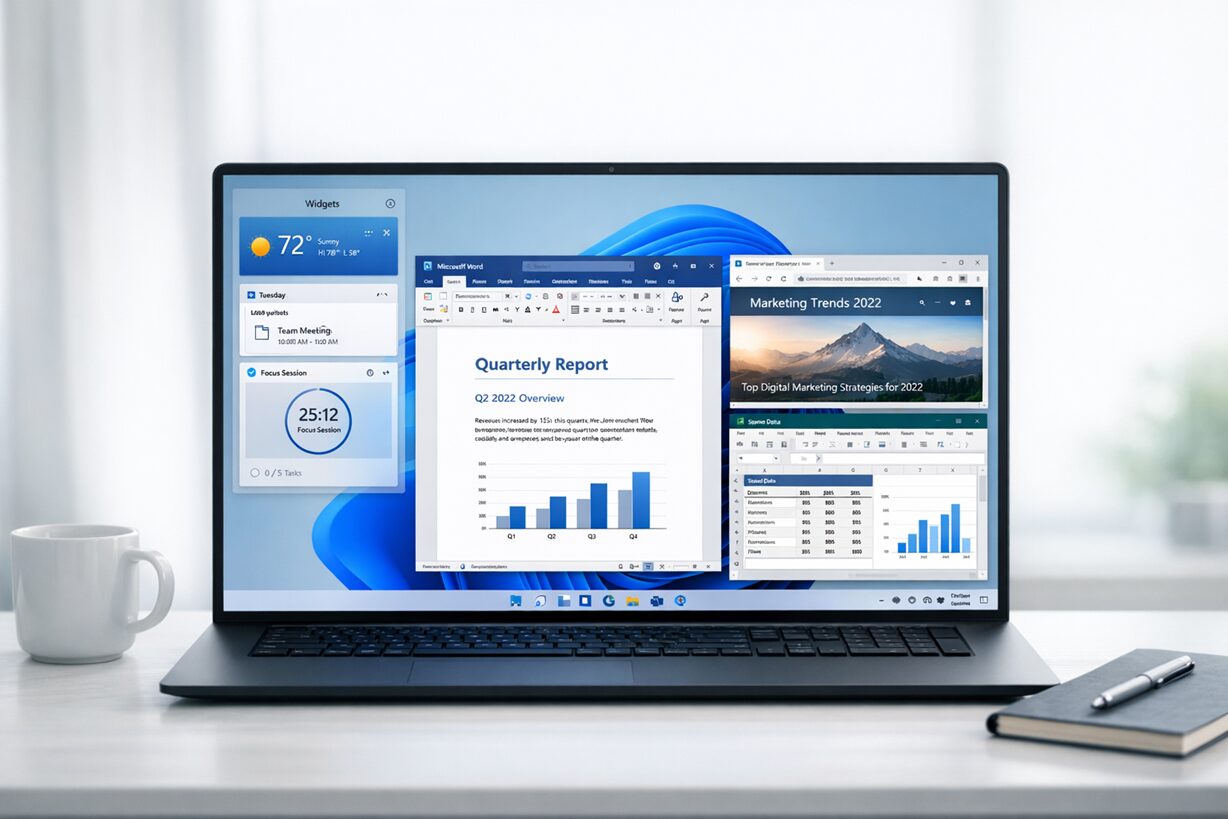
Unlike Windows 10, which evolved gradually over the years, Windows 11 was designed from the ground up to handle hybrid work environments. Features like Snap Layouts weren’t bolted on as afterthoughts; they’re baked into the operating system’s DNA. The new Focus Sessions integrate directly with the Clock app and Microsoft To Do, creating a productivity ecosystem rather than just isolated features. Even something as simple as widget customization has been reimagined to give you information at a glance without disrupting your flow.
The difference matters because our work habits have fundamentally changed. We’re juggling more applications, switching contexts more frequently, and trying to maintain productivity across multiple displays and devices. Windows 11 recognizes this reality and offers tools specifically designed to help you work smarter, not harder.
In this guide, I’m going to walk you through ten productivity features that will genuinely change how you use your computer. These aren’t gimmicks or hidden settings you’ll forget about next week. They’re practical, immediately useful tools that address real pain points in your daily workflow. Whether you’re a creative professional managing multiple projects, a student trying to stay organized, or someone who just wants their computer to work with them instead of against them, these tips will help you reclaim hours of your week.
Let’s dive in and transform your Windows 11 experience from frustrating to frictionless.
1. Master Snap Layouts for Effortless Multitasking
The Problem It Solves: We’ve all been there-manually resizing windows, trying to get two documents side by side, or attempting to reference one app while working in another. It’s tedious, imprecise, and breaks your concentration.
How Snap Layouts Change Everything:
Windows 11’s Snap Layouts feature is like having an invisible assistant that instantly organizes your screen exactly how you need it. When you hover your mouse over the maximize button on any window, a small menu appears showing six different layout options (four on smaller screens). These aren’t just random arrangements-they’re thoughtfully designed patterns that reflect common workflows.
Here’s how to use it effectively:
- Open the applications you want to work with simultaneously (for example, your email client, a web browser, and a spreadsheet).
- Hover over the maximize/restore button (the middle button in the top-right corner) of any window.
- Choose your preferred layout from the pop-up menu. You’ll see options for splitting your screen in halves, thirds, and quarters.
- Click the zone where you want that window to go.
- Windows 11 will then show thumbnails of your other open windows. Click them to snap them into the remaining zones.
Pro tip: Use keyboard shortcuts for even faster snapping. Press Windows Key + Z to bring up the Snap Layout menu instantly, then use arrow keys to select your layout. Once you get comfortable with this, you can arrange multiple windows in seconds rather than minutes.
The real magic happens when you minimize a snap group. Windows 11 remembers these groupings in your taskbar, so when you hover over an app that’s part of a snap group, you’ll see the entire layout preview. Click it, and all your windows restore to their exact positions. This is phenomenal when you’re switching between different projects or workflows throughout the day.
2. Create Virtual Desktops for Different Workflows
The Problem It Solves: Your taskbar is cluttered with a dozen open applications. You’re working on a presentation, but you also have personal email, social media, and tomorrow’s project materials open. Everything bleeds together, making it hard to focus.
How Virtual Desktops Provide Clarity:
Virtual Desktops let you create completely separate workspaces for different aspects of your life or different projects. Think of them as having multiple monitors, but instead of physical screens, you’re creating digital environments that you can switch between instantly.
Here’s your setup guide:
- Click the Task View button on your taskbar (it looks like two overlapping rectangles) or press Windows Key + Tab.
- At the top of the screen, you’ll see your current desktop. Click “New Desktop” to create a new one.
- Give each desktop a meaningful name by clicking on “Desktop 1” and typing something like “Work Project A,” “Personal,” or “Research.”
- You can even customize the background for each desktop to make them visually distinct (right-click the desktop thumbnail and choose “Choose background”).
Making It Work for You:
The key to using Virtual Desktops effectively is establishing clear boundaries. Here’s how I recommend organizing them:
- Desktop 1 – Deep Work: Your main project applications only. No email, no messaging apps, no distractions.
- Desktop 2 – Communication: Email, Slack, Teams, calendar-everything communication-related.
- Desktop 3 – Research/Reference: Browser tabs, PDFs, documentation you need to reference but don’t actively work in.
- Desktop 4 – Personal: Personal email, music, social media, or anything non-work-related.
Switch between desktops using Windows Key + Ctrl + Left/Right Arrow. This keyboard shortcut becomes muscle memory surprisingly quickly, and you’ll find yourself context-switching with zero friction.
When you’re done with a project, close that desktop (hover over it in Task View and click the X). All its windows close at once-no need to hunt down individual applications.
3. Leverage Focus Sessions to Beat Procrastination
The Problem It Solves: You sit down to work, intending to focus for an hour, but 15 minutes later you’re scrolling through news articles or checking social media. Distractions derail your productivity before you’ve built any momentum.
How Focus Sessions Keep You On Track:
Focus Sessions is Windows 11’s built-in Pomodoro timer that integrates directly with your Clock app, Spotify, and Microsoft To Do. It’s not just a timer-it’s a complete focus environment that helps you commit to distraction-free work periods.
Here’s how to set it up:
- Open the Clock app (search for “Clock” in the Start menu).
- Navigate to the “Focus sessions” tab.
- Set your session duration (I recommend starting with 25 minutes if you’re new to this approach).
- Link your Microsoft To Do account to see your tasks directly in the interface.
- Optional but highly effective: Connect Spotify to play focus music during your session.
- Click “Start focus session.”
What Makes This Different:
When a Focus Session is active, Windows 11 automatically enables Do Not Disturb mode, silencing notifications from apps and email. Your Focus Sessions progress syncs across your Microsoft devices, and the app tracks your total focus time, showing you patterns in your productivity.
After each session, you’re prompted to take a break. Use this time to stand up, stretch, grab water, whatever helps you reset. These regular breaks aren’t just nice to have; research shows they’re essential for maintaining high-quality focus throughout the day.
The integration with Microsoft To Do is particularly powerful. Select a task before starting your session, and you’ll have a clear, singular objective for that time block. This eliminates the “what should I work on?” paralysis that often eats up the first ten minutes of your work time.
Pro tip: Build a daily rhythm. I use three 25-minute Focus Sessions before lunch and two afterward. That’s just over two hours of deep work daily-but two hours of genuine, undistracted focus accomplishes more than five hours of half-focused work.
4. Customize Your Widgets for At-a-Glance Information
The Problem It Solves: You constantly open different apps just to check simple information-the weather, your calendar, sports scores, or stock prices. Each interruption costs you focus and time.
How Widgets Streamline Information Access:
The Widgets panel in Windows 11 gives you a customizable dashboard of information that updates in real-time. Instead of opening five different apps to check five different things, you glance at your widgets and get back to work.
Here’s how to make widgets work for you:
- Click the Widgets icon on your taskbar (it looks like squares with weather info) or press Windows Key + W.
- Click the profile icon in the top-right corner, then select “Edit widgets.”
- Browse available widgets and add the ones relevant to your workflow. Options include Weather, Calendar, To Do, Traffic, Sports, Stocks, Photos, and more.
- Arrange them by dragging and dropping. Put your most-referenced widgets at the top.
- Click on individual widgets to customize their settings (like which stocks to track or which teams to follow).
Making Widgets Actually Useful:
The key is intentionality. Don’t just add every widget because you can. Think about information you reference multiple times daily:
- Calendar widget: See your next three meetings without opening Outlook.
- To Do widget: Quick glance at your priority tasks keeps you oriented throughout the day.
- Weather widget: Know what to expect before you leave for that lunch meeting.
- Traffic widget: Check your commute conditions before you pack up.
- Stocks widget: Monitor investments without constantly opening a trading app.
I keep my widgets panel minimal-just Calendar, To Do, and Weather. That’s enough to stay informed without creating another source of distraction. You want widgets to save you time, not become another thing you compulsively check.
Pro tip: The widgets panel appears from the left side of your screen. On a dual-monitor setup, position it on your secondary display so you can keep it open peripherally without covering your main work area.
5. Use PowerToys for Advanced Window Management
The Problem It Solves: The built-in Windows features are good, but power users need more control-custom window layouts, bulk file renaming, advanced keyboard shortcuts, and other productivity superpowers that Windows 11 doesn’t include by default.
How PowerToys Supercharges Your Productivity:
PowerToys is a free, official Microsoft toolkit that adds professional-grade productivity features to Windows 11. Think of it as unlocking Windows 11’s “advanced mode.” The tool is modular, meaning you can enable just the features you need without bloating your system.
Here’s how to get started:
- Download PowerToys from the Microsoft Store or GitHub.
- Install and open PowerToys from your Start menu.
- Browse the available utilities and enable the ones that match your workflow.
Essential PowerToys Features:
FancyZones takes Snap Layouts to the next level by letting you create custom window layouts. Working with three monitors and need very specific window arrangements? FancyZones lets you define exactly where each window should snap. Hold Shift while dragging windows to snap them into your custom zones.
PowerToys Run (activated with Alt + Space) is a quick launcher that makes the Start menu feel sluggish by comparison. Type a few letters of an app name, file, or calculation, and it appears instantly. It can also perform calculations, convert units, and search the web-all from one interface.
Keyboard Manager lets you remap keys and create custom keyboard shortcuts. If you’re switching from Mac and miss certain shortcuts, or you have a keyboard with an awkward layout, this tool solves it.
File Explorer Add-ons enables preview panes for file types Windows doesn’t normally support-like SVG files, markdown documents, and PDF files directly in File Explorer.
Color Picker (Windows Key + Shift + C) lets you grab the color code of any pixel on your screen, invaluable for designers and developers.
Pro tip: Don’t enable everything at once. Start with FancyZones and PowerToys Run. Once those become part of your workflow, explore other utilities one at a time.
6. Master the New File Explorer Tabs
The Problem It Solves: Managing files usually means opening multiple File Explorer windows, losing track of folders, and constantly clicking through your taskbar trying to find the right window. It’s chaos.
How File Explorer Tabs Bring Order:
Windows 11’s tabbed File Explorer works exactly like your web browser-multiple locations open in a single window, organized in tabs. This seemingly simple addition transforms file management from frustrating to fluid.
Here’s how to use tabs effectively:
- Open File Explorer (Windows Key + E).
- Open a new tab by clicking the “+” button next to your current tab or pressing Ctrl + T.
- Navigate to different locations in different tabs.
- Switch between tabs with Ctrl + Tab (forward) or Ctrl + Shift + Tab (backward).
- Close tabs with Ctrl + W or by clicking the X on the tab.
- Drag files between tabs by clicking and dragging the file to the destination tab (it’ll switch automatically), then dropping it in the folder.
Real-World Applications:
This feature shines when you’re working on projects that involve multiple folders:
- Organizing photos from a trip: One tab for SD card contents, one for your photo library, one for the organized folder structure you’re creating.
- Managing a work project: One tab for active files, one for archives, one for reference materials.
- Cleaning up your downloads folder: One tab for downloads, one for documents, one for pictures-sort and move files without opening three windows.
You can also right-click on any folder and select “Open in new tab” to keep your current location while exploring elsewhere. This is perfect for comparing folder contents or maintaining your place while you grab a file from somewhere else.
Pro tip: Combine tabs with Quick Access pinning. Pin your most-used folders to Quick Access (right-click folder > “Pin to Quick Access”), then open them in tabs as needed. Your entire file system becomes navigable from a single window.
7. Optimize Your Quick Settings Panel
The Problem It Solves: You’re constantly diving into Settings to toggle Wi-Fi, adjust volume, switch audio outputs, or change display brightness. Each trip to Settings interrupts your flow and wastes time.
How Quick Settings Puts Control at Your Fingertips:
The Quick Settings panel in Windows 11 consolidates all your frequently adjusted settings into one overlay that appears with a single click. Even better, you can customize which settings appear there, creating a control panel tailored to your specific needs.
Here’s how to set it up:
- Click the network/sound/battery icons in your system tray (bottom-right corner) or press Windows Key + A.
- This opens the Quick Settings panel with default options like Wi-Fi, Bluetooth, Battery Saver, and Focus Assist.
- Click the pencil icon (Edit Quick Settings) in the bottom-right of the panel.
- You’ll now see additional toggle options you can add or remove.
- Drag toggles to rearrange them in your preferred order-put your most-used settings at the top.
Recommended Toggles to Add:
Based on common workflows, consider these toggles:
- Night Light: Reduce blue light in evenings without opening Settings.
- Mobile Hotspot: Share your internet connection with other devices instantly.
- Nearby Sharing: Quickly toggle this when you need to transfer files between Windows devices.
- Project: Essential if you frequently present or use external displays-switch display modes without memorizing Windows Key + P.
- Accessibility: Quick access to features like Magnifier or Narrator if you use them regularly.
For audio settings, Quick Settings also includes a volume mixer. Click the arrow next to the volume slider to adjust individual app volumes-perfect when you want music quieter during a video call without muting it entirely.
Pro tip: The brightness slider in Quick Settings is often faster than using function keys, especially if your laptop’s function keys require holding Fn. Make brightness adjustments with your mouse in one quick motion.
8. Enable Clipboard History for Copy-Paste Superpowers
The Problem It Solves: You copy something, paste it, then realize you need the thing you copied two steps ago. It’s gone. You have to go find it and copy it again. This happens multiple times every single day.
How Clipboard History Saves Your Sanity:
Clipboard History remembers everything you’ve copied recently (up to 25 items or 4MB of data), making it available for instant re-pasting. It’s one of those features that seems minor until you use it, then you wonder how you ever worked without it.
Here’s how to enable and use it:
- Open Settings (Windows Key + I).
- Navigate to System > Clipboard.
- Toggle “Clipboard history” to On.
- Optional but recommended: Enable “Sync across devices” if you use multiple Windows 11 computers with the same Microsoft account.
Using Clipboard History:
Once enabled, press the Windows key and V to open your clipboard history. You’ll see a panel with everything you’ve recently copied: text, images, even small files. Click any item to paste it at your cursor position.
Power User Techniques:
Pin frequently used items: Some text you paste repeatedly-email signatures, addresses, common responses. Click the three-dot menu next to any clipboard item and select “Pin.” Pinned items stay in your history indefinitely and appear at the top for quick access.
Clear sensitive information: After copying passwords or confidential data, press Windows Key + V, click the three-dot menu, and select “Delete” to remove it from your history immediately.
Cross-device syncing: If enabled, anything you copy on your work desktop is available on your laptop. This is incredibly useful for workflows that span multiple devices.
This feature transforms copy-paste from a single-use action into a powerful workflow tool. You can gather information from multiple sources, then paste them all in sequence without constantly switching windows.
Pro tip: Combine this with PowerToys’ “Paste as Plain Text” utility if you frequently paste text and need to strip formatting. But Clipboard History alone will save you dozens of unnecessary copy operations every day.
9. Utilize Voice Typing for Faster Content Creation
The Problem It Solves: Typing long documents, emails, or reports is time-consuming and can strain your wrists and fingers. Some thoughts flow better when spoken aloud than when typed.
How Voice Typing Accelerates Writing:
Windows 11 includes sophisticated voice typing that’s accurate, fast, and works in any application where you can type text. It uses the same speech recognition technology as Microsoft’s other products, meaning it’s genuinely useful rather than a gimmicky feature you’ll abandon after one use.
Here’s how to use it:
- Click into any text field-email, document, search bar, anywhere you can type.
- Press Windows Key + H to activate voice typing.
- A microphone icon appears at the top of your screen. When it’s blue, you’re ready to speak.
- Speak naturally. The system handles punctuation if you say things like “comma,” “period,” “new line,” or “question mark.”
- Press Windows Key + H again or click the microphone icon to stop voice typing.
Making Voice Typing Effective:
Voice typing works best when you:
- Speak in complete thoughts: Instead of word-by-word dictation, speak full sentences. The AI uses context to improve accuracy.
- Learn punctuation commands: Say “period,” “comma,” “question mark,” “exclamation point,” “new line,” and “new paragraph” to control formatting.
- Embrace editing afterward: Draft quickly via voice, then polish with keyboard edits. This hybrid approach is faster than either method alone.
- Use it for appropriate content: Great for emails, rough drafts, brainstorming, and journaling. Less ideal for code or content requiring precise formatting.
The accuracy is impressive, easily 90-95% with clear speech and a decent microphone. Your laptop’s built-in mic usually works fine, but a USB headset microphone improves accuracy noticeably.
Real-World Applications:
- Email responses: Dictate replies while walking around your office or home, making better use of break time.
- Meeting notes: Speak your observations immediately after a meeting while they’re fresh.
- First drafts: Get ideas out of your head quickly without the friction of typing slowing your thinking.
- Accessibility: Essential for anyone with repetitive strain injuries or conditions that make typing difficult.
Pro tip: Voice typing learns from your corrections. If it consistently mishears a word, correct it, and the system improves over time, especially with technical terms or names specific to your field.
10. Set Up Smart App Control for Distraction-Free Security
The Problem It Solves: Security software constantly interrupts you with notifications, warnings, and decisions. You’re never quite sure if that app is safe to install, so you either risk it or waste time researching.
How Smart App Control Works for You:
Smart App Control is Windows 11’s AI-powered security feature that makes safety decisions in the background without bothering you. It analyzes applications before they run, automatically blocking malicious or unrecognized software while allowing trusted apps to run without interruption.
Here’s how to enable it (note: this works best on clean installs or new devices):
- Open Settings (Windows Key + I).
- Navigate to Privacy & security > Windows Security > App & browser control.
- Click “Smart App Control settings.”
- Select “On” if available.
Understanding the Feature:
Smart App Control operates in three modes:
- On: Maximum protection. Only apps with good reputation or signed by trusted developers run automatically. Unfamiliar apps are blocked.
- Evaluation: Windows 11 monitors your app usage patterns to determine if turning on Smart App Control would interrupt your workflow. This mode learns your habits.
- Off: No Smart App Control protection (relies on traditional Windows Defender).
Why This Improves Productivity:
The productivity benefit isn’t obvious at first glance-it’s about what doesn’t happen. You’re not interrupted by security warnings about every download. You’re not researching whether a file is safe. You’re not recovering from malware infections that destroy a day’s work.
Smart App Control makes security invisible, which is exactly how it should be. It’s particularly valuable if you:
- Download software frequently for testing or work purposes
- Use apps from various developers, not just major companies
- Want protection without becoming a security expert yourself
- Value uninterrupted focus time and can’t afford constant security decisions
Important Limitations:
Smart App Control can be restrictive if you regularly install niche software or compile your own applications. Developers and power users who run unsigned code frequently may find it too limiting. In those cases, “Evaluation” mode or relying on Windows Defender with controlled folder access might work better.
Pro tip: If you’re setting up a new Windows 11 device, enable Smart App Control immediately during setup. It works best when activated from the beginning rather than added later to a system with established app patterns.
Small Changes, Big Impact
The beauty of these Windows 11 productivity features is that none of them require you to completely overhaul how you work. You’re not learning complex new software or memorizing dozens of keyboard shortcuts. You’re simply using tools that Microsoft built directly into your operating system-tools designed to eliminate friction from your daily computing tasks.
Start with just two or three features that address your biggest pain points. If window management frustrates you, master Snap Layouts first. If distractions derail your focus, begin with Focus Sessions. If you lose track of what you copied five minutes ago, enable Clipboard History today.
These aren’t productivity hacks in the gimmicky sense. They’re thoughtful features that respect your time and attention. Windows 11 finally feels like it was designed for how we actually work-managing multiple projects, staying focused amid constant digital demands, and trying to maintain some semblance of organization in an increasingly complex digital workspace.
The difference between someone who struggles with Windows 11 and someone who thrives with it often comes down to knowing these features exist and taking 30 minutes to set them up properly. You’ve invested that time by reading this guide. Now invest another 30 minutes implementing the features that resonated with you.
Your future self-the one who’s snapping windows effortlessly, staying focused through entire work sessions, and navigating files without frustration-will thank you.