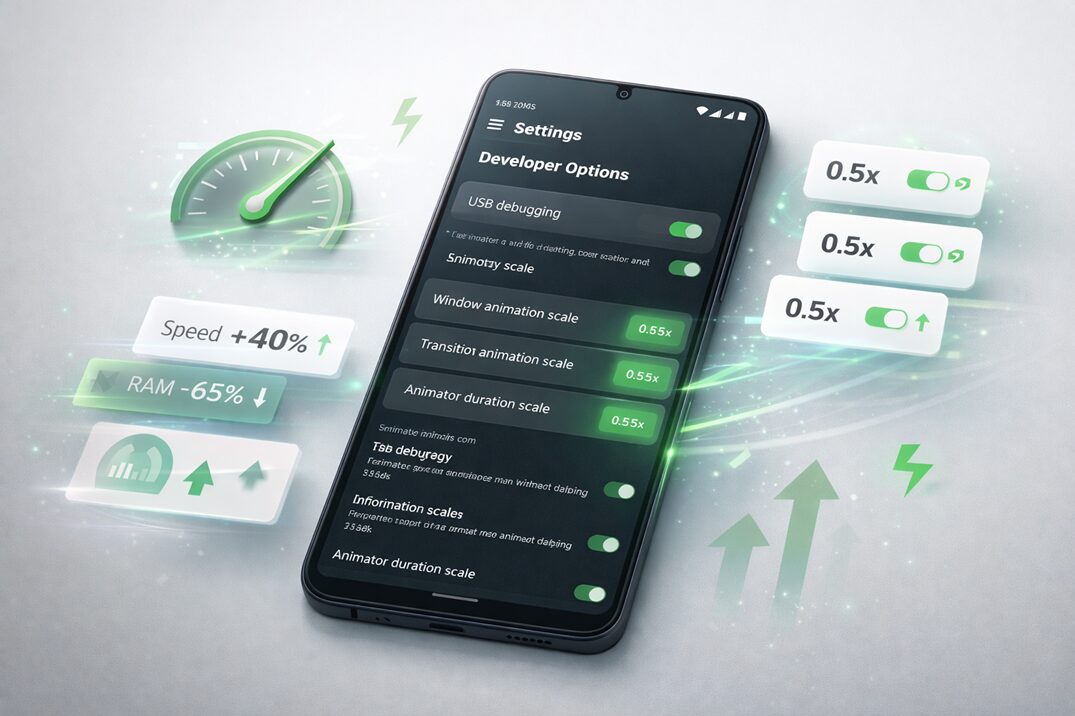
Your Android phone is hiding a treasure trove of performance-boosting features that most people never discover. While iPhones keep everything locked down tight, Android’s open nature means there are dozens of settings buried in the system that can dramatically improve how your phone runs-if you know where to look.
I’ve been tinkering with Android devices for years, and I’m constantly amazed at how many people struggle with sluggish performance when the solutions are literally sitting in their settings menu. The thing about Android is that it’s designed to be incredibly customizable, but that also means the really powerful features are often hidden away to avoid overwhelming casual users.
Whether you’re dealing with apps that take forever to open, animations that stutter, or a phone that feels like it’s running through molasses, these hidden settings can make your device feel brand new again. And the best part? You don’t need to be a tech expert or root your phone to access any of them.
Let’s dive into the settings that can transform your Android experience right now.
1. Enable Developer Options and Reduce Animation Scales
This is the single most impactful change you can make to your Android phone’s perceived speed. By default, Android uses animations whenever you open apps, switch between screens, or navigate your phone. While these look nice, they also make everything feel slower than it actually is.
How to do it:
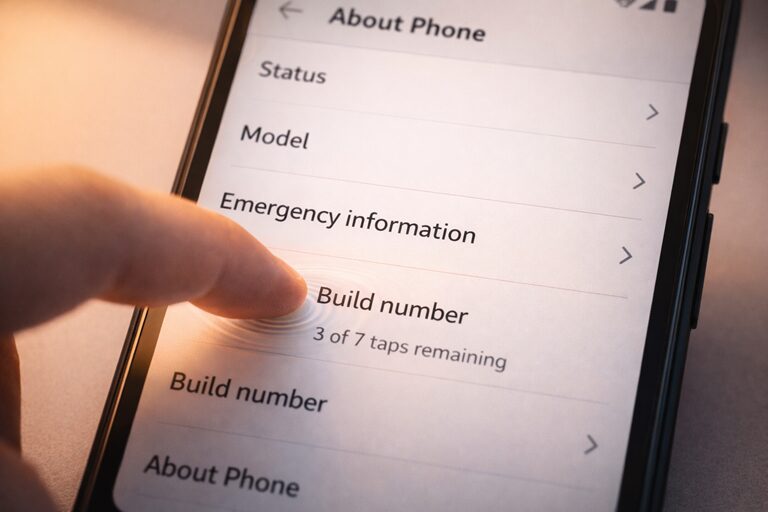
First, you need to unlock Developer Options (don’t worry, it won’t void your warranty):
- Go to Settings > About Phone
- Find Build Number (it might be under “Software Information” on Samsung devices)
- Tap Build Number 7 times rapidly
- You’ll see a message saying “You are now a developer!”
Now you can access Developer Options:
- Go back to Settings and scroll down to Developer Options (usually under System or near the bottom)
- Scroll down to the Drawing section
- Find these three settings and change each from 1x to .5x or even off:
- Window animation scale
- Transition animation scale
- Animator duration scale
The difference is immediately noticeable. Your phone will feel twice as fast because everything responds instantly instead of waiting for animations to finish. I personally keep mine at .5x because turning them completely off can feel a bit jarring, but try both and see what you prefer.
2. Limit Background Processes
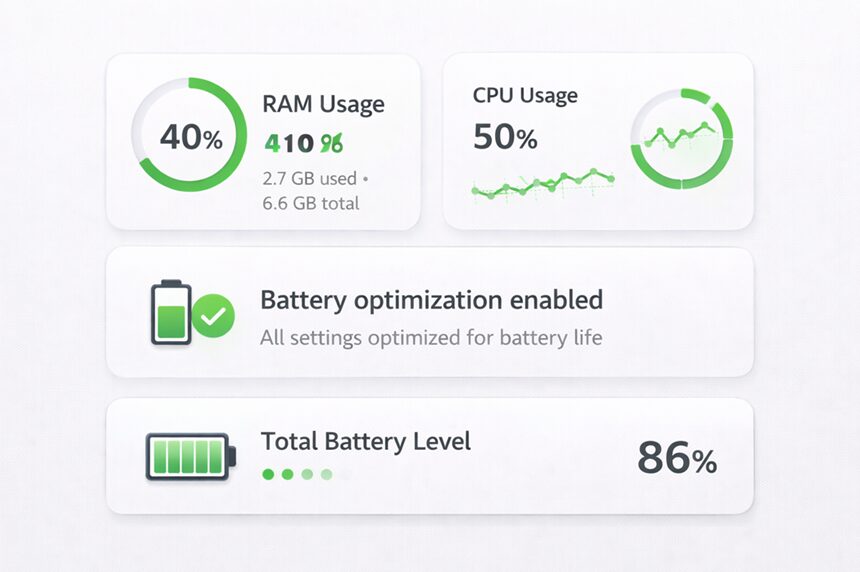
Android is designed to keep apps running in the background so they open faster when you need them. While this sounds good in theory, it can actually bog down your phone, especially if you have dozens of apps all competing for resources.
How to do it:
- Open Developer Options (see above if you haven’t enabled it)
- Scroll down to the Apps section
- Find Background process limit
- Change it from “Standard limit” to “At most 3 processes” or “At most 4 processes”
This forces Android to be more aggressive about closing apps you’re not actively using. Yes, apps might take a split second longer to open the first time, but your overall system performance will improve dramatically because your RAM isn’t being eaten up by apps you opened three days ago.
I’ve found that 3-4 processes is the sweet spot for most phones. Any fewer and you’ll notice apps restarting too often; any more and you’re not really gaining much benefit.
3. Disable or Uninstall Bloatware
Every Android phone comes loaded with apps you didn’t ask for and will never use. Samsung phones are notorious for this, with dozens of duplicate apps that do the same thing as Google’s versions. These apps don’t just take up storage space-many of them run in the background constantly, using up RAM and battery.
How to do it:
- Go to Settings > Apps
- Tap on any app you don’t use
- If you see Uninstall, tap it
- If you only see Disable, tap that instead (this prevents the app from running)
Focus on disabling these common culprits:
- Manufacturer-specific apps you don’t use (Samsung Health if you use Google Fit, for example)
- Carrier apps (NFL Mobile, VZ Navigator, etc.)
- Duplicate apps (two gallery apps, two browsers, etc.)
- Pre-installed games
Be careful not to disable anything that says “system” or has a generic name like “com.android.systemui”-stick to apps with recognizable names. When in doubt, Google the app name first.
Important note: You can always re-enable apps later from the same menu if you disabled something you actually needed.
4. Change Your Phone’s Display Resolution
This one’s a bit controversial, but hear me out. Most modern Android phones have incredibly high-resolution screens, we’re talking 1440p or even higher. While this looks gorgeous, it also requires your processor and GPU to work much harder to render everything on screen.
How to do it:
On Samsung devices:
- Go to Settings > Display > Screen resolution
- Change from QHD+ or WQHD+ to FHD+ (Full HD)
On other Android devices:
- You might need to use ADB commands or third-party apps like Screen Shift
- Some manufacturers don’t offer this option in settings
The truth is, most people can’t tell the difference between 1440p and 1080p on a phone screen, especially if you’re not holding the phone three inches from your face. But your phone’s processor and battery definitely notice the difference. I’ve been running my Samsung on FHD+ for two years and have never once wished for higher resolution.
You’ll gain both performance and battery life with this change-it’s basically a two-for-one deal.
5. Turn Off Auto-Sync for Apps You Don’t Need in Real-Time
Android’s auto-sync feature constantly checks for new emails, social media updates, and app data in the background. While this is useful for apps you need immediate notifications from, it’s completely unnecessary for many apps and creates constant background activity that drains resources.
How to do it:
- Go to Settings > Accounts (or Passwords and Accounts)
- Tap on each account (Google, Samsung, etc.)
- Tap Account sync
- Turn off sync for apps you don’t need updating constantly
For example, do you really need your Google Photos to sync every single photo the second you take it? Or can that wait until you’re on WiFi? Do you need Google Play Books syncing your reading progress in real-time?
I keep sync on for Gmail, Calendar, and Contacts, but turn it off for everything else. This significantly reduces background activity and improves both performance and battery life.
You can still manually sync any app whenever you want-just open it and pull down to refresh.
6. Clear Cached Data Regularly
Apps store temporary files called cache to make things load faster. But over time, this cache can grow to gigabytes of data and actually slow things down. Think of it like your desk drawer-eventually, it gets so full that finding anything takes forever.
How to do it:
For individual apps:
- Go to Settings > Apps
- Tap any app
- Tap Storage
- Tap Clear Cache (not Clear Data-that will delete your app settings)
For system cache (older Android versions):
- Turn off your phone
- Press and hold Volume Up + Power (button combination varies by manufacturer)
- Use volume buttons to navigate to Wipe Cache Partition
- Select it with the power button
On newer Android versions, the system manages cache automatically, but you should still clear app caches periodically for apps you use frequently, especially:
- Social media apps (Facebook, Instagram, Twitter)
- Streaming apps (YouTube, Netflix, Spotify)
- Web browsers (Chrome, Firefox)
I clear my caches about once a month, and it’s shocking how much space some apps accumulate. I’ve seen Facebook with over 2GB of cached data.
7. Disable Animations in Individual Apps
Beyond the system-wide animations we discussed earlier, many apps have their own built-in animations and transitions. These can be particularly noticeable in heavy apps like Facebook, Instagram, or Twitter.
How to do it:
This varies by app, but here are common examples:
For Chrome:
- Type
chrome://flagsin the address bar - Search for “animation”
- Disable smooth scrolling and other animation-related flags
For Twitter:
- Go to Settings and Privacy > Accessibility, display, and languages > Display and sound
- Turn on Reduce motion
For Reddit (official app):
- Go to Settings > Reduce Animations
Many apps are now including accessibility options for reducing motion, which essentially turns off their custom animations. Check your most-used apps to see if they offer this option. It can make a huge difference in how snappy apps feel.
8. Use Lite or Go Versions of Apps
Google and other developers have created “Lite” or “Go” versions of popular apps specifically designed for lower-end devices or limited data. But here’s the secret: these lightweight versions can make even flagship phones feel faster because they use fewer resources.
Recommended lite apps to try:
- Facebook Lite instead of Facebook
- Messenger Lite instead of Messenger
- Twitter Lite (web app) instead of the full Twitter app
- Google Go, Gmail Go, Maps Go, etc.
- TikTok Lite
These apps are typically 5-10x smaller than their full-sized counterparts and use significantly less RAM. They might have slightly fewer features, but they include all the core functionality most people actually use.
I switched to Facebook Lite years ago and never looked back. The app opens instantly, scrolls smoothly, and doesn’t drain my battery. Plus, it takes up about 10MB instead of 400MB.
Download from: Google Play Store – just search for “[app name] Lite”
9. Disable Digital Wellbeing and Parental Controls (If You Don’t Use Them)
Digital Wellbeing is Google’s feature that tracks how much time you spend on your phone and in specific apps. While this can be useful if you’re trying to reduce screen time, it also runs constantly in the background monitoring your usage, which uses system resources.
How to do it:
- Go to Settings > Digital Wellbeing & Parental Controls
- Tap the three-dot menu in the top right
- Select Turn off usage access
Alternatively, you can disable it completely:
- Go to Settings > Apps
- Show system apps (usually a menu in the top right)
- Find Digital Wellbeing
- Tap Disable
The same goes for parental controls or any other monitoring features you’re not actively using. They’re constantly running in the background, and if you don’t need them, they’re just wasting resources.
This is a small change, but every little bit helps, especially on older or lower-end devices.
10. Force GPU Rendering
By default, Android uses your phone’s CPU to render 2D graphics in most apps. However, your phone also has a dedicated GPU (graphics processing unit) that’s specifically designed to handle graphics more efficiently. You can force Android to use the GPU for all rendering, which can significantly improve performance.
How to do it:
- Open Developer Options
- Scroll to the Hardware accelerated rendering section
- Enable Force GPU rendering
This setting makes your GPU handle the visual rendering work instead of your CPU, which frees up CPU resources for other tasks. It can make scrolling smoother, transitions faster, and overall UI interactions more responsive.
A word of caution: This can slightly increase battery usage since you’re powering both the CPU and GPU more actively. However, on most modern devices, the performance gain is worth the minimal battery impact. Try it for a day and see how you feel about the tradeoff.
On some devices, certain apps might display visual glitches with this enabled. If you notice any strange graphical issues, you can always turn it back off.
Bonus Tips for Maximum Performance
If you’ve done all ten of the above and want to squeeze even more performance out of your Android device, here are a few additional tweaks:
Restart your phone regularly: It sounds simple, but restarting clears out memory leaks and background processes that accumulate over time. Once a week is a good schedule.
Keep your Android version updated: Security patches and software updates often include performance improvements. Go to Settings > System > System update to check.
Use static wallpapers instead of live wallpapers: Live wallpapers are constantly running and rendering animations, which uses CPU and GPU resources.
Disable or limit widgets: Every widget on your home screen is running and updating in the background. Keep only the ones you actually use.
Factory reset as a last resort: If your phone is still sluggish after all these tweaks, a factory reset can work wonders by clearing out years of accumulated digital clutter. Just make sure to back everything up first.
The Bottom Line
Android’s openness is both its greatest strength and its biggest weakness. These hidden settings exist because different users have different priorities-some want the flashiest animations and every feature turned on, while others prioritize raw speed and efficiency.
The beauty of these tweaks is that they’re all reversible. If you try something and don’t like it, you can always go back. I encourage you to experiment and find the combination that works best for your device and usage patterns.
After implementing even just a few of these settings, most people notice their phone feels significantly faster. Apps open quicker, scrolling is smoother, and the overall experience becomes more responsive. And you didn’t have to buy a new phone or root your device to get these benefits; they were there all along, just waiting to be unlocked.
Give these settings a try and let your Android phone show you what it’s really capable of. You might be surprised at how much performance you’ve been leaving on the table.